
Similarity Search#
The FiftyOne Brain provides a
compute_similarity() method that
you can use to index the images or object patches in a dataset by similarity.
Once you’ve indexed a dataset by similarity, you can use the
sort_by_similarity()
view stage to programmatically sort your dataset by similarity to any image(s)
or object patch(es) of your choice in your dataset. In addition, the App
provides a convenient point-and-click interface for
sorting by similarity with respect to an index on a dataset.
Note
Did you know? You can search by natural language using similarity indexes!
Embedding methods#
Like embeddings visualization, similarity leverages deep embeddings to generate an index for a dataset.
The embeddings and model parameters of
compute_similarity() support a
variety of ways to generate embeddings for your data:
Provide nothing, in which case a default general purpose model is used to index your data
Provide a
Modelinstance or the name of any model from the Model Zoo that supports embeddingsProvide your own precomputed embeddings in array form
Provide the name of a
VectorFieldorArrayFieldof your dataset in which precomputed embeddings are stored
Similarity backends#
By default, all similarity indexes are served using a builtin
scikit-learn backend, but you can pass the
optional backend parameter to
compute_similarity() to switch to
another supported backend:
sklearn (default): a scikit-learn backend
qdrant: a Qdrant backend
redis: a Redis backend
pinecone: a Pinecone backend
mongodb: a MongoDB backend
elasticsearch: a Elasticsearch backend
pgvector: a PostgreSQL Pgvector backend
mosaic: a Databricks Mosaic AI backend
milvus: a Milvus backend
lancedb: a LanceDB backend
1import fiftyone.brain as fob
2
3results = fob.compute_similarity(
4    dataset,
5    backend="sklearn",  # "sklearn", "qdrant", "redis", etc
6    brain_key="...",
7    ...
8)
Note
Refer to this section for more information about creating, managing and deleting similarity indexes.
Image similarity#
This section demonstrates the basic workflow of:
Indexing an image dataset by similarity
Using the App’s image similarity UI to query by visual similarity
Using the SDK’s
sort_by_similarity()view stage to programmatically query the index
To index a dataset by image similarity, pass the Dataset or DatasetView of
interest to compute_similarity()
along with a name for the index via the brain_key argument.
Next load the dataset in the App and select some image(s). Whenever there is an active selection in the App, a similarity icon will appear above the grid, enabling you to sort by similarity to your current selection.
You can use the Similarity Search panel for advanced search options, run management, and search history.
 1import fiftyone as fo
 2import fiftyone.brain as fob
 3import fiftyone.zoo as foz
 4
 5dataset = foz.load_zoo_dataset("quickstart")
 6
 7# Index images by similarity
 8fob.compute_similarity(
 9    dataset,
10    model="clip-vit-base32-torch",
11    brain_key="img_sim",
12)
13
14session = fo.launch_app(dataset)
Note
In the example above, we specify a zoo model with which to generate embeddings, but you can also provide precomputed embeddings.
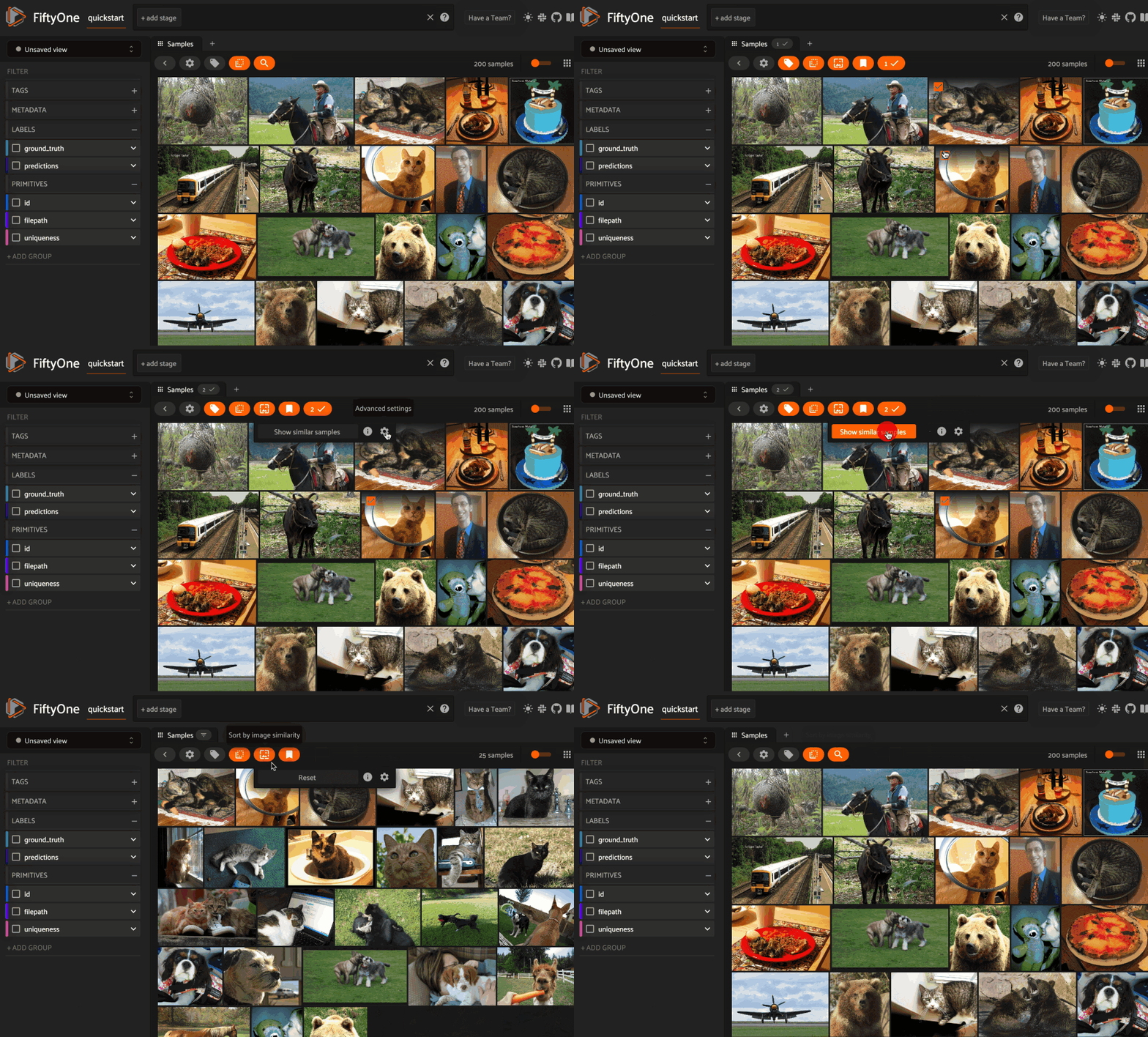
Alternatively, you can use the
sort_by_similarity()
view stage to programmatically construct a view that
contains the sorted results:
1# Choose a random image from the dataset
2query_id = dataset.take(1).first().id
3
4# Programmatically construct a view containing the 15 most similar images
5view = dataset.sort_by_similarity(query_id, k=15, brain_key="img_sim")
6
7session.view = view
Note
Performing a similarity search on a DatasetView will only return
results from the view; if the view contains samples that were not included
in the index, they will never be included in the result.
This means that you can index an entire Dataset once and then perform
searches on subsets of the dataset by
constructing views that contain the images of
interest.
Note
For large datasets, you may notice longer load times the first time you use a similarity index in a session. Subsequent similarity searches will use cached results and will be faster!
Object similarity#
This section demonstrates the basic workflow of:
Indexing a dataset of objects by similarity
Using the App’s object similarity UI to query by visual similarity
Using the SDK’s
sort_by_similarity()view stage to programmatically query the index
You can index any objects stored on datasets in Detection, Detections,
Polyline, or Polylines format. See this section for
more information about adding labels to your datasets.
To index by object patches, simply pass the Dataset or DatasetView of
interest to compute_similarity()
along with the name of the patches field and a name for the index via the
brain_key argument.
Next load the dataset in the App and switch to object patches view by clicking the patches icon above the grid and choosing the label field of interest from the dropdown.
Now whenever you have selected one or more patches in the App, a similarity icon will appear above the grid, enabling you to sort by similarity to your current selection.
You can also use the Similarity Search panel for advanced search options, run management, and search history.
 1import fiftyone as fo
 2import fiftyone.brain as fob
 3import fiftyone.zoo as foz
 4
 5dataset = foz.load_zoo_dataset("quickstart")
 6
 7# Index ground truth objects by similarity
 8fob.compute_similarity(
 9    dataset,
10    patches_field="ground_truth",
11    model="clip-vit-base32-torch",
12    brain_key="gt_sim",
13)
14
15session = fo.launch_app(dataset)
Note
In the example above, we specify a zoo model with which to generate embeddings, but you can also provide precomputed embeddings.
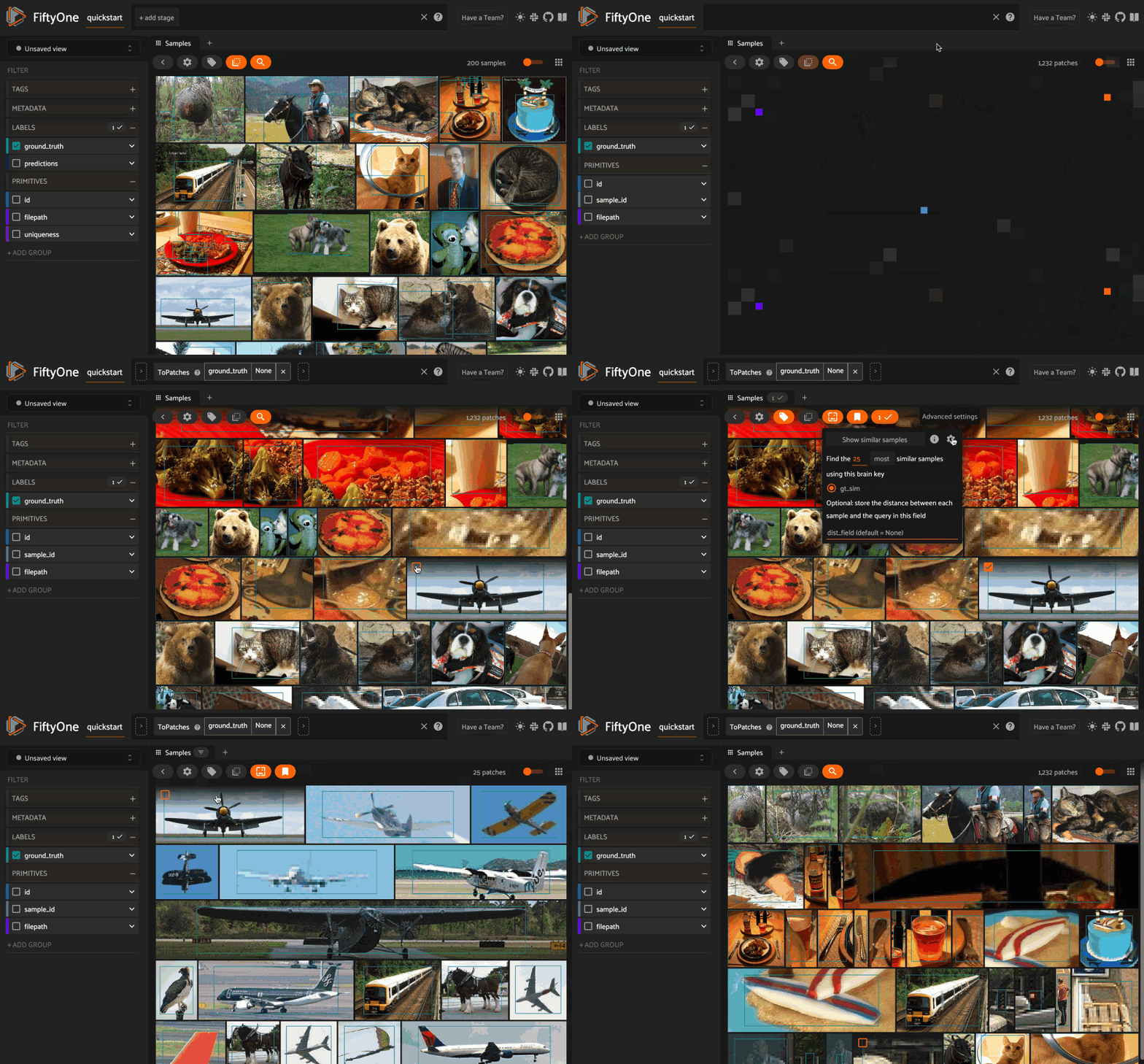
Alternatively, you can directly use the
sort_by_similarity()
view stage to programmatically construct a view that
contains the sorted results:
 1# Convert to patches view
 2patches = dataset.to_patches("ground_truth")
 3
 4# Choose a random patch object from the dataset
 5query_id = patches.take(1).first().id
 6
 7# Programmatically construct a view containing the 15 most similar objects
 8view = patches.sort_by_similarity(query_id, k=15, brain_key="gt_sim")
 9
10session.view = view
Note
Performing a similarity search on a DatasetView will only return
results from the view; if the view contains objects that were not included
in the index, they will never be included in the result.
This means that you can index an entire Dataset once and then perform
searches on subsets of the dataset by
constructing views that contain the objects of
interest.
Note
For large datasets, you may notice longer load times the first time you use a similarity index in a session. Subsequent similarity searches will use cached results and will be faster!
Text similarity#
When you create a similarity index powered by the CLIP model, you can also search by arbitrary natural language queries natively in the App, including via the Similarity Search panel!
 1import fiftyone as fo
 2import fiftyone.brain as fob
 3import fiftyone.zoo as foz
 4
 5dataset = foz.load_zoo_dataset("quickstart")
 6
 7# Index images by similarity
 8image_index = fob.compute_similarity(
 9    dataset,
10    model="clip-vit-base32-torch",
11    brain_key="img_sim",
12)
13
14session = fo.launch_app(dataset)
You can verify that an index supports text queries by checking that it
supports_prompts:
1# If you have already loaded the index
2print(image_index.config.supports_prompts)  # True
3
4# Without loading the index
5info = dataset.get_brain_info("img_sim")
6print(info.config.supports_prompts)  # True
 1import fiftyone as fo
 2import fiftyone.brain as fob
 3import fiftyone.zoo as foz
 4
 5dataset = foz.load_zoo_dataset("quickstart")
 6
 7# Index ground truth objects by similarity
 8object_index = fob.compute_similarity(
 9    dataset,
10    patches_field="ground_truth",
11    model="clip-vit-base32-torch",
12    brain_key="gt_sim",
13)
14
15session = fo.launch_app(dataset)
You can verify that an index supports text queries by checking that it
supports_prompts:
1# If you have already loaded the index
2print(object_index.config.supports_prompts)  # True
3
4# Without loading the index
5info = dataset.get_brain_info("gt_sim")
6print(info.config.supports_prompts)  # True
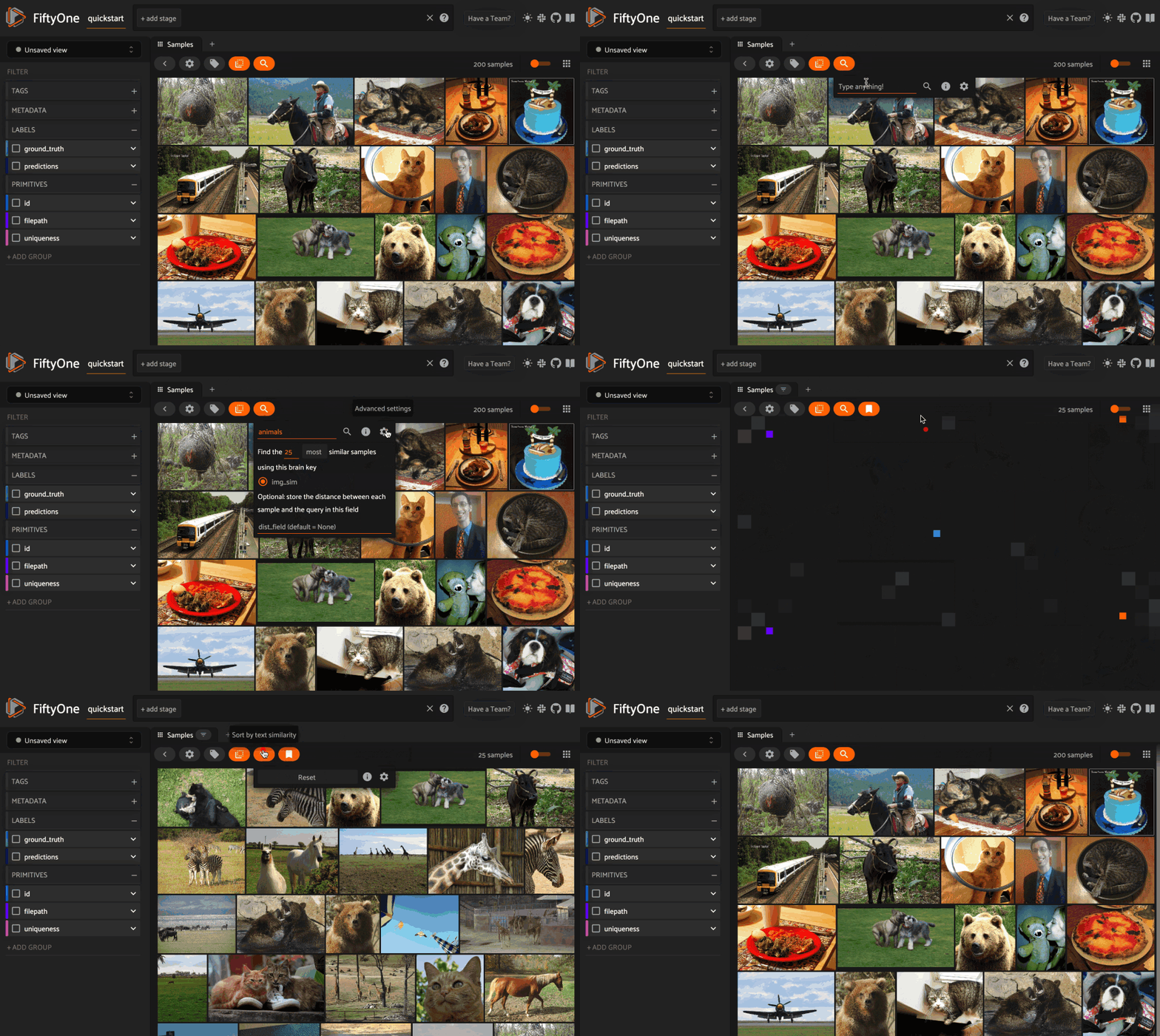
You can also perform text queries via the SDK by passing a prompt directly to
sort_by_similarity()
along with the brain_key of a compatible similarity index:
1# Perform a text query
2query = "kites high in the air"
3view = dataset.sort_by_similarity(query, k=15, brain_key="img_sim")
4
5session.view = view
1# Convert to patches view
2patches = dataset.to_patches("ground_truth")
3
4# Perform a text query
5query = "cute puppies"
6view = patches.sort_by_similarity(query, k=15, brain_key="gt_sim")
7
8session.view = view
Note
In general, any custom model that is made available via the
model zoo interface that implements the
PromptMixin interface can
support text similarity queries!
Note
Pass the model’s name rather than a model instance when creating an
index that you want to query by text. An index created from a
Model instance has no way to reload
that model later, so its text queries will not work in the App or in future
Python sessions:
1# Text queries work in the App and in future sessions
2fob.compute_similarity(
3    dataset, model="clip-vit-base32-torch", brain_key="sim"
4)
5
6# Text queries work only in the current session
7model = foz.load_zoo_model("clip-vit-base32-torch")
8fob.compute_similarity(dataset, model=model, brain_key="sim")
Note
You can provide precomputed embeddings and a model name, which
retains text query support for embeddings that you generated yourself:
1fob.compute_similarity(
2    dataset,
3    embeddings=embeddings,  # precomputed
4    model="clip-vit-base32-torch",
5    brain_key="sim",
6)
This is the supported path for data whose embeddings cannot be generated by
applying a model to the samples’ media, since
Model declares a media_type of
either "image" or "video".
Similarity API#
This section describes how to setup, create, and manage similarity indexes in detail.
Changing your similarity backend#
You can use a specific backend for a particular similarity index by passing the
backend parameter to
compute_similarity():
1index = fob.compute_similarity(..., backend="<backend>", ...)
Alternatively, you can change your default similarity backend for an entire
session by setting the FIFTYONE_BRAIN_DEFAULT_SIMILARITY_BACKEND environment
variable.
export FIFTYONE_BRAIN_DEFAULT_SIMILARITY_BACKEND=<backend>
Finally, you can permanently change your default similarity backend by
updating the default_similarity_backend key of your
brain config at ~/.fiftyone/brain_config.json:
{
    "default_similarity_backend": "<backend>",
    "similarity_backends": {
        "<backend>": {...},
        ...
    }
}
Configuring your backend#
Similarity backends may be configured in a variety of backend-specific ways,
which you can see by inspecting the parameters of a backend’s associated
SimilarityConfig class.
The relevant classes for the builtin similarity backends are:
sklearn:
fiftyone.brain.internal.core.sklearn.SklearnSimilarityConfigqdrant:
fiftyone.brain.internal.core.qdrant.QdrantSimilarityConfigredis:
fiftyone.brain.internal.core.redis.RedisSimilarityConfigpinecone:
fiftyone.brain.internal.core.pinecone.PineconeSimilarityConfigmongodb:
fiftyone.brain.internal.core.mongodb.MongoDBSimilarityConfigelasticsearch:
fiftyone.brain.internal.core.elasticsearch.ElasticsearchSimilarityConfigpgvector:
fiftyone.brain.internal.core.pgvector.PgVectorSimilarityConfigmosaic:
fiftyone.brain.internal.core.mosaic.MosaicSimilarityConfigmilvus:
fiftyone.brain.internal.core.milvus.MilvusSimilarityConfiglancedb:
fiftyone.brain.internal.core.lancedb.LanceDBSimilarityConfig
You can configure a similarity backend’s parameters for a specific index by
simply passing supported config parameters as keyword arguments each time you
call compute_similarity():
1index = fob.compute_similarity(
2    ...
3    backend="qdrant",
4    url="http://localhost:6333",
5)
Alternatively, you can more permanently configure your backend(s) via your brain config.
Creating an index#
The compute_similarity() method
provides a number of different syntaxes for initializing a similarity index.
Let’s see some common patterns on the quickstart dataset:
1import fiftyone as fo
2import fiftyone.brain as fob
3import fiftyone.zoo as foz
4
5dataset = foz.load_zoo_dataset("quickstart")
Default behavior#
With no arguments, embeddings will be automatically computed for all images or patches in the dataset using a default model and added to a new index in your default backend:
1tmp_index = fob.compute_similarity(dataset, brain_key="tmp")
2
3print(tmp_index.config.method)  # 'sklearn'
4print(tmp_index.config.model)  # 'mobilenet-v2-imagenet-torch'
5print(tmp_index.total_index_size)  # 200
6
7dataset.delete_brain_run("tmp")
 1tmp_index = fob.compute_similarity(
 2    dataset,
 3    patches_field="ground_truth",   # field containing objects of interest
 4    brain_key="tmp",
 5)
 6
 7print(tmp_index.config.method)  # 'sklearn'
 8print(tmp_index.config.model)  # 'mobilenet-v2-imagenet-torch'
 9print(tmp_index.total_index_size)  # 1232
10
11dataset.delete_brain_run("tmp")
Custom model, custom backend, add embeddings later#
With the syntax below, we’re specifying a similarity backend of our choice,
specifying a custom model from the Model Zoo to use to
generate embeddings, and using the embeddings=False syntax to create
the index without initially adding any embeddings to it:
1image_index = fob.compute_similarity(
2    dataset,
3    model="clip-vit-base32-torch",  # custom model
4    embeddings=False,               # add embeddings later
5    backend="sklearn",              # custom backend
6    brain_key="img_sim",
7)
8
9print(image_index.total_index_size)  # 0
 1object_index = fob.compute_similarity(
 2    dataset,
 3    patches_field="ground_truth",   # field containing objects of interest
 4    model="clip-vit-base32-torch",  # custom model
 5    embeddings=False,               # add embeddings later
 6    backend="sklearn",              # custom backend
 7    brain_key="gt_sim",
 8)
 9
10print(object_index.total_index_size)  # 0
Precomputed embeddings#
You can pass precomputed image or object embeddings to
compute_similarity() via the
embeddings argument:
 1model = foz.load_zoo_model("clip-vit-base32-torch")
 2embeddings = dataset.compute_embeddings(model)
 3
 4tmp_index = fob.compute_similarity(
 5    dataset,
 6    model="clip-vit-base32-torch",  # store model's name for future use
 7    embeddings=embeddings,          # precomputed image embeddings
 8    brain_key="tmp",
 9)
10
11print(tmp_index.total_index_size)  # 200
12
13dataset.delete_brain_run("tmp")
 1model = foz.load_zoo_model("clip-vit-base32-torch")
 2embeddings = dataset.compute_patch_embeddings(model, "ground_truth")
 3
 4tmp_index = fob.compute_similarity(
 5    dataset,
 6    patches_field="ground_truth",   # field containing objects of interest
 7    model="clip-vit-base32-torch",  # store model's name for future use
 8    embeddings=embeddings,          # precomputed patch embeddings
 9    brain_key="tmp",
10)
11
12print(tmp_index.total_index_size)  # 1232
13
14dataset.delete_brain_run("tmp")
Adding embeddings to an index#
You can use
add_to_index()
to add new embeddings or overwrite existing embeddings in an index at any time:
 1image_index = dataset.load_brain_results("img_sim")
 2print(image_index.total_index_size)  # 0
 3
 4view1 = dataset[:100]
 5view2 = dataset[100:]
 6
 7#
 8# Approach 1: use the index to compute embeddings for `view1`
 9#
10
11embeddings, sample_ids, _ = image_index.compute_embeddings(view1)
12image_index.add_to_index(embeddings, sample_ids)
13print(image_index.total_index_size)  # 100
14
15#
16# Approach 2: manually compute embeddings for `view2`
17#
18
19model = image_index.get_model()  # the index's model
20embeddings = view2.compute_embeddings(model)
21sample_ids = view2.values("id")
22image_index.add_to_index(embeddings, sample_ids)
23print(image_index.total_index_size)  # 200
24
25# Must save after edits when using the sklearn backend
26image_index.save()
When working with object embeddings, you must provide the sample ID and label ID for each embedding you add to the index:
 1import numpy as np
 2
 3object_index = dataset.load_brain_results("gt_sim")
 4print(object_index.total_index_size)  # 0
 5
 6view1 = dataset[:100]
 7view2 = dataset[100:]
 8
 9#
10# Approach 1: use the index to compute embeddings for `view1`
11#
12
13embeddings, sample_ids, label_ids = object_index.compute_embeddings(view1)
14object_index.add_to_index(embeddings, sample_ids, label_ids=label_ids)
15print(object_index.total_index_size)  # 471
16
17#
18# Approach 2: manually compute embeddings for `view2`
19#
20
21# Manually load the index's model
22model = object_index.get_model()
23
24# Compute patch embeddings
25_embeddings = view2.compute_patch_embeddings(model, "ground_truth")
26_label_ids = dict(zip(*view2.values(["id", "ground_truth.detections.id"])))
27
28# Organize into correct format
29embeddings = []
30sample_ids = []
31label_ids = []
32for sample_id, patch_embeddings in _embeddings.items():
33    patch_ids = _label_ids[sample_id]
34    if not patch_ids:
35        continue
36
37    for embedding, label_id in zip(patch_embeddings, patch_ids):
38        embeddings.append(embedding)
39        sample_ids.append(sample_id)
40        label_ids.append(label_id)
41
42object_index.add_to_index(
43    np.stack(embeddings),
44    np.array(sample_ids),
45    label_ids=np.array(label_ids),
46)
47print(object_index.total_index_size)  # 1232
48
49# Must save after edits when using the sklearn backend
50object_index.save()
Note
When using the default sklearn backend, you must manually call
save() after
adding or removing embeddings from an index in order to save the index to
the database. This is not required when using external vector databases
like Qdrant.
Note
Did you know? If you provided the name of a zoo model
when creating the similarity index, you can use
get_model()
to load the model later. Or, you can use
compute_embeddings()
to conveniently generate embeddings for new samples/objects using the
index’s model.
Retrieving embeddings in an index#
You can use
get_embeddings()
to retrieve the embeddings for any or all IDs of interest from an existing
index:
1ids = dataset.take(50).values("id")
2embeddings, sample_ids, _ = image_index.get_embeddings(sample_ids=ids)
3
4print(embeddings.shape)  # (50, 512)
5print(sample_ids.shape)  # (50,)
When working with object embeddings, you can provide either sample IDs or label IDs for which you want to retrieve embeddings:
 1from fiftyone import ViewField as F
 2
 3ids = (
 4    dataset
 5    .filter_labels("ground_truth", F("label") == "person")
 6    .values("ground_truth.detections.id", unwind=True)
 7)
 8
 9embeddings, sample_ids, label_ids = object_index.get_embeddings(label_ids=ids)
10
11print(embeddings.shape)  # (378, 512)
12print(sample_ids.shape)  # (378,)
13print(label_ids.shape)  # (378,)
Removing embeddings from an index#
You can use
remove_from_index()
to delete embeddings from an index by their ID:
1ids = dataset.take(50).values("id")
2
3image_index.remove_from_index(sample_ids=ids)
4print(image_index.total_index_size)  # 150
5
6# Must save after edits when using the sklearn backend
7image_index.save()
When working with object embeddings, you can provide either sample IDs or label IDs for which you want to delete embeddings:
 1from fiftyone import ViewField as F
 2
 3ids = (
 4    dataset
 5    .filter_labels("ground_truth", F("label") == "person")
 6    .values("ground_truth.detections.id", unwind=True)
 7)
 8
 9object_index.remove_from_index(label_ids=ids)
10print(object_index.total_index_size)  # 854
11
12# Must save after edits when using the sklearn backend
13object_index.save()
Deleting an index#
When working with backends like Qdrant that
leverage external vector databases, you can call
cleanup() to delete
the external index/collection:
1# First delete the index from the backend (if applicable)
2image_index.cleanup()
3
4# Now delete the index from your dataset
5dataset.delete_brain_run("img_sim")
1# First delete the index from the backend (if applicable)
2object_index.cleanup()
3
4# Now delete the index from your dataset
5dataset.delete_brain_run("gt_sim")
Note
Calling
cleanup() has
no effect when working with the default sklearn backend. The index is
deleted only when you call
delete_brain_run().
Applications#
How can similarity be used in practice? A common pattern is to mine your dataset for similar examples to certain images or object patches of interest, e.g., those that represent failure modes of a model that need to be studied in more detail or underrepresented classes that need more training examples.
Here are a few of the many possible applications:
Pruning near-duplicate images from your training dataset
Identifying failure patterns of a model
Finding examples of target scenarios in your data lake
Mining hard examples for your evaluation pipeline
Recommending samples from your data lake for classes that need additional training data