
 Run in Google Colab Run in Google Colab
|
 View source on GitHub View source on GitHub
|
 Download notebook Download notebook
|
Using FiftyOne Skills with Gemini CLI#
Natural language interfaces (NLIs) allow humans to interact with software systems using everyday language instead of rigid commands, scripts, or UI clicks. Instead of learning a domain-specific API or remembering exact function signatures, you describe what you want to accomplish, and the system translates that intent into concrete actions.
In practice, a natural language interface sits on top of existing tools and workflows. It doesn’t replace them—it orchestrates them. The interface parses intent, asks clarifying questions when needed, and executes real operations against real systems. The key difference from chatbots or code generators is execution: a true NLI doesn’t just suggest what to do, it actually does it.
When connected to the right backend, a natural language interface becomes a control plane for complex systems—lowering the barrier to entry without dumbing down what’s possible.
In this tutorial, we’ll demonstrate how to use FiftyOne Skills and the FiftyOne MCP Server with Google’s Gemini CLI to build natural language workflows for computer vision tasks.
Specifically, this walkthrough covers:
Understanding what MCP servers and agent skills provide
Installing and configuring the FiftyOne MCP Server with Gemini CLI
Installing FiftyOne Skills for common computer vision workflows
Loading datasets using natural language commands
Running model inference with multiple models
Evaluating model predictions and comparing results
So, what’s the takeaway?
By combining FiftyOne’s 80+ operators with natural language interfaces, you can dramatically accelerate computer vision workflows. Tasks that previously required writing custom scripts—loading data, running inference, evaluating models—can now be accomplished through simple conversational commands.
Why Natural Language Interfaces Matter for Computer Vision#
Computer vision workflows are powerful, but they’re also fragmented. Loading datasets, converting formats, running inference, inspecting failures, fixing labels—each step lives in a different tool, file, or script. Even experienced engineers spend more time wrangling data than improving models.
Natural language interfaces compress this complexity. They let you express intent instead of implementation: “Find duplicate images,” “Run detection and show false positives,” “Visualize embeddings for this class.”
For CV teams, this matters because:
Iteration gets faster: You move from idea to execution in one step
Expertise is shared: Hard-won workflows become reusable instead of tribal knowledge
More people can contribute: Researchers, data scientists, and PMs can explore datasets without writing glue code
Focus shifts to data quality: The real bottleneck in model performance
What Are Skills and MCP?#
Agent skills and MCP solve different parts of the same problem.
MCP (Model Context Protocol) is about connection: it lets an agent talk to real systems, run real operations, and get real results instead of just generating text.
Skills are about guidance: they teach the agent how to use those capabilities correctly for a specific task.
MCP exposes what the system can do, while skills explain how and when to do it. On their own, tools are powerful but can be ambiguous. Skills turn those tools into repeatable workflows. They encode experience, decisions, and guardrails. Together, they let agents move from “I can call functions” to “I know how to complete this task end to end.”
FiftyOne MCP Server#
The FiftyOne MCP Server connects agents to FiftyOne’s 80+ operators, dataset management, model inference, brain computations, and the App. It’s the bridge between natural language and FiftyOne tools.
FiftyOne Skills#
FiftyOne Skills are expert workflows built on top of the MCP server. Each skill teaches the agent how to complete a specific task: import data, find duplicates, visualize embeddings. Skills handle the nuances so you don’t have to.
Setup#
This tutorial is designed to run interactively with Google Colab and the Gemini CLI. You’ll execute commands directly in the terminal rather than in notebook cells.
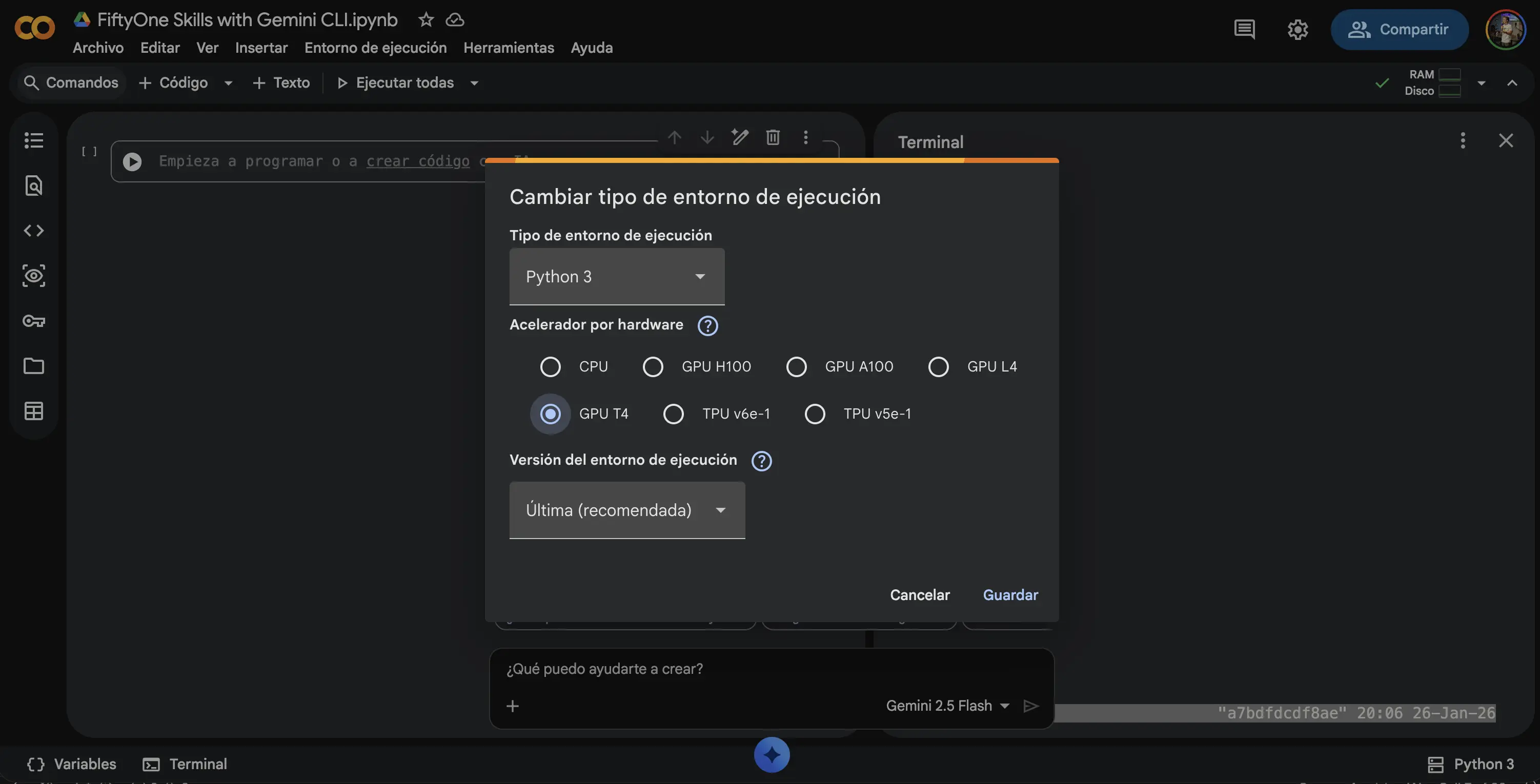
First, verify that you have access to a GPU for faster model inference:
[ ]:
!nvidia-smi

The next step is to open the terminal so you can interact with Gemini. Google Colab already includes Gemini, so there’s no need to install anything.
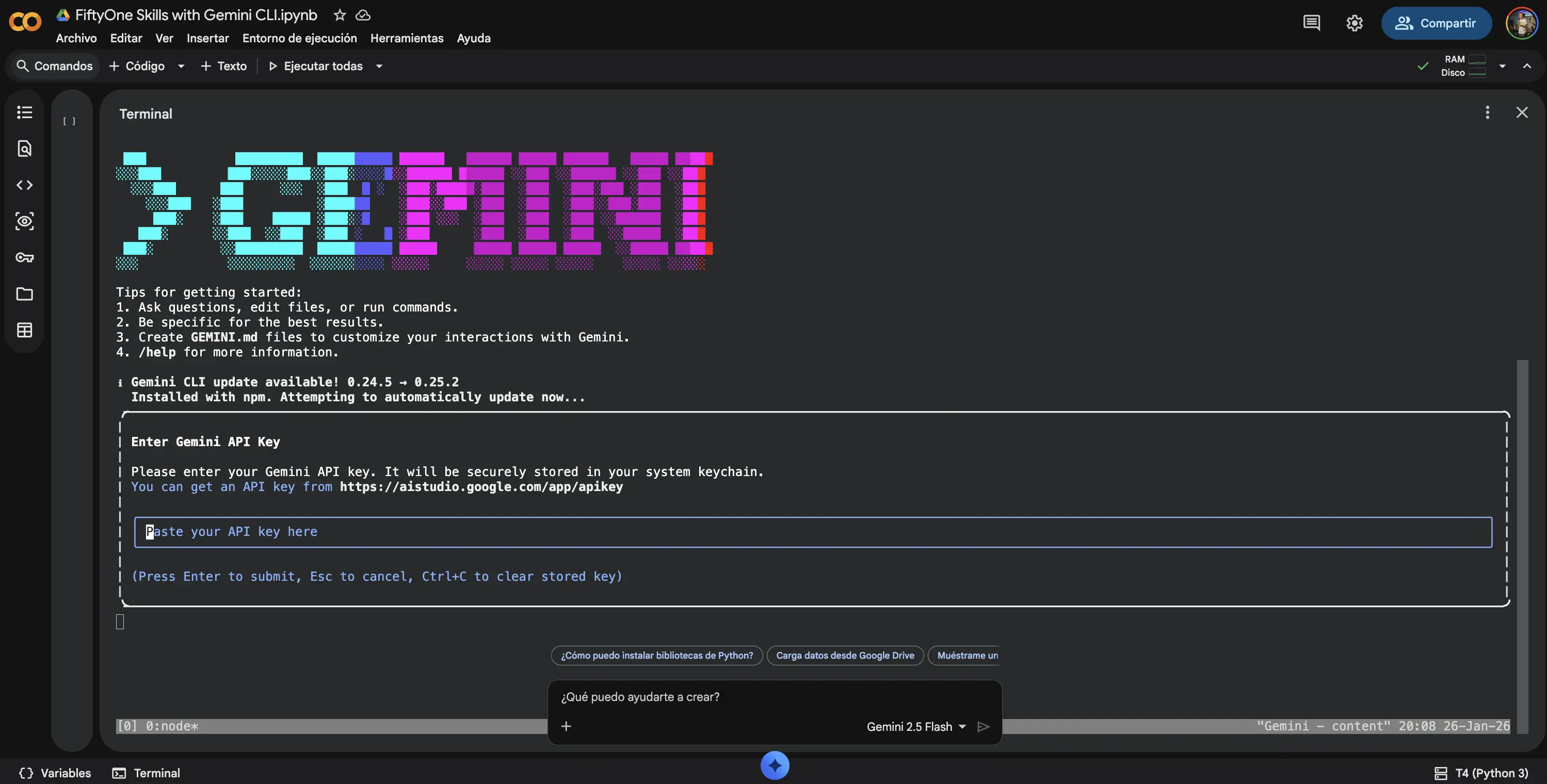
Add your Gemini API key, when you open the Gemini CLI for the first time, you’ll be prompted to add your Gemini API key.
Enable Gemini Preview Features and Skills#
Before installing skills, you must manually enable Gemini Preview Features (e.g. models) and allow Skills.
Run the required Gemini configuration commands shown in the next step.

Install and validate FiftyOne MCP (agent-managed)#
Open a terminal in Colab and ask the agent to handle the full setup,
Install the FiftyOne MCP Server by running:

pip install fiftyone-mcp-server

Then register it with Gemini using:

gemini mcp add fiftyone-mcp <commandOrUrl>

Finally, verify that the MCP is correctly integrated and available for use.
The agent will install the MCP server, add it to Gemini, and validate that the connection is working. Once completed, the agent can immediately run FiftyOne workflows through MCP — no manual configuration required.
Install FiftyOne Skills (agent-managed)#
Open a terminal in Colab and ask the agent to handle the installation.
Install the FiftyOne Skills from the official repository by running:

gemini skills install https://github.com/voxel51/fiftyone-skills.git

Then verify that the skills are correctly installed and available for use.
The agent will install the skills, register them with Gemini, and validate that they are ready. Once installed, the agent can immediately use these skills to load datasets, run inference, and evaluate results in FiftyOne.
Restart the Session#
After installing the MCP server and skills, restart your terminal session to ensure all configurations are loaded properly. Exit the current session and relaunch the Gemini CLI.
Verify Configuration#
Before proceeding, verify that the MCP server and skills are configured correctly.
In the Gemini CLI, enter:
Check if the Fiftyone MCP and fiftyone skills are configured correctly in this environment and can be executed. For MCP Run: gemini mcp list, if it’s not installed, add it with: gemini mcp add fiftyone-mcp <local_path>, double check after this.
The agent should confirm that it has access to FiftyOne operators and the installed skills.
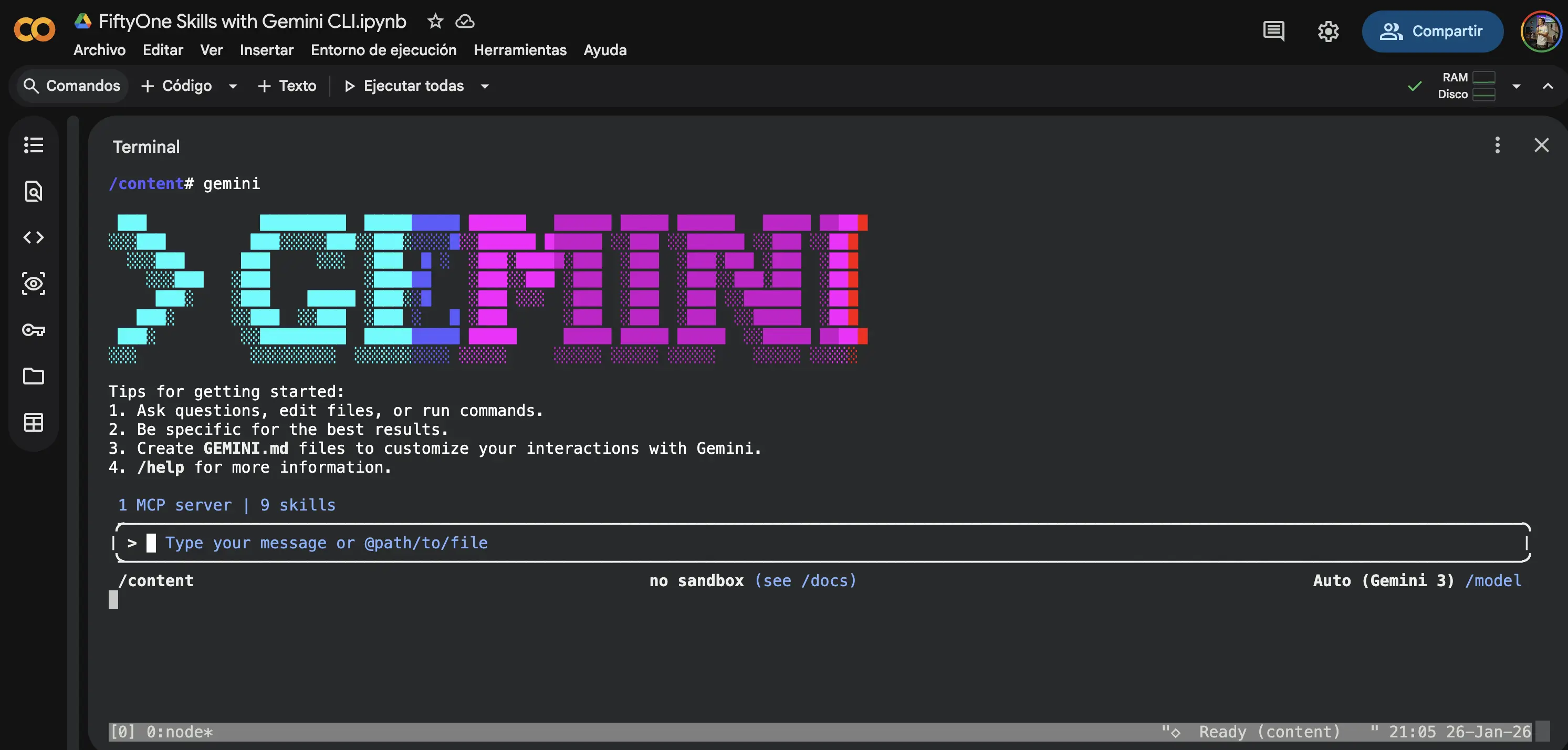
Running Computer Vision Workflows with Natural Language#
Now that the environment is configured, we can use natural language to perform complex computer vision tasks. In this example, we’ll:
Load a dataset from the FiftyOne Zoo
Run object detection with multiple models
Store predictions for comparison
Evaluate model performance against ground truth
Determine which model performs best
You can execute this entire workflow with a single natural language prompt.
You can also load your own data by uploading images to Colab and specifying the path in your prompt.
Example Prompt#

In the Gemini CLI, enter the following prompt:
Use the MCP and Skills to:
1. Load the FiftyOne quickstart dataset and create a new dataset with only 10 image samples
2. Run object detection using YOLOv8 and store the predictions as "yolov8_pred"
3. Run object detection using a ResNet-based model and store the predictions as "resnet_pred"
4. Compare all predictions against the ground-truth labels using the evaluation skills
5. Determine which model performs best for this specific use case and report the results
6. Launch the FiftyOne App and print the session URL
Understanding Permission Prompts#
As the agent executes the workflow, you may be prompted to approve certain actions. You have several options:
Allow individual actions: Review and approve each step one at a time to understand what the agent is doing
Allow all actions: Approve all actions at once to let the agent complete the workflow without interruption
For learning purposes, we recommend allowing individual actions so you can observe each step of the workflow.
Viewing Results in the FiftyOne App#

Once the workflow completes, the agent will launch the FiftyOne App and provide a URL. You can also manually launch the App at any time:
[ ]:
import fiftyone as fo

session = fo.launch_app(auto=False)
print(session.url)
Open the URL in a new browser tab to explore your dataset, view predictions from different models, and analyze evaluation results interactively.
Working with Your Own Data#
The workflows demonstrated in this tutorial work with any dataset. To use your own data:
Upload your images to Google Colab
Note the file path where your data is stored
Use a natural language prompt to import the data, for example:
Import the images from /content/my_images as a new FiftyOne dataset called "my_dataset"
The FiftyOne Skills will automatically detect the data format and handle the import process.
Summary#
In this tutorial, we demonstrated how to use natural language interfaces to streamline computer vision workflows with FiftyOne:
Key concepts covered:
MCP servers provide the connection layer between AI agents and FiftyOne’s capabilities
FiftyOne Skills encode expert knowledge for specific tasks like data import, inference, and evaluation
Natural language commands can orchestrate complex multi-step workflows
Practical skills learned:
Installing and configuring the FiftyOne MCP Server with Gemini CLI
Loading datasets using conversational commands
Running inference with multiple models
Evaluating and comparing model performance
Natural language interfaces don’t replace traditional programmatic workflows—they complement them. Use NLIs for rapid exploration and iteration, then switch to Python scripts when you need fine-grained control or reproducible pipelines.
For more information: