
Getting Started with FiftyOne Enterprise#
Follow this guide to create your first dataset in FiftyOne Enterprise 🚀
Configure cloud credentials#
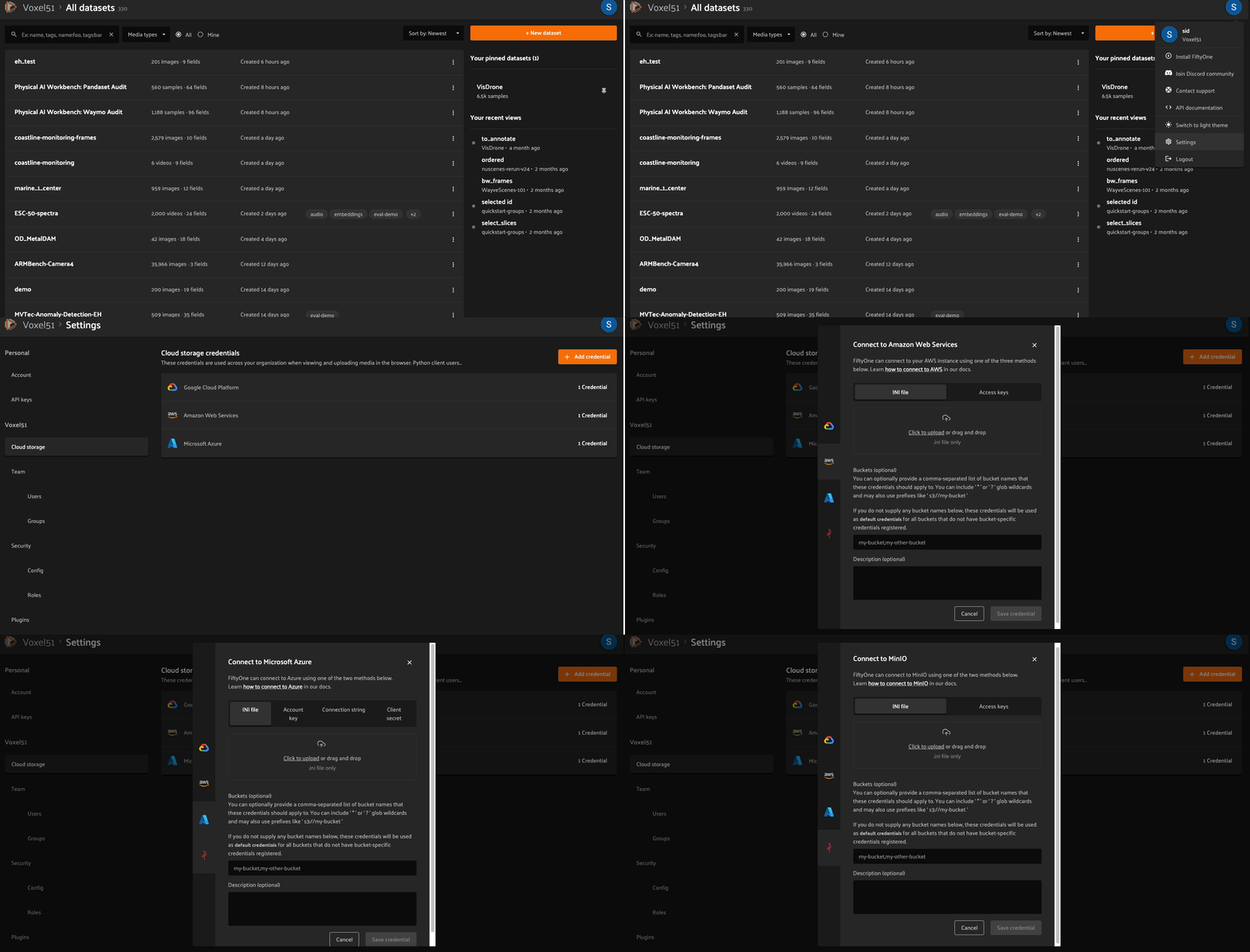
An admin user must configure cloud credentials once for a deployment in order for users to view datasets:
Note
If your workflows use cloud-backed point clouds, segmentation masks,
in-App annotation, or multimodal (MCAP) datasets, you must also configure
CORS on your cloud storage buckets/containers as
part of this step.
Without it, those assets fail to load in the App with a
No 'Access-Control-Allow-Origin' header error. This is easy to miss and
a common source of “asset failed to load” issues, so we recommend setting
it up now. See Cross-origin resource sharing (CORS)
for per-provider instructions.
Create a dataset via the SDK#
Install the FiftyOne Enterprise Python SDK#
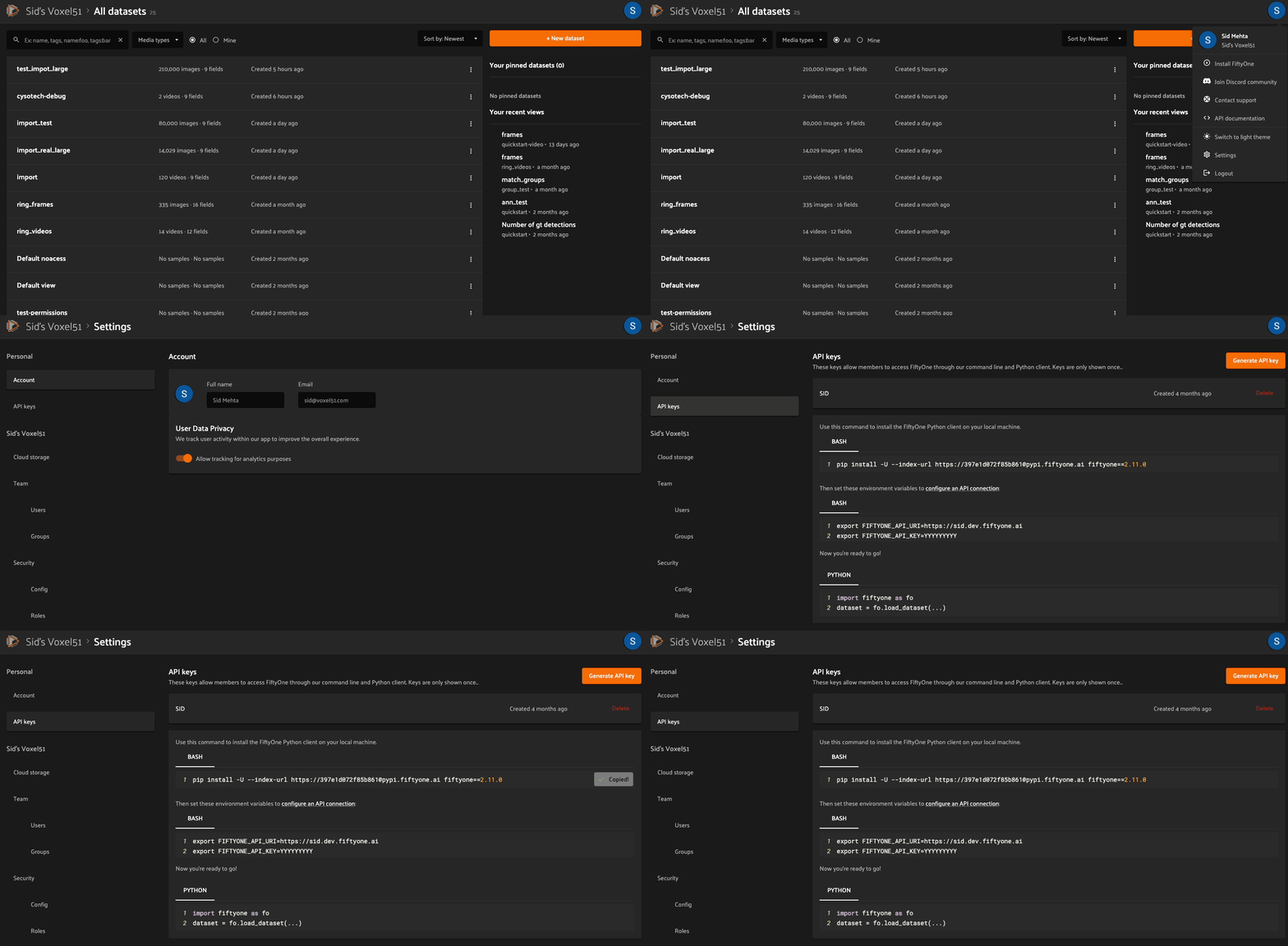
Navigate to the Settings > API keys page
Copy and execute the provided bash command to install the SDK in your virtual environment
If you plan to work with video datasets, you’ll also need to install FFmpeg:
sudo apt install -y ffmpeg
brew install ffmpeg
You can download a Windows build from here. Unzip it and be sure to add it to your path.
Connect to your deployment#
To connect to your FiftyOne Enterprise deployment, you must provide your API URI and API key:
export FIFTYONE_API_URI=XXXXXXXX
export FIFTYONE_API_KEY=YYYYYYYY
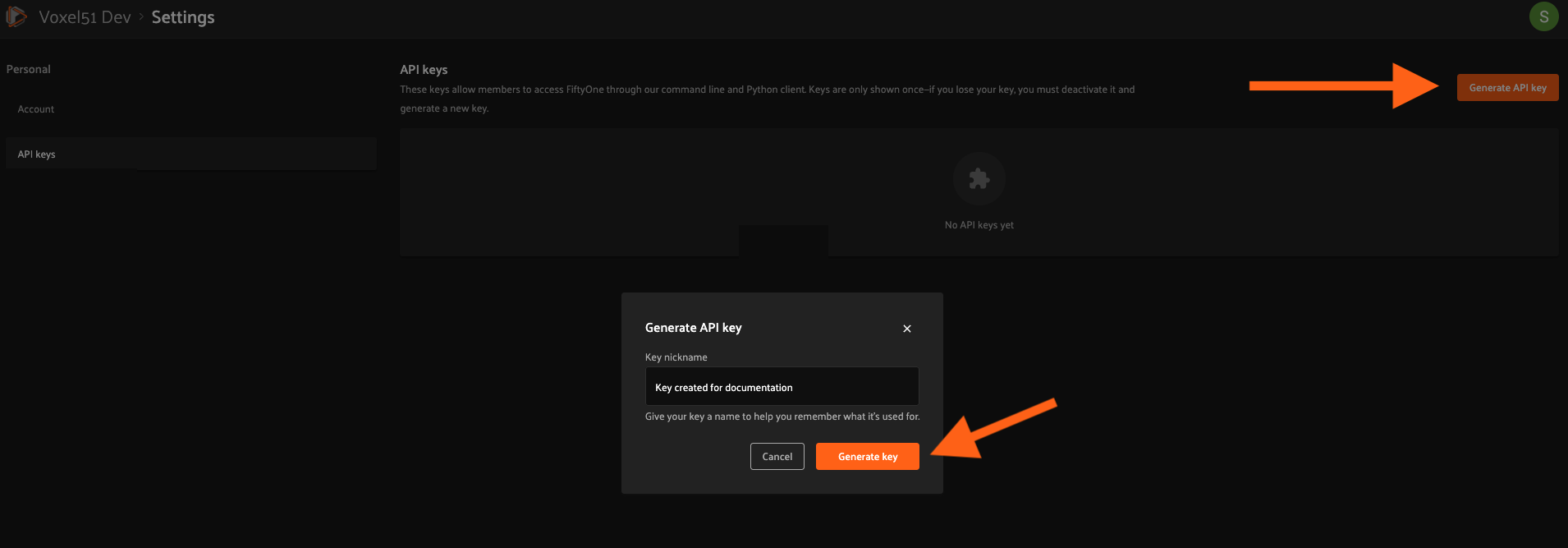
You can create an API key and locate your deployment’s URI on the Settings > API keys page of the FiftyOne Enterprise App:
You can use the fiftyone config CLI method to verify that you have correctly configured your API URI and API key:
$ fiftyone config
{
    ...
    "api_uri": "XXXXXXXX",
    "api_key": "YYYYYYYY",
    ...
}
You can also verify that your API connection is working correctly by executing the following method:
# if this fails, you may have the open source SDK installed
import fiftyone.management as fom

# if this succeeds, your API connection is working
fom.test_api_connection()
Set cloud credentials locally#
Next, configure the appropriate environment variables to register your cloud credentials in your local environment:
Set the following environment variables:
export AWS_ACCESS_KEY_ID=...
export AWS_SECRET_ACCESS_KEY=...
export AWS_DEFAULT_REGION=...
Set the following environment variable:
export GOOGLE_APPLICATION_CREDENTIALS="/path/to/your/service-account-key.json"
Set the following environment variables:
export AZURE_STORAGE_ACCOUNT=...
export AZURE_STORAGE_KEY=...
Set the following environment variables:
export MINIO_ACCESS_KEY_ID=...
export MINIO_SECRET_ACCESS_KEY=...
export MINIO_DEFAULT_REGION=...
Refer to this page for more information about interacting with cloud-backed media in FiftyOne Enterprise.
Import your data#
Importing directly from cloud bucket#
The example code below shows the basic pattern for creating new datasets and populating them directly from cloud storage via the FiftyOne Enterprise Python SDK:
import fiftyone as fo
import fiftyone.core.storage as fos

dataset = fo.Dataset("<name>")

s3_files = fos.list_files("s3://<bucket>/<prefix>", abs_paths=True)

samples = []
for s3_uri in s3_files:
    if s3_uri.lower().endswith(".jpeg"):
        sample = fo.Sample(filepath=s3_uri)
        samples.append(sample)

dataset.add_samples(samples)

# You must mark the dataset as persistent to access it in the UI
dataset.persistent = True
import fiftyone as fo
import fiftyone.core.storage as fos

dataset = fo.Dataset("<name>")

gcs_files = fos.list_files("gs://<bucket>/<prefix>", abs_paths=True)

samples = []
for gcs_uri in gcs_files:
    if gcs_uri.lower().endswith(".jpeg"):
        sample = fo.Sample(filepath=gcs_uri)
        samples.append(sample)

dataset.add_samples(samples)

# You must mark the dataset as persistent to access it in the UI
dataset.persistent = True
import fiftyone as fo
import fiftyone.core.storage as fos

dataset = fo.Dataset("<name>")

azure_files = fos.list_files(
    "https://<storage-account>.blob.core.windows.net/<container>/<prefix>",
    abs_paths=True,
)

samples = []
for azure_uri in azure_files:
    if azure_uri.lower().endswith(".jpeg"):
        sample = fo.Sample(filepath=azure_uri)
        samples.append(sample)

dataset.add_samples(samples)

# You must mark the dataset as persistent to access it in the UI
dataset.persistent = True
import fiftyone as fo
import fiftyone.core.storage as fos

dataset = fo.Dataset("<name>")

minio_files = fos.list_files(
    "https://minio.example.com/<bucket>/<prefix>",
    abs_paths=True,
)

samples = []
for minio_uri in minio_files:
    if minio_uri.lower().endswith(".jpeg"):
        sample = fo.Sample(filepath=minio_uri)
        samples.append(sample)

dataset.add_samples(samples)

# You must mark the dataset as persistent to access it in the UI
dataset.persistent = True
Refer to this page for more information about importing your media and labels into FiftyOne via Python.
Migrate from FiftyOne open-source#
If you have an existing FiftyOne open-source dataset with locally stored media, you can migrate it to FiftyOne Enterprise and upload your media to cloud storage.
Refer to this page for detailed instructions on migrating datasets from FiftyOne open-source to FiftyOne Enterprise.
Compute metadata#
All datasets/views provide a builtin
compute_metadata()
method that you can invoke to efficiently populate the metadata field of your
samples with basic media type-specific metadata such as file size and
image/video dimensions for all samples in a collection:
dataset.compute_metadata()

sample = dataset.first()
print(sample.metadata)
It is highly recommended to keep the metadata field populated for all samples
of your datasets because it provides useful information upon which to
search/filter and it enables the sample grid’s tiling algorithm to run more
efficiently.
You can verify that all samples in a dataset/view have metadata as follows:
assert len(dataset.exists("metadata", False)) == 0
Create a dataset via the UI#
Note
An admin must follow these instructions to install the @voxel51/io and @voxel51/utils plugins in order for users to perform imports and compute metadata via the FiftyOne Enterprise UI.
Import your data#
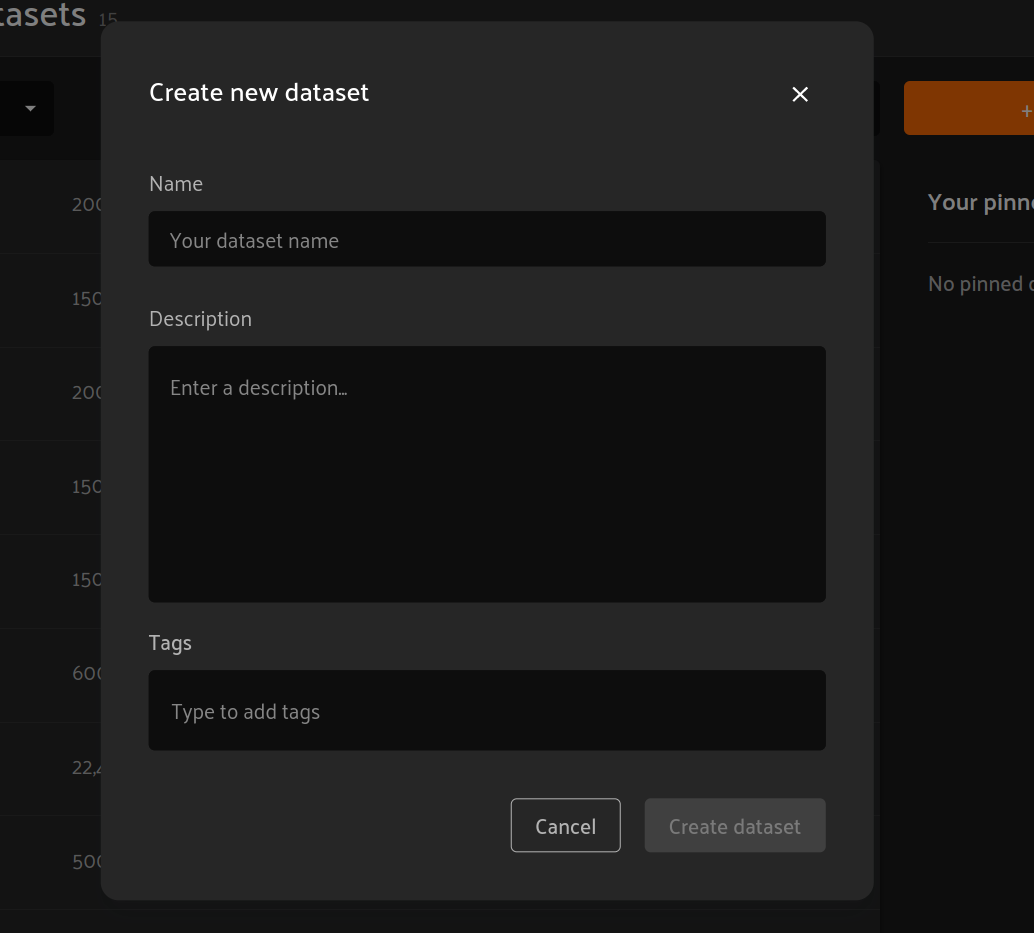
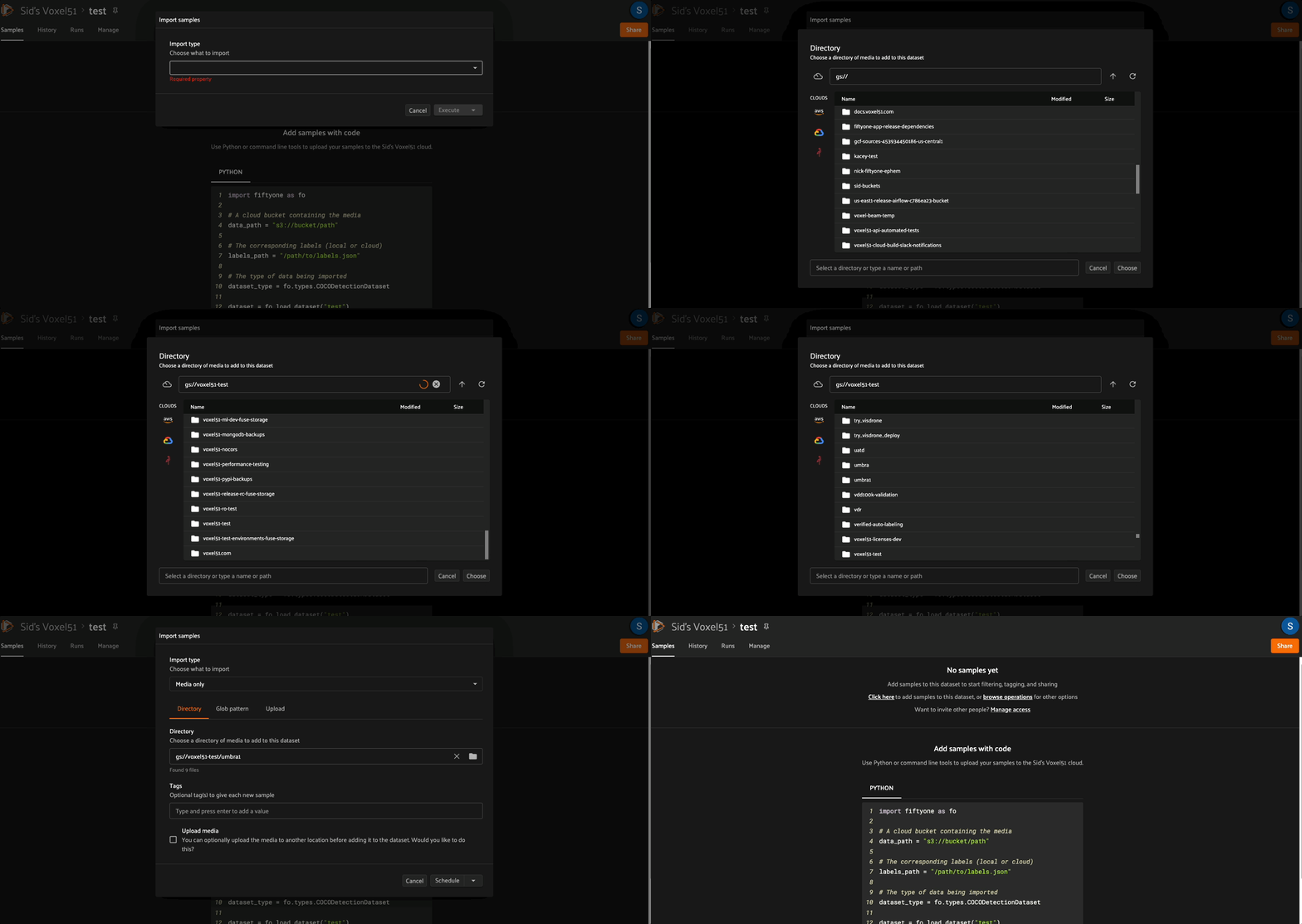
To create a new dataset, click on the “New dataset” button in the upper right corner of the FiftyOne Enterprise homepage. A pop-up will appear alowing you to choose a name and optional description/tags for the dataset:
You can then use the import_samples operator to import media and labels stored in a cloud storage bucket:
Compute metadata#
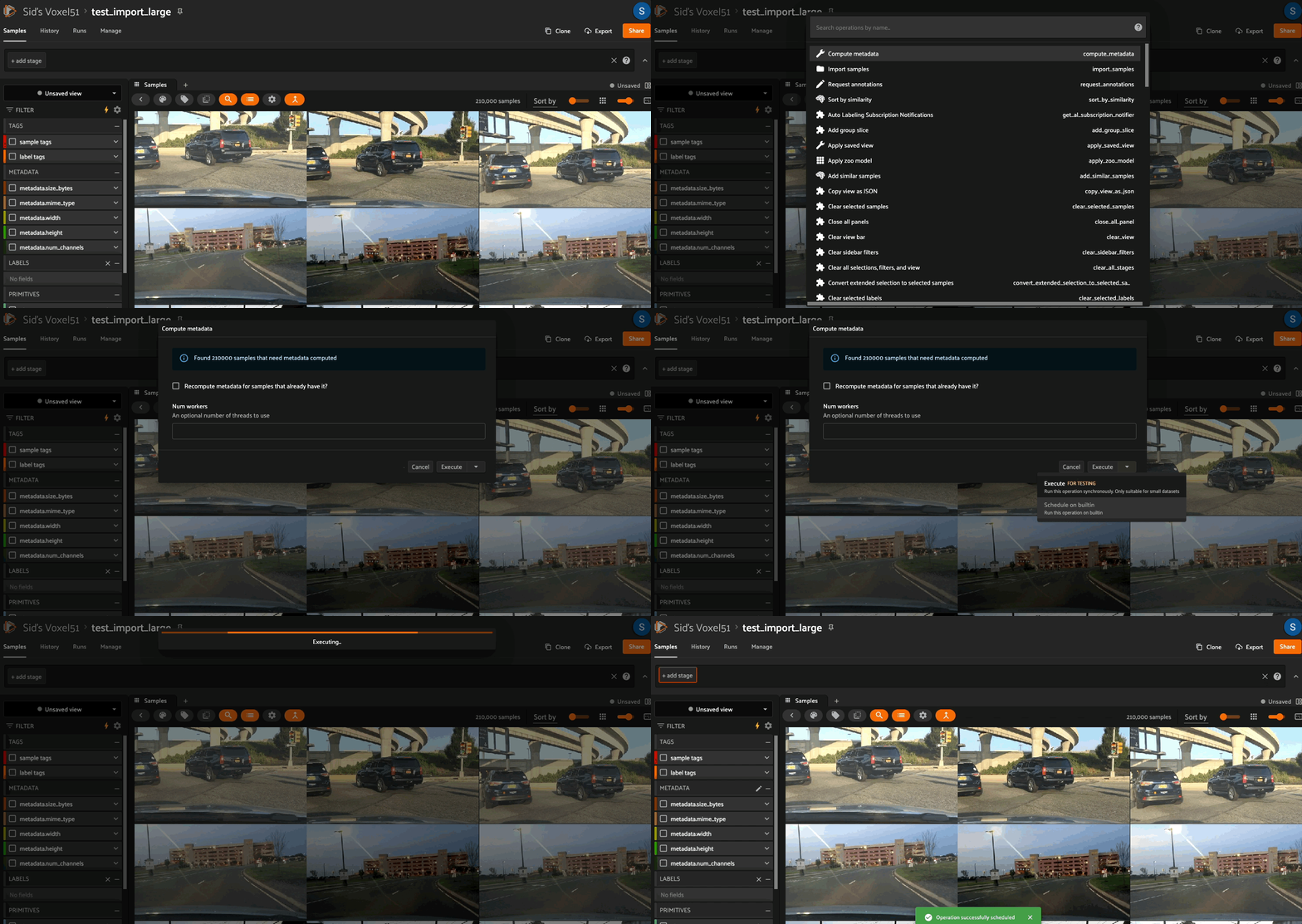
You can use the compute_metadata operator to efficiently populate the
metadata field of your samples with basic media type-specific metadata such
as file size and image/video dimensions for all samples in a collection:
It is highly recommended to keep the metadata field populated for all samples
of your datasets because it provides useful information upon which to
search/filter and it enables the sample grid’s tiling algorithm to run more
efficiently.