
Note
This is a community plugin, an external project maintained by its respective author. Community plugins are not part of FiftyOne core and may change independently. Please review each plugin’s documentation and license before use.

VLM Prompt Lab#
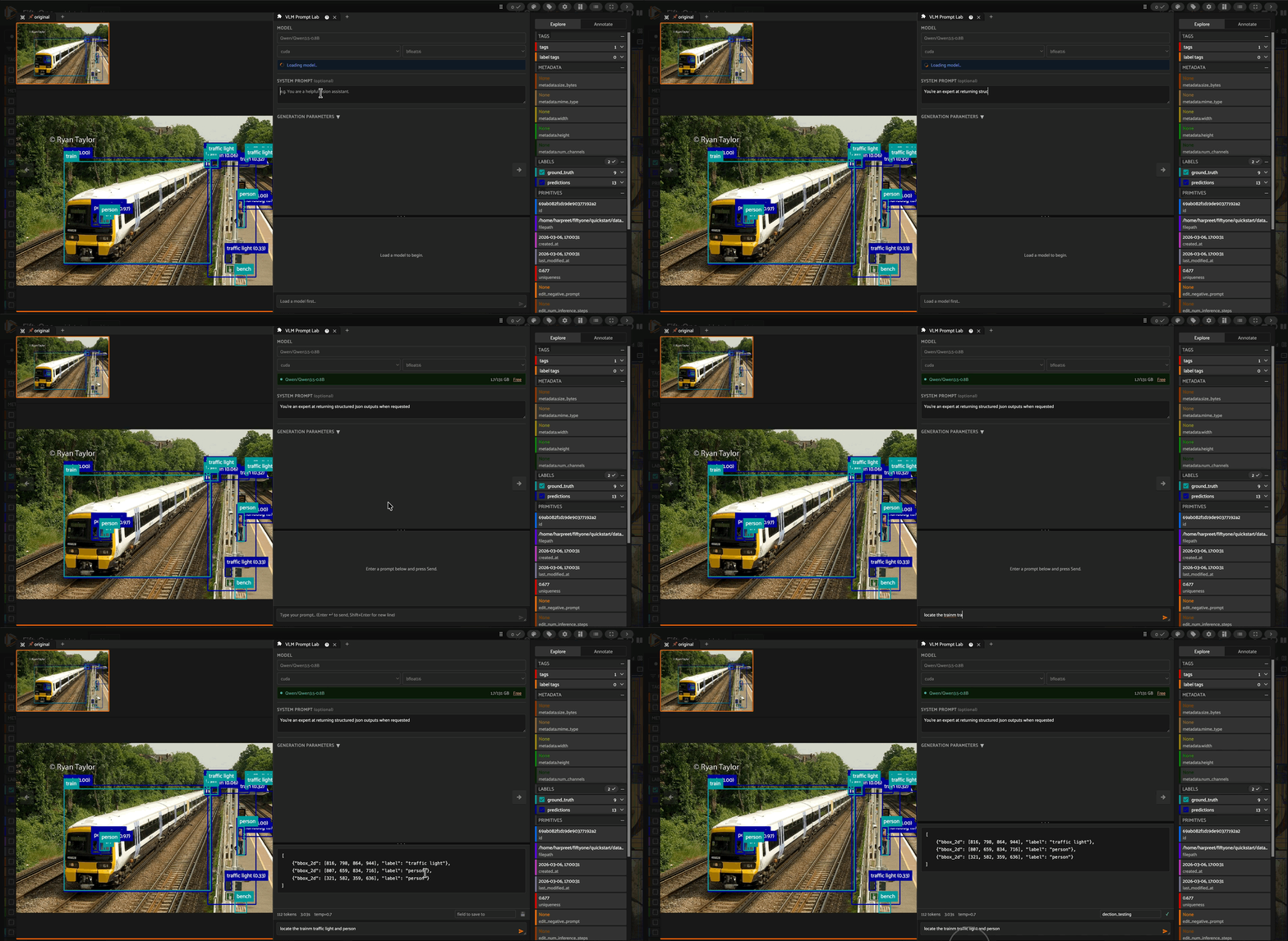
A FiftyOne panel plugin for interactively testing Vision Language Models on images in your dataset. Open it alongside any sample, load a model once, and iterate on system prompts, user prompts, and generation parameters — without touching code between runs.
Installation#
fiftyone plugins download https://github.com/harpreetsahota204/vlm_prompt_lab --overwrite
Then launch FiftyOne normally. Open any sample modal and add the VLM Prompt Lab panel from the panel selector.
What it does#
The panel lives in the sample modal sidebar. You can see your image on the left and the panel on the right, so every model response is evaluated directly against the image it was generated from.
Model setup
Enter any HuggingFace model ID that can be loaded via the image-text-to-text pipeline. Select the device (cuda, cpu, mps) and torch dtype (bfloat16, float16, float32, auto). Click Load Model once — the pipeline downloads and loads onto the GPU and stays there for the session. The setup form locks while a model is loaded; click Free to release GPU memory and unlock it.
Before loading a model, verify that it actually supports the HuggingFace
pipeline("image-text-to-text")interface. Not every vision-language model on the Hub does — some require a customAutoModelForCausalLM+AutoProcessorsetup, or expose a bespoke.chat()API that isn’t compatible with the pipeline abstraction. The safest way to check is to look forimage-text-to-textin the model card’s pipeline tags, or to run a quick test in a notebook before loading it here:from transformers import pipeline pipe = pipeline("image-text-to-text", model="<model-id>")If this raises a
ValueErrororKeyError, the model is not supported by the pipeline and will fail to load in this panel.
Prompting
Write an optional system message and a user prompt. If you provide a system message it is included in the chat template; if you leave it blank only the user turn is sent. Press Enter in the prompt box or click the paper-plane icon to run inference. Shift+Enter adds a newline.
Generation parameters
Expand the accordion to adjust temperature, max_new_tokens, top_p, top_k, repetition_penalty, and seed. The sampling-only parameters (temperature, top-p, top-k) grey out automatically when do_sample is unchecked.
Streamed output
Tokens stream into the output area in real time as the model generates. The response is rendered as Markdown (including lists, bold, code blocks, and tables). A live cursor blinks during generation. A stats bar below the output shows total token count, wall-clock latency, and the active temperature once the run completes.
Navigating samples
Paginate through the modal without losing anything. The model stays loaded, and all inputs (model ID, system prompt, user prompt, generation parameters) persist across sample navigation and across closing and reopening the modal. The last generated response for each sample is cached in the browser and restored when you navigate back to it.
Saving results to the dataset#
After a run completes, enter a field name in the stats bar and click the save icon (). Each save appends a structured dictionary to a ListField(DictField) on the current sample, so you accumulate every run without overwriting previous ones.
The saved record contains everything needed to reproduce and compare a run:
{
    "model_id":        "Qwen/Qwen2.5-VL-3B-Instruct",
    "system_prompt":   "You are a helpful vision assistant.",
    "user_prompt":     "Describe the objects in this image.",
    "generation_params": {
        "do_sample":           True,
        "temperature":         0.7,
        "max_new_tokens":      512,
        "top_p":               0.9,
        "top_k":               50,
        "repetition_penalty":  1.0,
        "seed":                None,
    },
    "latency_ms":  4130,
    "response":    "The image contains a dog sitting on a wooden floor...",
}
If the field doesn’t exist on the dataset it is created automatically as ListField(DictField). If it already exists, the new record is appended to the list. The field name input offers autocomplete suggestions for any existing compatible fields (ListField(DictField)) on the dataset; you can also type a new name to create one.
Saved runs are queryable in the FiftyOne App using standard field filters and the SDK:
import fiftyone as fo

dataset = fo.load_dataset("my-dataset")

# View samples that have at least one saved VLM run
dataset.match(fo.ViewField("vlm_runs").length() > 0)

# Access runs on a specific sample
sample = dataset.first()
for run in sample["vlm_runs"]:
    print(run["model_id"], run["latency_ms"], run["response"][:80])
Requirements#
FiftyOne
Python:
transformers,torch,PillowA CUDA-capable GPU is recommended;
cpuandmpsare supported but will be slow for large models
Note that if the model you choose to use has specific dependencies (including transformers version) you will need to install those.