
Note
This is a community plugin, an external project maintained by its respective author. Community plugins are not part of FiftyOne core and may change independently. Please review each plugin’s documentation and license before use.

Qwen Image Edit Panel#
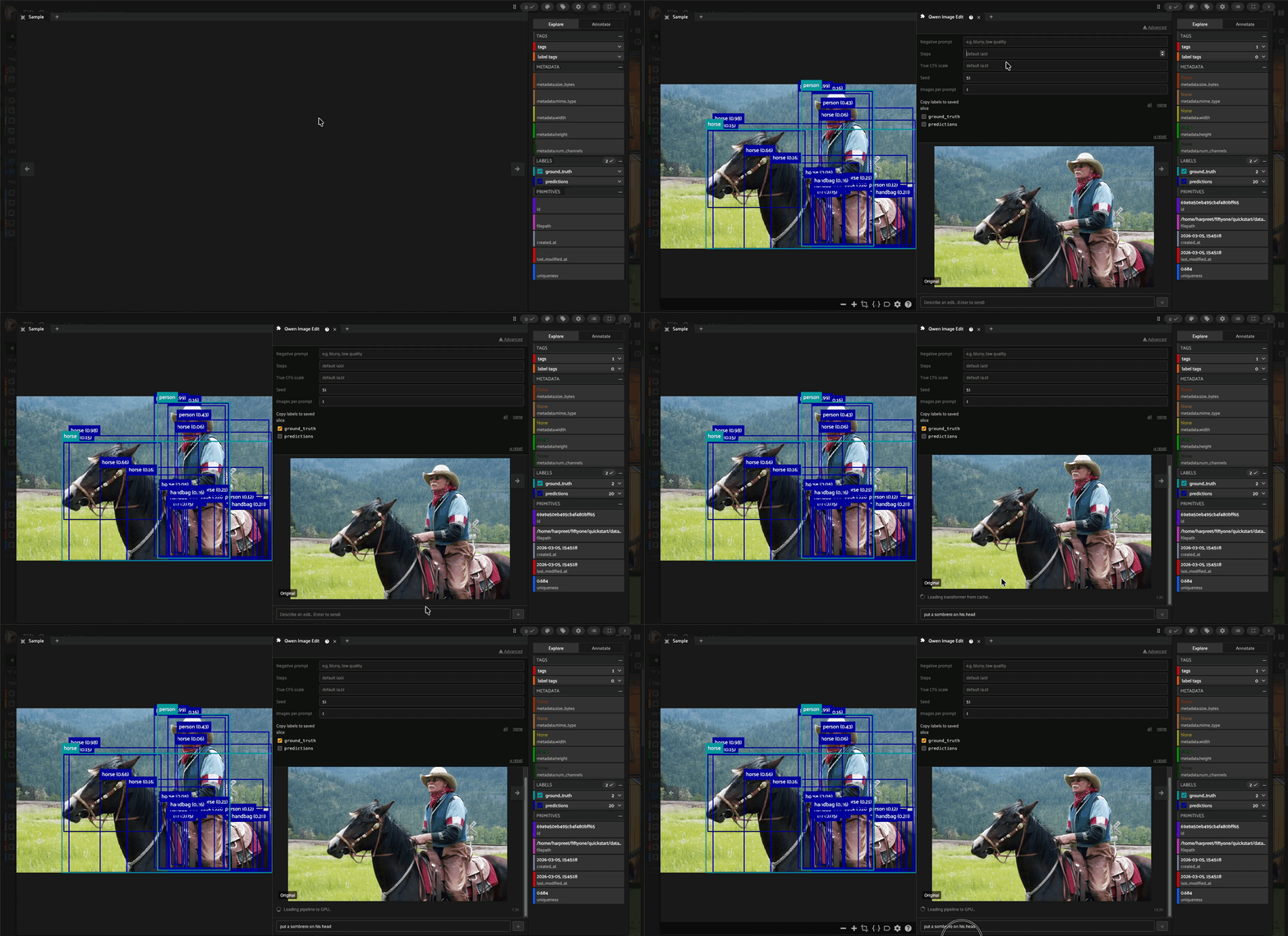
A FiftyOne plugin that brings chat-based image editing directly into the sample modal. Write a prompt, see all generated results inline, iterate, and save your favourite edits back to your dataset — all without leaving the app.
Inference runs entirely on your local GPU using the Qwen Image Edit 2511 model in FP8 quantized form. No API keys or external services required.
Installation#
Download the plugin:
fiftyone plugins download https://github.com/harpreetsahota204/qwen_image_edit --overwrite
Set the operator timeout before launching FiftyOne. The default 600-second timeout is not enough for a cold-start model load (up to ~10 min on first run) or a long multi-step inference call (1–5 min per edit depending on steps and image count):
export FIFTYONE_OPERATOR_TIMEOUT=1800 # 30 minutes
Then launch the app:
import fiftyone as fo
import os

os.environ["FIFTYONE_OPERATOR_TIMEOUT"] = "1800"

dataset = fo.load_dataset("your-dataset")
fo.launch_app(dataset)
Or from the shell:
export FIFTYONE_OPERATOR_TIMEOUT=1800
fiftyone app launch
Important:
FIFTYONE_OPERATOR_TIMEOUTmust be set in the same environment that runs the FiftyOne server, not just the Python session that opens the browser. Per-function timeout decorators fromfiftyone.operators.decoratorsuse Python’ssignalmodule and do not work in FiftyOne’s operator worker threads — the environment variable is the only supported mechanism.
Requirements#
Requirement |
Detail |
|---|---|
FiftyOne |
|
PyTorch |
CUDA build ( |
Diffusers |
|
Accelerate |
|
Pillow |
|
GPU |
CUDA-capable, ≥ 80 GB VRAM recommended |
Install Python dependencies:
pip install torch diffusers accelerate Pillow fiftyone
What it does#
Open any sample in the FiftyOne modal and the Qwen Image Edit panel appears alongside it. From there you can:
Prompt-driven edits — describe the change you want in plain text and the panel runs the Qwen FP8 pipeline locally on your GPU to apply it.
Multiple images per prompt — set Images per prompt to generate several variations in one call. Each is shown as a separate card so you can compare them side by side in the panel.
Iterative refinement — each edit turn is added to the panel’s history. Click the **** (set as source) button on any image — from any turn — to use it as the starting point for your next edit.
Advanced controls — optionally supply a negative prompt, override inference steps, adjust True CFG scale (Qwen’s classifier-free guidance strength), and fix a random Seed for reproducibility.
Per-image actions — every generated image has its own Save, Trash, and ** Set as source** buttons. Save any subset you like; trash the ones you don’t want to keep.
Save to dataset — clicking Save copies the image into your dataset’s media directory and registers it as a new group slice (
edit_1,edit_2, …). If the dataset is flat it is automatically converted to a grouped dataset on first save.Label copying — when saving, optionally copy any label fields (detections, classifications, segmentations, etc.) from the source sample onto each new edited slice.
Session memory — your edit history for each sample is preserved in the browser session, so switching between samples and coming back doesn’t lose your work.
Live status — during the first run the panel shows real-time download and GPU-loading status. During inference it shows step-level progress (e.g.
Step 11/40 (28%)) with an elapsed-time counter.
Model#
Repo |
|
Weights |
|
Precision |
|
GPU |
CUDA-capable GPU with at least 80 GB VRAM recommended |
The transformer weights are downloaded on the first edit only and cached by HuggingFace Hub (~/.cache/huggingface/). All subsequent runs load directly from cache. The panel shows download and loading status live while you wait.
First-run note#
The first time you submit a prompt the panel will:
Download the FP8 transformer checkpoint (~20.4 GB) from HuggingFace Hub — this is a one-time step and may take several minutes depending on your connection.
Load the full pipeline onto your GPU — this can take several minutes.
Begin denoising — progress is shown step by step (e.g.
Step 1/40 (2%) … Step 40/40 (100%)).
All subsequent edits in the same session skip steps 1 and 2 and go straight to inference.
Getting Started#
If you want to quickly test the plugin, you can use the FiftyOne quickstart dataset:
import fiftyone as fo
import fiftyone.zoo as foz

dataset = foz.load_zoo_dataset("quickstart")
session = fo.launch_app(dataset)
Alternatively, if you have your own dataset and want to test the plugin with your data, see the FiftyOne documentation on importing datasets to learn how to load your data into FiftyOne.
Usage#
Open a dataset in the FiftyOne app and click into any sample.
Open the Qwen Image Edit panel from the modal panel selector.
(Optional) Click ** Advanced** to set a negative prompt, inference steps, True CFG scale, seed, or images-per-prompt count.
Type a prompt describing your edit and press Enter or click ****.
The panel shows live status during download/loading and step-by-step progress during inference.
When results appear, each generated image has three buttons:
**** — set this image as the source for your next edit.
** Trash** — delete the temp file and remove the card.
** Save** — persist the image as a new
edit_Ngroup slice on the dataset.
Click **** on any image (including the original) to branch from it, then type a new prompt and repeat.
Advanced parameters#
Parameter |
Default |
Description |
|---|---|---|
Negative prompt |
(empty) |
Concepts to suppress. Sent as a single space when blank (Qwen requires a non-empty string). |
Steps |
40 |
Number of denoising steps. More steps = higher quality, slower inference. |
True CFG scale |
4.0 |
Classifier-free guidance strength specific to Qwen. |
Seed |
51 |
Random seed. Fix this to get reproducible results across calls. |
Images per prompt |
1 |
Number of images to generate per edit. All are shown as separate cards. |
Saved sample fields#
Each saved edit slice carries the following fields in addition to the image:
Field |
Type |
Description |
|---|---|---|
|
String |
The prompt used for this edit. |
|
String |
Model identifier. |
|
String |
Negative prompt (if any). |
|
Int |
Steps used. |
|
Float |
True CFG scale used. |
|
Int |
Seed used. |
|
Float |
Wall-clock seconds the pipeline call took. |
|
List |
Full turn history (prompt + filepath) for the session. |
|
List |
Always includes |