
Note
This is a community plugin, an external project maintained by its respective author. Community plugins are not part of FiftyOne core and may change independently. Please review each plugin’s documentation and license before use.

FiftyComfy#
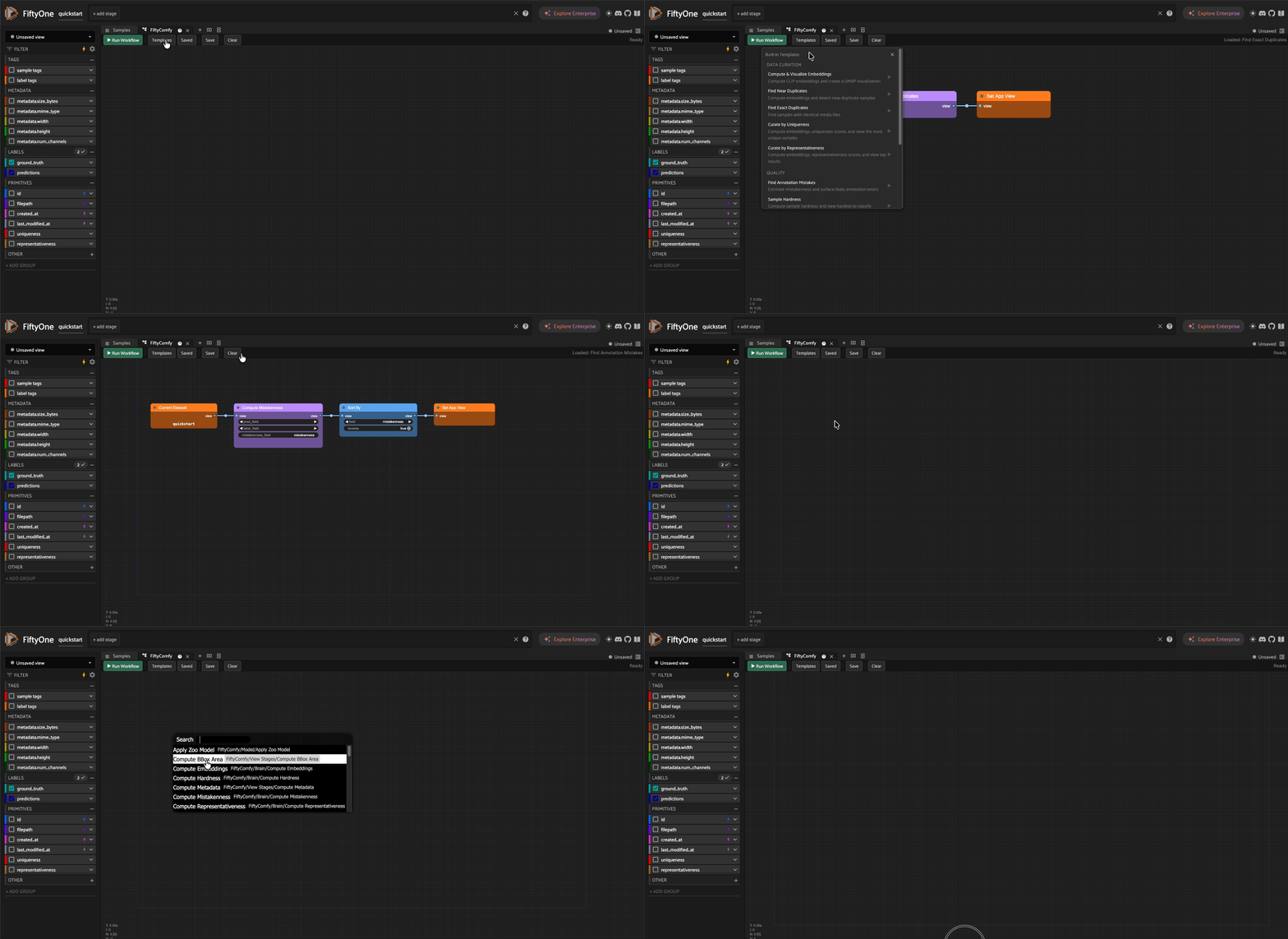
A visual, node-based workflow editor for FiftyOne – powered by LiteGraph.js (the same engine behind ComfyUI). Build dataset curation, analysis, and model evaluation pipelines by connecting nodes on a canvas, without writing code.
Installation#
fiftyone plugins download https://github.com/harpreetsahota204/FiftyComfy --overwrite
Getting Started#
Launch the FiftyOne App with a dataset loaded:
import fiftyone as fo
import fiftyone.zoo as foz

dataset = foz.load_zoo_dataset("quickstart")
session = fo.launch_app(dataset)
Open the FiftyComfy panel from the
+button in the App’s panel selector.Right-click on the canvas (or double-click) to open the node search menu and start adding nodes.
Connect nodes by dragging from an output slot to an input slot. All nodes pass
FO_VIEW(a FiftyOne DatasetView) through connections.Click Run Workflow to execute the graph. Results are pushed back into the FiftyOne App.
How It Works#
FiftyComfy is a hybrid FiftyOne plugin:
Frontend: A LiteGraph.js canvas wrapped in a React component, providing the ComfyUI-style node editor with pan, zoom, context menus, connection validation, and widget rendering.
Backend: Python operators that receive the serialized graph, topologically sort it, and execute each node against the current dataset using the FiftyOne SDK.
When you click “Run Workflow”, the graph is serialized to JSON and sent to the Python backend. The executor walks the graph in topological order, passing FiftyOne DatasetView objects between nodes. Output nodes like “Set App View” push the final view into the FiftyOne App grid.
Nodes#
Source (orange)#
Entry points for your workflow. Every graph needs at least one source node.
Node |
Description |
|---|---|
Current Dataset |
Uses the dataset currently loaded in the App. Displays the dataset name on the node. |
Load Saved View |
Loads a named saved view from the dataset. Dropdown populated from your dataset’s saved views. |
View Stages (blue)#
Filter, sort, and transform your data. These correspond to FiftyOne view stages.
Node |
Description |
Widgets |
|---|---|---|
Match |
Filter samples by a ViewField expression |
|
Filter Labels |
Filter detections/classifications within a label field |
|
Match Labels |
Match samples containing labels satisfying a condition |
|
Sort By |
Sort samples by a field |
|
Sort By Similarity |
Sort by similarity to a reference (requires a similarity index) |
|
Limit |
Limit number of samples |
|
Match Tags |
Filter samples by tags |
|
Take |
Randomly sample N samples |
|
Shuffle |
Randomly shuffle samples |
|
To Patches |
Convert to a patches view from a label list field (Detections, Polylines, Keypoints) |
|
Map Labels |
Remap label values using a mapping dict |
|
Brain (purple)#
FiftyOne Brain methods for dataset analysis and curation.
Node |
Description |
Key Widgets |
|---|---|---|
Compute Embeddings |
Compute embeddings using a zoo model |
|
Compute Visualization |
Compute UMAP/t-SNE/PCA visualization |
|
Compute Similarity |
Create a similarity index |
|
Compute Uniqueness |
Score sample uniqueness |
|
Compute Representativeness |
Score how representative each sample is |
|
Compute Mistakenness |
Estimate annotation mistake likelihood |
|
Compute Hardness |
Compute sample hardness |
|
Find Exact Duplicates |
Find identical media files |
(no widgets) |
Find Near Duplicates |
Find near-duplicate samples |
|
Detect Leaky Splits |
Find data leaks across splits |
|
Manage Brain Run |
Rename or delete a brain run |
|
Model (green)#
Apply models from the FiftyOne Model Zoo.
Node |
Description |
Key Widgets |
|---|---|---|
Apply Zoo Model |
Run inference with a zoo model |
|
Evaluation (green)#
Evaluate model predictions against ground truth.
Node |
Description |
Key Widgets |
|---|---|---|
Evaluate Detections |
Evaluate detection predictions (COCO or Open Images style) |
|
Evaluate Classifications |
Evaluate classification predictions |
|
Manage Evaluation |
Rename or delete an evaluation run |
|
Output (yellow)#
Terminal nodes that push results back to the FiftyOne App.
Node |
Description |
Widgets |
|---|---|---|
Set App View |
Push the resulting view into the App grid |
(no widgets) |
Save View |
Save the view as a named saved view |
|
Dynamic Dropdowns#
Field dropdowns are automatically populated from your dataset’s schema when the panel loads:
Label fields (Detections, Classifications, Polylines, Keypoints) are used by Filter Labels, Match Labels, To Patches, Map Labels, and evaluation nodes.
Patches fields (Detections, Polylines, Keypoints) are used by To Patches.
All fields are used by Sort By.
Saved views, brain runs, and evaluation runs populate their respective management dropdowns.
Label classes (distinct values like
["car", "person", "dog"]) are shown as a preview at the bottom of Filter Labels and Match Labels nodes.
Example Workflows#
Filter and view high-confidence detections#
Current Dataset --> Filter Labels (field: predictions, expr: F('confidence') > 0.8) --> Set App View
Compute embeddings, then visualize#
Current Dataset --> Compute Embeddings (model: clip-vit-base32-torch) --> Compute Visualization (method: umap) --> Set App View
Apply a model and evaluate#
Current Dataset --> Apply Zoo Model (model: faster-rcnn-resnet50-fpn-coco-torch, label_field: predictions) --> Evaluate Detections (pred: predictions, gt: ground_truth) --> Sort By (field: eval_fp, reverse: true) --> Set App View
Find near duplicates#
Current Dataset --> Compute Embeddings --> Find Near Duplicates (threshold: 0.1) --> Set App View
Saving and Loading Workflows#
Save: Click the “Save” button in the toolbar and enter a name. Workflows are stored in browser localStorage.
Load: Click “Load” to see saved workflows and click one to restore it.
Clear: Click “Clear” to reset the canvas.
Canvas Controls#
All standard LiteGraph controls work out of the box:
Pan: Middle-click drag or Ctrl+click drag
Zoom: Mouse wheel
Add node: Right-click for context menu, or double-click for search
Connect: Drag from an output slot to an input slot
Delete: Select node(s) and press Delete/Backspace
Copy/Paste: Ctrl+C / Ctrl+V
Multi-select: Click and drag to box-select
Collapse node: Double-click the title bar
License#
Apache 2.0