
Note
This is a community plugin, an external project maintained by its respective author. Community plugins are not part of FiftyOne core and may change independently. Please review each plugin’s documentation and license before use.

ENVI Spectral Viewer#
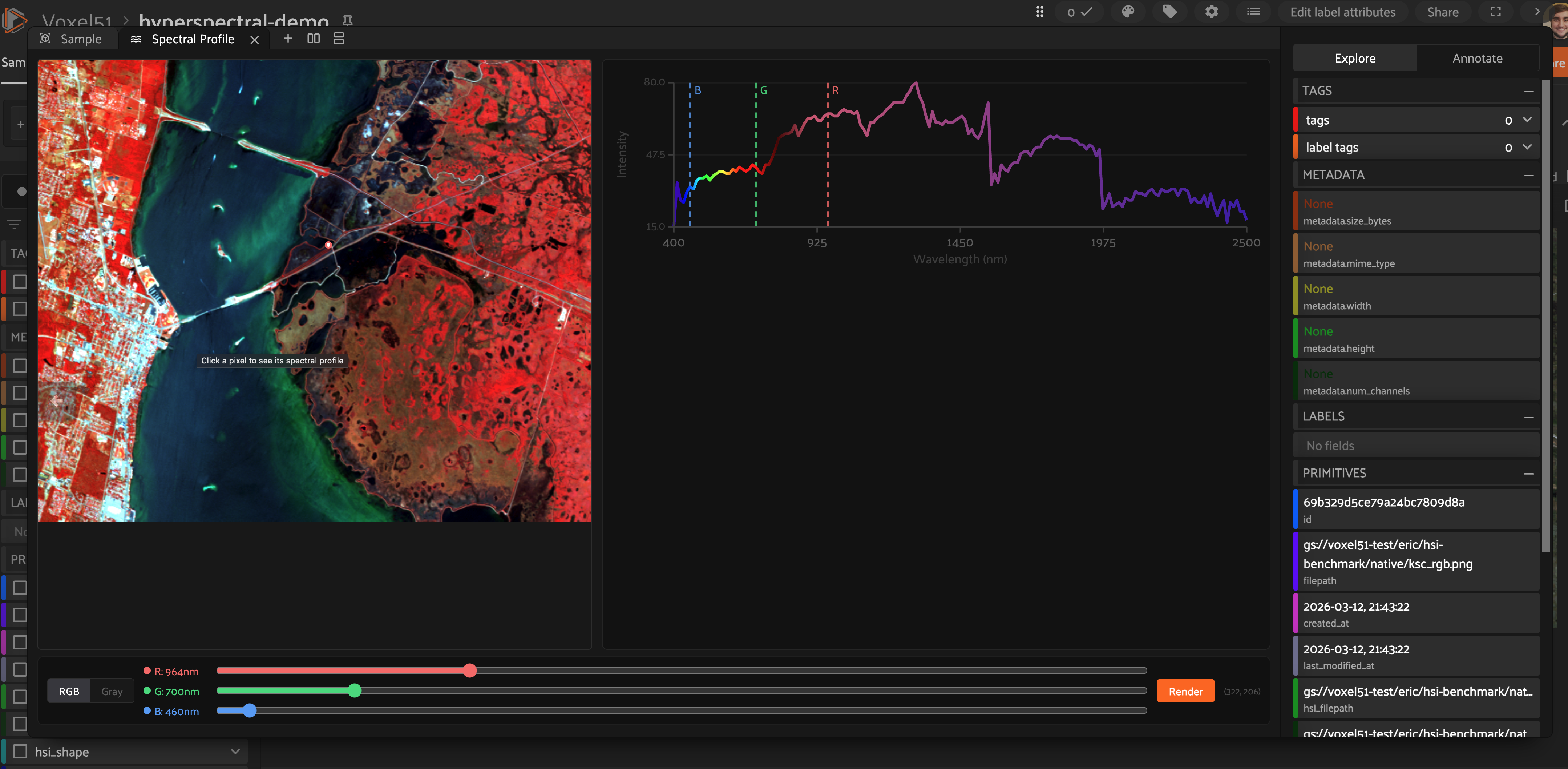
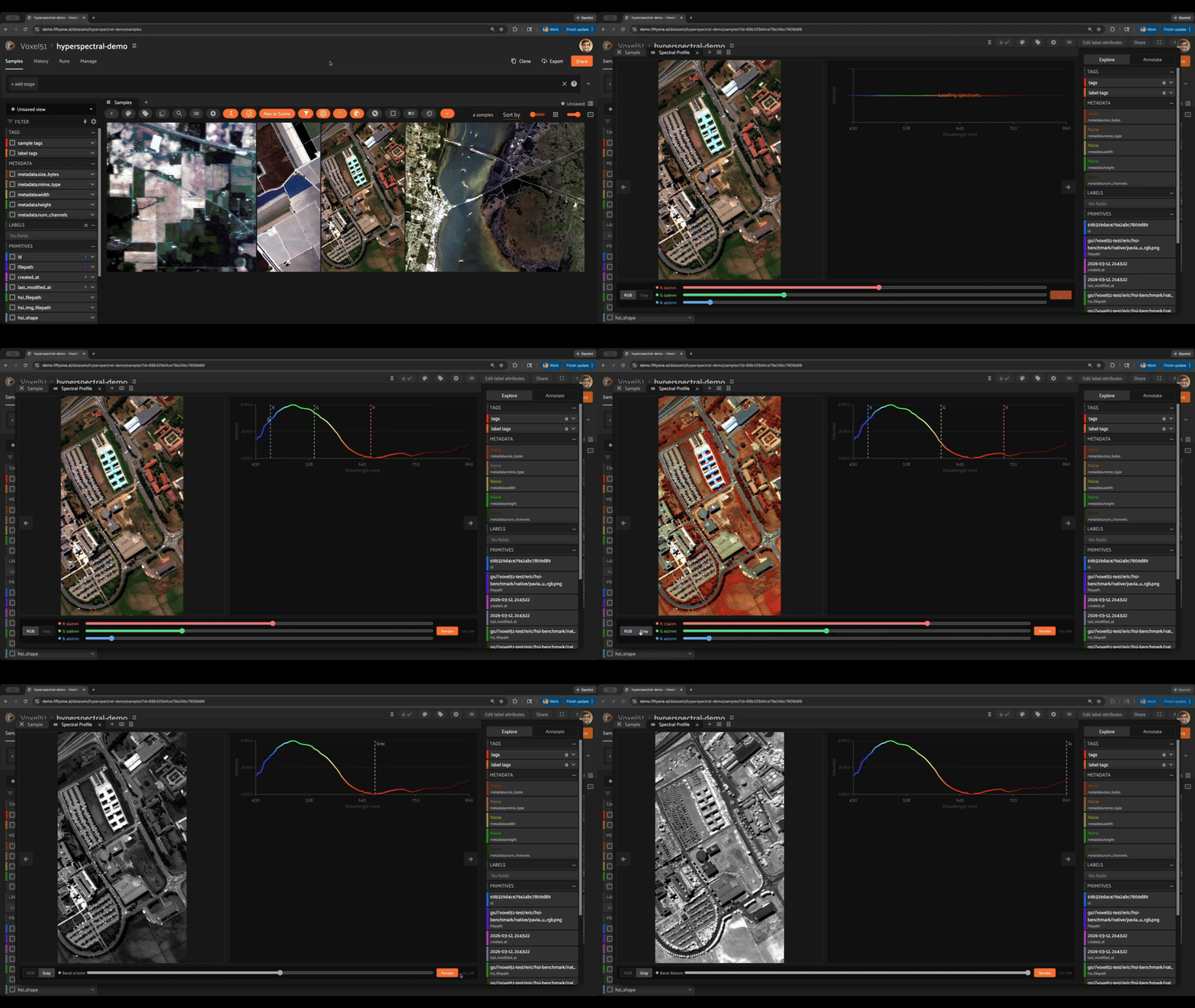
A FiftyOne plugin for exploring hyperspectral imagery in ENVI format. Click any pixel on a hyperspectral image to instantly plot its full spectral signature — reflectance vs. wavelength — in an interactive side panel. Supports custom RGB band rendering to explore the data from different spectral perspectives.
Overview#
ENVI is the standard file format for hyperspectral and multispectral imagery in remote sensing and scientific imaging. Each ENVI dataset consists of a plain-text .hdr header file paired with a flat binary image cube containing hundreds of spectral bands per pixel.
This plugin lets you:
Click any pixel on a hyperspectral image to plot its full spectral profile (reflectance vs. wavelength)
Re-render the RGB composite by dragging sliders to map any three bands to R, G, B
Works with local and cloud-hosted ENVI files (S3, GCS, Azure via FiftyOne Enterprise)
Zero required dependencies — uses a built-in ENVI BIL reader; install
spectralfor full BSQ/BIP/compressed format support
Installation#
fiftyone plugins download https://github.com/ehofesmann/envi-spectral-viewer
Optional — install the spectral package for full ENVI format support (BSQ, BIP, compressed):
pip install spectral
Without spectral, the plugin supports BIL-interleaved ENVI files (the most common format). Attempting to open a BSQ or BIP file without spectral installed will raise a clear error with install instructions.
FiftyOne Enterprise users: See the custom plugins documentation for how to make additional Python packages like
spectralavailable to your deployment.
Requirements#
Requirement |
Notes |
|---|---|
|
Core framework |
|
Included with FiftyOne |
|
Required for RGB re-rendering |
|
Full ENVI format support (BSQ/BIP) |
Sample structure#
Each FiftyOne sample must have the following fields:
Field |
Type |
Description |
|---|---|---|
|
|
Path to a display image (PNG/JPEG) — typically a pseudo-RGB render of the cube |
|
|
Path to the ENVI |
|
|
Path to the ENVI binary data file ( |
|
|
|
|
|
Upscale factor between the display image and the ENVI cube (e.g. |
|
|
List of wavelength values in nm, one per band |
Quickstart#
A synthetic demo dataset generator is included in the data/ directory. It creates a 512×512×200-band ENVI scene with four spectral regions (water, vegetation, soil, urban) and loads it into FiftyOne:
pip install fiftyone numpy Pillow
python data/create_synthetic_dataset.py
Then launch FiftyOne:
import fiftyone as fo

dataset = fo.load_dataset("envi-synthetic-demo")
fo.launch_app(dataset)
Open any sample in the modal, then open the Spectral Profile panel. Click a pixel to see its spectral signature plotted immediately.
Usage#
Spectral profile#
Open a sample in the modal
Open the Spectral Profile panel from the panel selector
Click any pixel on the image — the spectral plot updates instantly
RGB band rendering#
In the Spectral Profile panel, use the R / G / B sliders to select which bands map to each channel, then click Render to update the displayed image.
Loading your own ENVI data#
import fiftyone as fo

dataset = fo.Dataset(name="my-hsi-dataset", persistent=True)

sample = fo.Sample(
    filepath="/path/to/display.png",       # pseudo-RGB render
    hsi_filepath="/path/to/scene.hdr",
    hsi_img_filepath="/path/to/scene.img",
    hsi_shape=[512, 512, 224],             # [rows, cols, bands]
    hsi_scale_factor=1,
    wavelengths=[400.0, 410.0, ...],       # one value per band
)

dataset.add_sample(sample)
fo.launch_app(dataset)
Operators#
Operator |
Description |
|---|---|
|
Reads a pixel’s spectral signature from the ENVI cube and sends it to the panel |
|
Re-renders the display image using user-selected band indices |
|
Loads the display image and sends wavelength metadata to the panel |
|
JS operator — receives data from Python and updates panel state |
Cloud support#
For cloud-hosted ENVI files (S3, GCS, Azure), the plugin:
Uses FiftyOne Enterprise media cache when available — handles download deduplication and cache eviction automatically
Falls back to downloading to a local temp directory for non-Teams installs with cloud paths
Local files are passed through with zero overhead.