# Developing Plugins
This page describes how to write your own FiftyOne plugins.
#### NOTE
Check out the [Plugins Ecosystem](index.md#plugins-ecosystem) for a growing
collection of plugins that you can use as examples when developing your own.
## Design overview
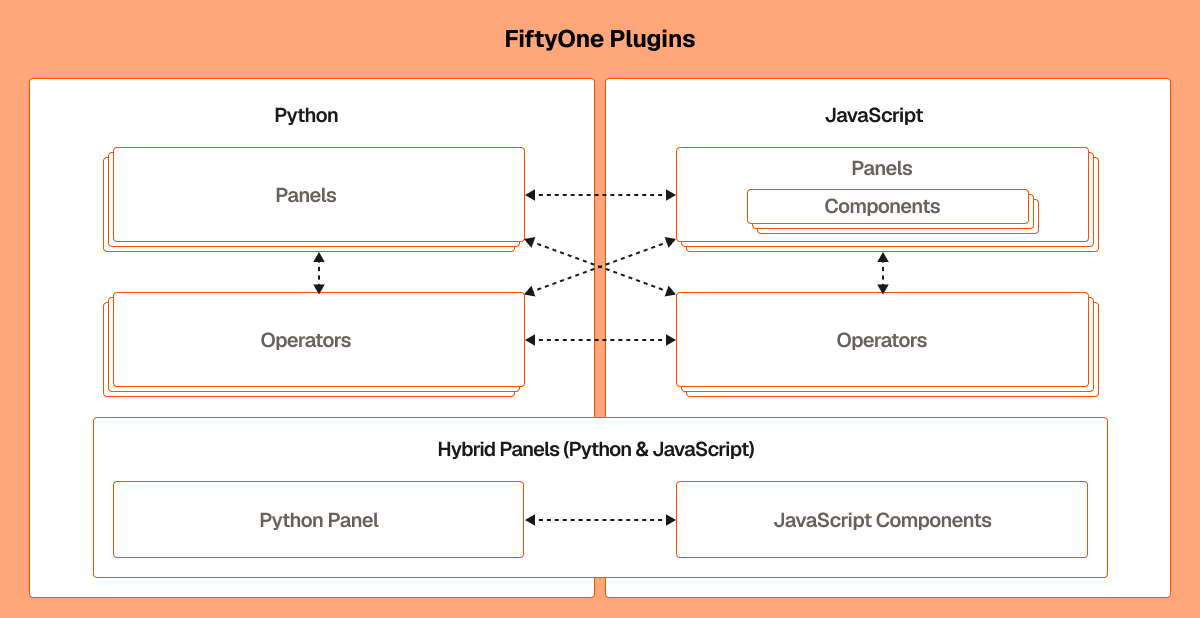
Plugins are composed of one or more panels, operators, skills, and components.
Together these building blocks enable you to build full-featured interactive
data applications that tailor FiftyOne to your specific use case and workflow.
Whether you’re working with images, videos, or other data types, a plugin can
help you streamline your machine learning workflows and co-develop your data
and models.
### Plugin types
FiftyOne plugins can be written in Python or JavaScript (JS), or a combination
of both.
Python plugins are built using the `fiftyone` package, pip packages, and your
own Python. They can consist of panels, operators, and skills.
JS plugins are built using the `@fiftyone` TypeScript packages, npm packages,
and your own TypeScript. They can consist of panels, operators, skills, and custom
components.
### Panels
Panels are miniature full-featured data applications that you can open in
[App spaces](../user_guide/app.md#app-spaces) and interactively manipulate to explore your
dataset and update/respond to updates from other spaces that are currently open
in the App.
FiftyOne natively includes the following Panels:
- [Samples panel](../user_guide/app.md#app-samples-panel): the media grid that loads by
default when you launch the App
- [Histograms panel](../user_guide/app.md#app-histograms-panel): a dashboard of histograms
for the fields of your dataset
- [Embeddings panel](../user_guide/app.md#app-embeddings-panel): a canvas for working with
[embeddings visualizations](../brain/index.md#brain-embeddings-visualization)
- [Map panel](../user_guide/app.md#app-map-panel): visualizes the geolocation data of
datasets that have a [`GeoLocation`](../api/fiftyone.core.labels.md#fiftyone.core.labels.GeoLocation) field

#### NOTE
Jump to [this section](#developing-panels) for more information about
developing panels.
### Operators
Operators are user-facing operations that allow you to interact with the data
in your dataset. They can range from simple actions like checking a checkbox to
more complex workflows such as requesting annotation of samples from a
configurable backend. Operators can even be composed of other operators or be
used to add functionality to custom panels.
FiftyOne comes with a number of builtin [`Python`](api/plugins.operators.md#module-plugins.operators) and
[JavaScript](https://github.com/voxel51/fiftyone/blob/main/app/packages/operators/src/built-in-operators.ts)
operators for common tasks that are intended for either user-facing or internal
plugin use.

#### NOTE
Jump to [this section](#developing-operators) for more information
about developing operators.
### Skills
Skills are Markdown files that teach AI agents how to perform complex
FiftyOne workflows using natural language. Each skill describes a task that
an agent can be asked to perform, providing step-by-step guidance that the
agent follows to complete the workflow autonomously.
#### NOTE
Jump to [this section](#developing-plugins-skills) for more
information about developing skills.
### Components
Components are responsible for rendering and event handling in plugins. They
provide the necessary functionality to display and interact with your plugin in
the FiftyOne App. Components also implement form inputs and output rendering
for operators, making it possible to customize the way an operator is rendered
in the FiftyOne App.
For example, FiftyOne comes with a wide variety of
[`builtin types`](../api/fiftyone.operators.types.md#module-fiftyone.operators.types) that you can leverage to build
complex input and output forms for your operators.

#### NOTE
Jump to [this section](#developing-js-plugins) for more information
about developing components.
## Development setup
In order to develop Python plugins, you can use either a release or source
install of FiftyOne:
```shell
pip install fiftyone
```
In order to develop JS plugins, you will need a
[source install](https://github.com/voxel51/fiftyone#installing-from-source)
of FiftyOne and a vite config that links modules to your `fiftyone/app`
directory.
#### NOTE
For JS plugins we recommend forking the
[FiftyOne Hello World JS Example](https://github.com/voxel51/hello-world-plugin-js)
repository and following the conventions there to build your JS plugin.
### Testing plugins locally
#### Versionadded
Added in version 1.13.0.
The easiest way to test a plugin during development is the
`fiftyone app debug` command, which launches the App with server logs
printed directly to your shell:
```shell
fiftyone app debug
```
You can also load a specific dataset immediately on launch:
```shell
fiftyone app debug
```
#### NOTE
Make sure your plugin is installed in your
[plugins directory](using_plugins.md#plugins-directory) before launching. If you
add or modify a plugin while the App is running, restart the debug
session to pick up the changes.
## Anatomy of a plugin
FiftyOne recognizes plugins by searching for `fiftyone.yml` or `fiftyone.yaml`
files within your [plugins directory](using_plugins.md#plugins-directory).
Below is an example of a plugin directory with a typical Python plugin and JS
plugin:
```text
/path/to/your/plugins/dir/
my-js-plugin/
fiftyone.yml
package.json
dist/
index.umd.js
my-py-plugin/
fiftyone.yml
__init__.py
requirements.txt
```
#### NOTE
If the source code for a plugin already exists on disk, you can make it
into a plugin using
[`create_plugin()`](../api/fiftyone.plugins.core.md#fiftyone.plugins.core.create_plugin) or the
[fiftyone plugins create](../cli/index.md#cli-fiftyone-plugins-create) CLI command.
This will copy the source code to the plugins directory and create a
`fiftyone.yml` file for you if one does not already exist. Alternatively,
you can manually copy the code into your plugins directory.
If your FiftyOne App is already running, you may need to restart the server
and refresh your browser to see new plugins.
#### NOTE
When writing Python plugins with multiple files, see
[importing modules](#operator-importing-modules) for how to import
code between files in your plugin.
### fiftyone.yml
All plugins must contain a `fiftyone.yml` or `fiftyone.yaml` file, which is
used to define the plugin’s metadata, declare any operators and panels that it
exposes, and declare any [secrets](using_plugins.md#plugins-secrets) that it may require.
The following fields are available:
For example, the
[@voxel51/annotation](https://github.com/voxel51/fiftyone-plugins/blob/main/plugins/annotation/fiftyone.yml)
plugin’s `fiftyone.yml` looks like this:
```yaml
name: "@voxel51/annotation"
type: plugin
author: Voxel51
version: 1.0.0
url: https://github.com/voxel51/fiftyone-plugins/tree/main/plugins/annotation
license: Apache 2.0
description: Utilities for integrating FiftyOne with annotation tools
fiftyone:
version: ">=0.22"
operators:
- request_annotations
- load_annotations
- get_annotation_info
- load_annotation_view
- rename_annotation_run
- delete_annotation_run
secrets:
- FIFTYONE_CVAT_URL
- FIFTYONE_CVAT_USERNAME
- FIFTYONE_CVAT_PASSWORD
- FIFTYONE_CVAT_EMAIL
- FIFTYONE_LABELBOX_URL
- FIFTYONE_LABELBOX_API_KEY
- FIFTYONE_LABELSTUDIO_URL
- FIFTYONE_LABELSTUDIO_API_KEY
```
#### NOTE
Although it is not strictly required, we highly recommend using the
`@user-or-org-name/plugin-name` naming convention when writing plugins.
### Python plugins
Python plugins should define the following files:
- `__init__.py` **(required)**: entrypoint that defines the Python operators
and panels that the plugin defines
- `requirements.txt`: specifies the Python package requirements to run the
plugin
### JS plugins
JS plugins should define the following files:
- `package.json`: a JSON file containing additional information about the
plugin, including the JS bundle file path
- `dist/index.umd.js`: a JS bundle file for the plugin
## Publishing plugins
You can publish your FiftyOne plugins either privately or publicly by simply
uploading the source directory or a ZIP of it to GitHub or another file hosting
service.
#### NOTE
Want to share your plugin with the FiftyOne community? Make a pull request
into the [FiftyOne Plugins](https://github.com/voxel51/fiftyone-plugins)
repository to add it to the
[Community Plugins list](https://github.com/voxel51/fiftyone-plugins#community-plugins)!
Any users with access to the plugin’s hosted location can easily
[download it](using_plugins.md#plugins-download) via the
[fiftyone plugins download](../cli/index.md#cli-fiftyone-plugins-download) CLI command:
```shell
# Download plugin(s) from a GitHub repository
fiftyone plugins download https://github.com//[/tree/branch]
# Download plugin(s) by specifying the GitHub repository details
fiftyone plugins download /[/]
# Download specific plugins from a GitHub repository
fiftyone plugins download \\
https://github.com//[/tree/branch] \\
--plugin-names
```
#### NOTE
GitHub repositories may contain multiple plugins. By default, all plugins
that are found within the first three directory levels are installed, but
you can select specific ones if desired as shown above.
## Quick examples
This section contains a few quick examples of plugins before we dive into the
full details of the plugin system.
#### NOTE
The best way to learn how to write plugins is to use and inspect existing
ones. Check out the
[FiftyOne plugins](https://github.com/voxel51/fiftyone-plugins)
repository for a growing collection of plugins that you can use as examples
when developing your own.
### Example plugin
The
[Hello World plugin](https://github.com/voxel51/hello-world-plugin-js)
defines both a JS Panel and a Python operator:
fiftyone.yml
\_\_init_\_.py
HelloWorld.tsx
HelloWorldPlugin.tsx
```yaml
name: "@voxel51/hello-world"
type: plugin
author: Voxel51
version: 1.0.0
url: https://github.com/voxel51/fiftyone-plugins/blob/main/plugins/hello-world/README.md
license: Apache 2.0
description: An example of JS and Python components in a single plugin
fiftyone:
version: "*"
operators:
- count_samples
- show_alert
```
```python
import fiftyone.operators as foo
import fiftyone.operators.types as types
class CountSamples(foo.Operator):
@property
def config(self):
return foo.OperatorConfig(
name="count_samples",
label="Count samples",
dynamic=True,
)
def resolve_input(self, ctx):
inputs = types.Object()
if ctx.view != ctx.dataset.view():
choices = types.RadioGroup()
choices.add_choice(
"DATASET",
label="Dataset",
description="Count the number of samples in the dataset",
)
choices.add_choice(
"VIEW",
label="Current view",
description="Count the number of samples in the current view",
)
inputs.enum(
"target",
choices.values(),
required=True,
default="VIEW",
view=choices,
)
return types.Property(inputs, view=types.View(label="Count samples"))
def execute(self, ctx):
target = ctx.params.get("target", "DATASET")
sample_collection = ctx.view if target == "VIEW" else ctx.dataset
return {"count": sample_collection.count()}
def resolve_output(self, ctx):
target = ctx.params.get("target", "DATASET")
outputs = types.Object()
outputs.int(
"count",
label=f"Number of samples in the current {target.lower()}",
)
return types.Property(outputs)
def register(p):
p.register(CountSamples)
```
```jsx
import * as fos from "@fiftyone/state";
import { useRecoilValue } from "recoil";
import { useCallback } from "react";
import { Button } from "@fiftyone/components";
import {
types,
useOperatorExecutor,
Operator,
OperatorConfig,
registerOperator,
executeOperator,
} from "@fiftyone/operators";
export function HelloWorld() {
const executor = useOperatorExecutor("@voxel51/hello-world/count_samples");
const onClickAlert = useCallback(() =>
executeOperator("@voxel51/hello-world/show_alert")
);
const dataset = useRecoilValue(fos.dataset);
if (executor.isLoading) return
Loading...
;
if (executor.result) return
Dataset size: {executor.result.count}
;
return (
<>
Hello, world!
You are viewing the {dataset.name} dataset
);
}
class AlertOperator extends Operator {
get config() {
return new OperatorConfig({
name: "show_alert",
label: "Show alert",
unlisted: true,
});
}
async execute() {
alert(`Hello from plugin ${this.pluginName}`);
}
}
registerOperator(AlertOperator, "@voxel51/hello-world");
```
```jsx
import { registerComponent, PluginComponentType } from "@fiftyone/plugins";
import { HelloWorld } from "./HelloWorld";
registerComponent({
name: "HelloWorld",
label: "Hello world",
component: HelloWorld,
type: PluginComponentType.Panel,
activator: myActivator,
});
function myActivator({ dataset }) {
// Example of activating the plugin in a particular context
// return dataset.name === 'quickstart'
return true;
}
```
Here’s the plugin in action! The `Hello world` panel is available under the `+`
icon next to the Samples tab and the `count_samples` operator is available in
the operator browser:

### Example Python operator
Here’s a simple [Python operator](#developing-operators) that accepts a
string input and then displays it to the user in the operator’s output modal.
```python
class SimpleInputExample(foo.Operator):
@property
def config(self):
return foo.OperatorConfig(
name="simple_input_example",
label="Simple input example",
)
def resolve_input(self, ctx):
inputs = types.Object()
inputs.str("message", label="Message", required=True)
header = "Simple input example"
return types.Property(inputs, view=types.View(label=header))
def execute(self, ctx):
return {"message": ctx.params["message"]}
def resolve_output(self, ctx):
outputs = types.Object()
outputs.str("message", label="Message")
header = "Simple input example: Success!"
return types.Property(outputs, view=types.View(label=header))
def register(p):
p.register(SimpleInputExample)
```
In practice, operators would use the inputs to perform some operation on the
current dataset.
#### NOTE
Remember that you must also include the operator’s name in the plugin’s
[fiftyone.yml](#plugin-fiftyone-yml):
```yaml
operators:
- simple_input_example
```
### Example Python panel
Here’s a simple [Python panel](#developing-panels) that renders a button
that shows a “Hello world!” notification when clicked:
```python
import fiftyone.operators as foo
import fiftyone.operators.types as types
class HelloWorldPanel(foo.Panel):
@property
def config(self):
return foo.PanelConfig(
name="hello_world_panel",
label="Hello World Panel"
)
def on_load(self, ctx):
ctx.panel.state.hello_message = "Hello world!"
def say_hello(self, ctx):
ctx.ops.notify(ctx.panel.state.hello_message)
def render(self, ctx):
panel = types.Object()
panel.btn(
"hello_btn",
label="Say Hello",
icon="emoji_people",
on_click=self.say_hello,
variant="contained",
)
panel_view = types.GridView(
width=100, height=100, align_x="center", align_y="center"
)
return types.Property(panel, view=panel_view)
def register(p):
p.register(HelloWorldPanel)
```
#### NOTE
Remember that you must also include the panel’s name in the plugin’s
[fiftyone.yml](#plugin-fiftyone-yml):
```yaml
panels:
- hello_world_panel
```

### Example JS operator
Here’s how to define a [JS operator](#developing-js-plugins) that sets the
currently selected samples in the App based on a list of sample IDs provided
via a `samples` parameter.
```typescript
import {Operator, OperatorConfig, types, registerOperator} from "@fiftyone/operators";
const PLUGIN_NAME = "@my/plugin";
class SetSelectedSamples extends Operator {
get config(): OperatorConfig {
return new OperatorConfig({
name: "set_selected_samples",
label: "Set selected samples",
unlisted: true,
});
}
useHooks(): {} {
return {
setSelected: fos.useSetSelected(),
};
}
async execute({ hooks, params }: ExecutionContext) {
hooks.setSelected(params.samples);
}
}
registerOperator(SetSelectedSamples, PLUGIN_NAME);
```
Unlike Python operators, JS operators can use React hooks and the `@fiftyone/*`
packages by defining a `useHook()` method. Any values return in this method
will be available to the operator’s `execute()` method via `ctx.hooks`.
#### NOTE
Marking the operator as `unlisted` omits it from the
[operator browser](using_plugins.md#using-operators), which is useful when the
operator is intended only for internal use by other plugin components.
## Developing operators
Operators allow you to define custom operations that accept parameters via
input properties, execute some actions based on them, and optionally return
outputs. They can be [executed](using_plugins.md#using-operators) by users in the App or
triggered internally by other operators.
Operators can be defined in either Python or JS, and FiftyOne comes with a
number of builtin [`Python`](api/plugins.operators.md#module-plugins.operators) and
[JS](https://github.com/voxel51/fiftyone/blob/main/app/packages/operators/src/built-in-operators.ts)
operators for common tasks.
The [`fiftyone.operators.types`](../api/fiftyone.operators.types.md#module-fiftyone.operators.types) module and
[`@fiftyone/operators`](api/plugins.fiftyone.operators.md#module-fiftyone-operators) package define a rich
builtin type system that operator developers can use to define the input and
output properties of their operators without the need to build custom user
interfaces from scratch. These types handle all aspects of input collection,
validation, and component rendering for you.
Operators can be composed for coordination between Python and the FiftyOne App,
such as triggering a reload of samples/view to update the app with the changes
made by the operator. Operators can also be scheduled to run by an orchestrator
or triggered by other operators.
### Operator interface
The code block below describes the Python interface for defining operators.
We’ll dive into each component of the interface in more detail in the
subsequent sections.
#### NOTE
The JS interface for defining operators is analogous. See this
[example JS operator](#example-js-operator) for details.
```python
import fiftyone.operators as foo
import fiftyone.operators.types as types
class ExampleOperator(foo.Operator):
@property
def config(self):
return foo.OperatorConfig(
# The operator's URI: f"{plugin_name}/{name}"
name="example_operator", # required
# The display name of the operator
label="Example operator", # required
# A description for the operator
description="An example description"
# Whether to re-execute resolve_input() after each user input
dynamic=True/False, # default False
# Whether the operator's execute() method returns a generator
# that should be iterated over until exhausted
execute_as_generator=True/False, # default False
# Whether to hide this operator from the App's operator browser
# Set this to True if the operator is only for internal use
unlisted=True/False, # default False
# Whether the operator should be executed every time a new App
# session starts
on_startup=True/False, # default False
# Whether the operator should be executed every time a new
# dataset is opened in the App
on_dataset_open=True/False, # default False
# Custom icons to use
# Can be a URL, a local path in the plugin directory, or the
# name of a MUI icon: https://marella.me/material-icons/demo
icon="/assets/icon.svg",
light_icon="/assets/icon-light.svg", # light theme only
dark_icon="/assets/icon-dark.svg", # dark theme only
# Whether the operator supports immediate and/or delegated execution
allow_immediate_execution=True/False, # default True
allow_delegated_execution=True/False, # default False
default_choice_to_delegated=True/False, # default False
resolve_execution_options_on_change=None,
# Whether the operator supports distributed execution
allow_distributed_execution=True/False, # default False
)
def resolve_placement(self, ctx):
"""You can optionally implement this method to configure a button
or icon in the App that triggers this operator.
By default the operator only appears in the operator browser
(unless it is unlisted).
Returns:
a `types.Placement`
"""
return types.Placement(
# Make operator appear in the actions row above the sample grid
types.Places.SAMPLES_GRID_SECONDARY_ACTIONS,
# Use a button as the operator's placement
types.Button(
# A label for placement button visible on hover
label="Open Histograms Panel",
# An icon for the button
# The default is a button with the `label` displayed
icon="/assets/icon.svg",
# If False, don't show the operator's input prompt when we
# do not require user input
prompt=True/False # False
)
)
def resolve_input(self, ctx):
"""Implement this method to collect user inputs as parameters
that are stored in `ctx.params`.
Returns:
a `types.Property` defining the form's components
"""
inputs = types.Object()
# Use the builtin `types` and the current `ctx.params` to define
# the necessary user input data
inputs.str("key", ...)
# When `dynamic=True`, you'll often use the current `ctx` to
# conditionally render different components
if ctx.params["key"] == "value" and len(ctx.view) < 100:
# do something
else:
# do something else
return types.Property(inputs, view=types.View(label="Example operator"))
def resolve_delegation(self, ctx):
"""Implement this method if you want to programmatically *force*
this operation to be delegated or executed immediately.
Returns:
whether the operation should be delegated (True), run
immediately (False), or None to defer to
`resolve_execution_options()` to specify the available options
"""
return len(ctx.view) > 1000 # delegate for larger views
def resolve_execution_options(self, ctx):
"""Implement this method if you want to dynamically configure the
execution options available to this operator based on the current
`ctx`.
Returns:
an `ExecutionOptions` instance
"""
should_delegate = len(ctx.view) > 1000 # delegate for larger views
return foo.ExecutionOptions(
allow_immediate_execution=True,
allow_delegated_execution=True,
default_choice_to_delegated=should_delegate,
)
def execute(self, ctx):
"""Executes the actual operation based on the hydrated `ctx`.
All operators must implement this method.
This method can optionally be implemented as `async`.
Returns:
an optional dict of results values
"""
# Use ctx.params, ctx.dataset, ctx.view, etc to perform the
# necessary computation
value = ctx.params["key"]
view = ctx.view
n = len(view)
# Use ctx.ops to trigger builtin operations
ctx.ops.clear_selected_samples()
ctx.ops.set_view(view=view)
# Use ctx.trigger to call other operators as necessary
ctx.trigger("operator_uri", params={"key": value})
# If `execute_as_generator=True`, this method may yield multiple
# messages
for i, sample in enumerate(current_view, 1):
# do some computation
yield ctx.ops.set_progress(progress=i/n)
yield ctx.ops.reload_dataset()
return {"value": value, ...}
def resolve_output(self, ctx):
"""Implement this method if your operator renders an output form
to the user.
Returns:
a `types.Property` defining the components of the output form
"""
outputs = types.Object()
# Use the builtin `types` and the current `ctx.params` and
# `ctx.results` as necessary to define the necessary output form
outputs.define_property("value", ...)
return types.Property(outputs, view=types.View(label="Example operator"))
def register(p):
"""Always implement this method and register() each operator that your
plugin defines.
"""
p.register(ExampleOperator)
```
#### NOTE
Remember that you must also include the operator’s name in the plugin’s
[fiftyone.yml](#plugin-fiftyone-yml):
```yaml
operators:
- example_operator
```
### Operator config
Every operator must define a
[`config`](../api/fiftyone.operators.operator.md#fiftyone.operators.operator.Operator.config) property that
defines its name, display name, and other optional metadata about its
execution:
```python
@property
def config(self):
return foo.OperatorConfig(
# The operator's URI: f"{plugin_name}/{name}"
name="example_operator", # required
# The display name of the operator
label="Example operator", # required
# A description for the operator
description="An example description"
# Whether to re-execute resolve_input() after each user input
dynamic=True/False, # default False
# Whether the operator's execute() method returns a generator
# that should be iterated over until exhausted
execute_as_generator=True/False, # default False
# Whether to hide this operator from the App's operator browser
# Set this to True if the operator is only for internal use
unlisted=True/False, # default False
# Whether the operator should be executed every time a new App
# session starts
on_startup=True/False, # default False
# Whether the operator should be executed every time a new dataset
# is opened in the App
on_dataset_open=True/False, # default False
# Custom icons to use
# Can be a URL, a local path in the plugin directory, or the
# name of a MUI icon: https://marella.me/material-icons/demo
icon="/assets/icon.svg",
light_icon="/assets/icon-light.svg", # light theme only
dark_icon="/assets/icon-dark.svg", # dark theme only
# Whether the operator supports immediate and/or delegated execution
allow_immediate_execution=True/False, # default True
allow_delegated_execution=True/False, # default False
default_choice_to_delegated=True/False, # default False
resolve_execution_options_on_change=None,
# Whether the operator supports distributed execution
allow_distributed_execution=True/False, # default False
)
```
### Execution context
An [`ExecutionContext`](../api/fiftyone.operators.executor.md#fiftyone.operators.executor.ExecutionContext) is
passed to each of the operator’s methods at runtime. This `ctx` contains static
information about the current state of the App (dataset, view, panel,
selection, etc) as well as dynamic information about the current parameters and
results.
An [`ExecutionContext`](../api/fiftyone.operators.executor.md#fiftyone.operators.executor.ExecutionContext)
contains the following properties:
- `ctx.params`: a dict containing the operator’s current input parameter
values
- `ctx.dataset_name`: the name of the current dataset
- `ctx.dataset` - the current [`Dataset`](../api/fiftyone.core.dataset.md#fiftyone.core.dataset.Dataset) instance
- `ctx.view` - the current [`DatasetView`](../api/fiftyone.core.view.md#fiftyone.core.view.DatasetView) instance
- `ctx.spaces` - the current [Spaces layout](../user_guide/app.md#app-spaces) in the App
- `ctx.current_sample` - the ID of the active sample in the App modal, if any
- `ctx.selected` - the list of currently selected samples in the App, if any
- `ctx.selected_labels` - the list of currently selected labels in the App,
if any
- `ctx.extended_selection` - the extended selection of the view, if any
- `ctx.active_fields` - the list of currently active fields in the App
sidebar, if any
- `ctx.group_slice` - the active group slice in the App, if any
- `ctx.user_id` - the ID of the user that invoked the operator, if known
- `ctx.user` - an object of information about the user that invoked the
operator, if known, including the user’s `id`, `name`, `email`, `role`, and
`dataset_permission`
- `ctx.user_request_token` - the request token authenticating the user
executing the operation, if known
- `ctx.prompt_id` - a unique identifier for each instance of a user opening
an operator prompt in the App
- `ctx.operator_uri` - the URI of the target operator
- `ctx.panel_id` - the ID of the panel that invoked the operator, if any
- `ctx.panel` - a [`PanelRef`](../api/fiftyone.operators.panel.md#fiftyone.operators.panel.PanelRef)
instance that you can use to read and write the [state](#panel-state)
and [data](#panel-data) of the current panel, if the operator was
invoked from a panel
- `ctx.pipeline` - information about execution state of the pipeline, if
applicable. See [this section](#execution-context-for-stages)
- `ctx.delegated` - whether the operation was delegated
- `ctx.requesting_delegated_execution` - whether delegated execution was
requested for the operation
- `ctx.delegation_target` - the orchestrator to which the operation should be
delegated, if applicable
- `ctx.ops` - an
[`Operations`](../api/fiftyone.operators.operations.md#fiftyone.operators.operations.Operations) instance
that you can use to trigger builtin operations on the current context
- `ctx.trigger` - a method that you can use to trigger arbitrary operations
on the current context
- `ctx.secrets` - a dict of [secrets](#operator-secrets) for the plugin,
if any
- `ctx.results` - a dict containing the outputs of the `execute()` method, if
it has been called
- `ctx.hooks` **(JS only)** - the return value of the operator’s `useHooks()`
method
### Operator inputs
Operators can optionally implement
[`resolve_input()`](../api/fiftyone.operators.operator.md#fiftyone.operators.operator.Operator.resolve_input)
to define user input forms that are presented to the user as a modal in the App
when the operator is invoked.
The basic objective of
[`resolve_input()`](../api/fiftyone.operators.operator.md#fiftyone.operators.operator.Operator.resolve_input)
is to populate the `ctx.params` dict with user-provided parameter values, which
are retrieved from the various subproperties of the
[`Property`](../api/fiftyone.operators.types.md#fiftyone.operators.types.Property) returned by the method
(`inputs` in the examples below).
The [`fiftyone.operators.types`](../api/fiftyone.operators.types.md#module-fiftyone.operators.types) module defines a rich builtin type system
that you can use to define the necessary input properties. These types handle
all aspects of input collection, validation, and component rendering for you!
For example, here’s a simple example of collecting a single string input from
the user:
```python
def resolve_input(self, ctx):
inputs = types.Object()
inputs.str("message", label="Message", required=True)
return types.Property(inputs, view=types.View(label="Static example"))
def execute(self, ctx):
the_message = ctx.params["message"]
```
If the [operator’s config](#operator-config) declares `dynamic=True`, then
[`resolve_input()`](../api/fiftyone.operators.operator.md#fiftyone.operators.operator.Operator.resolve_input)
will be called after each user input, which allows you to construct dynamic
forms whose components may contextually change based on the already provided
values and any other aspects of the
[execution context](#operator-execution-context):
```python
import fiftyone.brain as fob
def resolve_input(self, ctx):
inputs = types.Object()
brain_keys = ctx.dataset.list_brain_runs()
if not brain_keys:
warning = types.Warning(label="This dataset has no brain runs")
prop = inputs.view("warning", warning)
prop.invalid = True # so form's `Execute` button is disabled
return
choices = types.DropdownView()
for brain_key in brain_keys:
choices.add_choice(brain_key, label=brain_key)
inputs.str(
"brain_key",
required=True,
label="Brain key",
description="Choose a brain key to use",
view=choices,
)
brain_key = ctx.params.get("brain_key", None)
if brain_key is None:
return # single `brain_key`
info = ctx.dataset.get_brain_info(brain_key)
if isinstance(info.config, fob.SimilarityConfig):
# We found a similarity config; render some inputs specific to that
inputs.bool(
"upgrade",
label="Compute visualization",
description="Generate an embeddings visualization for this index?",
view=types.CheckboxView(),
)
return types.Property(inputs, view=types.View(label="Dynamic example"))
```
Remember that properties automatically handle validation for you. So if you
configure a property as `required=True` but the user has not provided a value,
the property will automatically be marked as `invalid=True`. The operator’s
`Execute` button will be enabled if and only if all input properties are valid
(recursively searching nested objects).
#### NOTE
As the example above shows, you can manually set a property to invalid by
setting its `invalid` property.

### Common input patterns
The [`fiftyone.operators.types`](../api/fiftyone.operators.types.md#module-fiftyone.operators.types) module provides a wide variety of input
types and views that you can use to build rich input forms for your operators.
This section demonstrates the most popular patterns.
#### NOTE
These examples show Python operators. The same types are available for
[JS operators](#developing-js-plugins) via the
[`@fiftyone/operators`](api/plugins.fiftyone.operators.md#module-fiftyone-operators) package.
#### String inputs
The simplest input type is a string field. Use the `description` parameter
to configure placeholder text:
```python
def resolve_input(self, ctx):
inputs = types.Object()
inputs.str(
"name",
label="Name",
description="Enter a name...",
required=True,
)
inputs.str(
"notes",
label="Notes",
description="Optional notes",
)
return types.Property(inputs, view=types.View(label="String inputs"))
def execute(self, ctx):
name = ctx.params["name"]
notes = ctx.params.get("notes", None)
```
#### Numeric inputs
Use `inputs.int()` and `inputs.float()` to collect numeric values. You can
enforce `min` and `max` constraints and optionally render the input as a
slider via [`SliderView`](../api/fiftyone.operators.types.md#fiftyone.operators.types.SliderView):
```python
def resolve_input(self, ctx):
inputs = types.Object()
# A simple integer input with min/max constraints
inputs.int(
"num_samples",
label="Number of samples",
description="How many samples to process",
required=True,
min=1,
max=1000,
)
# A float input rendered as a slider
inputs.float(
"confidence",
label="Confidence threshold",
description="Minimum confidence score",
default=0.5,
min=0.0,
max=1.0,
view=types.SliderView(),
)
return types.Property(inputs, view=types.View(label="Numeric inputs"))
def execute(self, ctx):
num_samples = ctx.params["num_samples"]
confidence = ctx.params.get("confidence", 0.5)
```
#### Boolean inputs
Use `inputs.bool()` to collect boolean values. By default, a checkbox is
rendered, but you can also use
[`SwitchView`](../api/fiftyone.operators.types.md#fiftyone.operators.types.SwitchView) for a toggle
switch:
```python
def resolve_input(self, ctx):
inputs = types.Object()
# A standard checkbox
inputs.bool(
"include_labels",
label="Include labels",
description="Whether to include labels in the export",
default=True,
view=types.CheckboxView(),
)
# A toggle switch
inputs.bool(
"overwrite",
label="Overwrite existing",
description="Whether to overwrite existing results",
default=False,
view=types.SwitchView(),
)
return types.Property(inputs, view=types.View(label="Boolean inputs"))
def execute(self, ctx):
include_labels = ctx.params.get("include_labels", True)
overwrite = ctx.params.get("overwrite", False)
```
#### Date and datetime inputs
Use [`DateTimeView`](../api/fiftyone.operators.types.md#fiftyone.operators.types.DateTimeView) to render
a calendar picker. Set `date_only=True` to collect a date without a time
component. The values are returned as epoch timestamps in milliseconds and
can be converted to Python datetime objects via
[`timestamp_to_datetime()`](../api/fiftyone.core.utils.md#fiftyone.core.utils.timestamp_to_datetime):
```python
import fiftyone.core.utils as fou
def resolve_input(self, ctx):
inputs = types.Object()
# A date-only picker
inputs.int(
"start_date",
required=True,
label="Start date",
description="Choose a start date",
view=types.DateTimeView(date_only=True),
)
# A full date and time picker
inputs.int(
"end_datetime",
label="End date/time",
description="Choose an end date and time",
view=types.DateTimeView(),
)
return types.Property(inputs, view=types.View(label="Date inputs"))
def execute(self, ctx):
start_epoch = ctx.params.get("start_date", None)
end_epoch = ctx.params.get("end_datetime", None)
if start_epoch is not None:
start = fou.timestamp_to_datetime(start_epoch)
if end_epoch is not None:
end = fou.timestamp_to_datetime(end_epoch)
```
#### NOTE
Date and datetime properties must use `inputs.int()` because the values
are returned as epoch timestamps (milliseconds).
#### Dropdown and autocomplete inputs
Use [`DropdownView`](../api/fiftyone.operators.types.md#fiftyone.operators.types.DropdownView) to render a
dropdown selector. For inputs where the user may also need to search or type
a custom value, use
[`AutocompleteView`](../api/fiftyone.operators.types.md#fiftyone.operators.types.AutocompleteView):
```python
def resolve_input(self, ctx):
inputs = types.Object()
# A standard dropdown
dropdown = types.DropdownView()
dropdown.add_choice("coco", label="COCO")
dropdown.add_choice("voc", label="VOC")
dropdown.add_choice("yolo", label="YOLO")
inputs.enum(
"format",
dropdown.values(),
required=True,
label="Export format",
description="Choose an export format",
view=dropdown,
)
# An autocomplete input that also allows custom values
field_names = ctx.dataset.get_field_schema().keys()
autocomplete = types.AutocompleteView()
for name in field_names:
autocomplete.add_choice(name, label=name)
inputs.enum(
"field",
autocomplete.values(),
required=True,
label="Field",
description="Choose or type a field name",
view=autocomplete,
)
return types.Property(inputs, view=types.View(label="Selection inputs"))
def execute(self, ctx):
format = ctx.params["format"]
field = ctx.params["field"]
```
#### Radio group inputs
Use [`RadioGroup`](../api/fiftyone.operators.types.md#fiftyone.operators.types.RadioGroup) to render a
set of mutually exclusive choices as radio buttons. You can control the
layout via the `orientation` parameter:
```python
def resolve_input(self, ctx):
inputs = types.Object()
choices = types.RadioGroup(orientation="vertical")
choices.add_choice(
"classification",
label="Classification",
description="Classify each sample into a category",
)
choices.add_choice(
"detection",
label="Detection",
description="Detect objects in each sample",
)
choices.add_choice(
"segmentation",
label="Segmentation",
description="Segment each sample",
)
inputs.enum(
"task",
choices.values(),
required=True,
label="Task type",
view=choices,
)
return types.Property(inputs, view=types.View(label="Radio group inputs"))
def execute(self, ctx):
task = ctx.params["task"]
```
#### Conditional inputs
A common pattern is to show or hide input fields based on the current value
of another field. To achieve this, set `dynamic=True` in the
[operator’s config](#operator-config) and use the current `ctx.params`
to conditionally define properties in
[`resolve_input()`](../api/fiftyone.operators.operator.md#fiftyone.operators.operator.Operator.resolve_input):
```python
import fiftyone.operators as foo
import fiftyone.operators.types as types
class ConditionalInputsExample(foo.Operator):
@property
def config(self):
return foo.OperatorConfig(
name="conditional_inputs_example",
label="Conditional inputs example",
dynamic=True,
)
def resolve_input(self, ctx):
inputs = types.Object()
# First, let the user choose a task type
choices = types.RadioGroup()
choices.add_choice("export", label="Export")
choices.add_choice("import", label="Import")
inputs.enum(
"action",
choices.values(),
required=True,
label="Action",
view=choices,
)
action = ctx.params.get("action", None)
# Then show different fields depending on the chosen action
if action == "export":
dropdown = types.DropdownView()
dropdown.add_choice("coco", label="COCO")
dropdown.add_choice("yolo", label="YOLO")
inputs.enum(
"format",
dropdown.values(),
required=True,
label="Export format",
view=dropdown,
)
inputs.str(
"output_dir",
required=True,
label="Output directory",
description="Where to write the exported data",
)
elif action == "import":
inputs.file(
"input_file",
required=True,
label="Input file",
description="Choose a file to import",
view=types.FileExplorerView(
button_label="Choose a file...",
),
)
return types.Property(
inputs, view=types.View(label="Conditional inputs example")
)
def execute(self, ctx):
action = ctx.params["action"]
if action == "export":
format = ctx.params["format"]
output_dir = ctx.params["output_dir"]
# perform export...
elif action == "import":
input_file = ctx.params.get("input_file", {})
filepath = input_file.get("absolute_path", None)
# perform import...
```
#### NOTE
The `dynamic=True` setting causes
[`resolve_input()`](../api/fiftyone.operators.operator.md#fiftyone.operators.operator.Operator.resolve_input)
to be called after each user interaction, which is what enables the
conditional rendering. Without it, the form is rendered only once.
#### File inputs
Use `inputs.file()` with
[`FileExplorerView`](../api/fiftyone.operators.types.md#fiftyone.operators.types.FileExplorerView) to
let users browse and select files or directories. You can also use
[`FileView`](../api/fiftyone.operators.types.md#fiftyone.operators.types.FileView) for drag-and-drop file
uploads:
```python
import base64
def resolve_input(self, ctx):
inputs = types.Object()
# A file explorer for choosing a directory
inputs.file(
"directory",
required=True,
label="Directory",
description="Choose a directory",
view=types.FileExplorerView(
choose_dir=True,
button_label="Choose a directory...",
),
)
# A drag-and-drop file upload
inputs.define_property(
"uploaded",
types.UploadedFile(),
label="Upload a file",
description="Drag and drop a file here",
view=types.FileView(
max_size=10 * 1024 * 1024,
max_size_error_message="File must be under 10MB",
types=".csv,.json",
),
)
return types.Property(inputs, view=types.View(label="File inputs"))
def execute(self, ctx):
directory = ctx.params.get("directory", {}).get("absolute_path", None)
file_obj = ctx.params["uploaded"]
filename = file_obj["name"]
content = base64.b64decode(file_obj["content"])
```
#### List inputs
Use [`DropdownView`](../api/fiftyone.operators.types.md#fiftyone.operators.types.DropdownView) with
`multiple=True` to let users select multiple values from a predefined set:
```python
def resolve_input(self, ctx):
inputs = types.Object()
choices = types.DropdownView(multiple=True)
choices.add_choice("train", label="Train")
choices.add_choice("val", label="Validation")
choices.add_choice("test", label="Test")
inputs.list(
"splits",
types.String(),
label="Splits",
description="Select one or more splits",
view=choices,
)
return types.Property(inputs, view=types.View(label="List input"))
def execute(self, ctx):
splits = ctx.params.get("splits", [])
```
#### NOTE
You can also use [`TagsView`](../api/fiftyone.operators.types.md#fiftyone.operators.types.TagsView)
with `inputs.list()` to render values as chips. `TagsView` is best
suited for displaying existing tags, while `DropdownView(multiple=True)`
is recommended when users need to choose from a known set of options.
#### Code inputs
Use [`CodeView`](../api/fiftyone.operators.types.md#fiftyone.operators.types.CodeView) to render a code
editor with syntax highlighting. Specify the `language` parameter to enable
highlighting for the appropriate language:
```python
def resolve_input(self, ctx):
inputs = types.Object()
inputs.str(
"query",
label="MongoDB query",
description="Enter a MongoDB aggregation pipeline",
view=types.CodeView(language="json"),
)
return types.Property(inputs, view=types.View(label="Code input"))
def execute(self, ctx):
query = ctx.params.get("query", None)
```
#### Tabbed inputs
Use [`TabsView`](../api/fiftyone.operators.types.md#fiftyone.operators.types.TabsView) to render a set
of choices as a horizontal tab bar. Combine with
[conditional logic](#operator-input-conditional) to show different
fields for each tab:
```python
def resolve_input(self, ctx):
inputs = types.Object()
tabs = types.TabsView()
tabs.add_choice("IMAGE", label="Image")
tabs.add_choice("VIDEO", label="Video")
tabs.add_choice("POINT_CLOUD", label="Point cloud")
inputs.enum(
"media_type",
tabs.values(),
default="IMAGE",
required=True,
label="Media type",
view=tabs,
)
media_type = ctx.params.get("media_type", "IMAGE")
if media_type == "IMAGE":
inputs.str(
"image_field",
required=True,
label="Image field",
description="The field containing images",
)
elif media_type == "VIDEO":
inputs.str(
"video_field",
required=True,
label="Video field",
description="The field containing videos",
)
elif media_type == "POINT_CLOUD":
inputs.str(
"point_cloud_field",
required=True,
label="Point cloud field",
description="The field containing point clouds",
)
return types.Property(inputs, view=types.View(label="Tabbed input"))
def execute(self, ctx):
media_type = ctx.params["media_type"]
if media_type == "IMAGE":
field = ctx.params["image_field"]
elif media_type == "VIDEO":
field = ctx.params["video_field"]
elif media_type == "POINT_CLOUD":
field = ctx.params["point_cloud_field"]
```
### Caching expensive inputs
Some operators may need to perform expensive computations in
[`resolve_input()`](../api/fiftyone.operators.operator.md#fiftyone.operators.operator.Operator.resolve_input)
to collect user inputs. In such cases, the
[`execution_cache`](../api/fiftyone.operators.cache.md#fiftyone.operators.cache.execution_cache) decorator
can be used to optimize the operator’s runtime by caching these expensive
computations so that they are not re-computed unnecessarily. Input caching can
be particularly important for operators that declare `dynamic=True`, as their
[`resolve_input()`](../api/fiftyone.operators.operator.md#fiftyone.operators.operator.Operator.resolve_input)
is called after each user interaction in the prompt modal.
To use the
[`execution_cache`](../api/fiftyone.operators.cache.md#fiftyone.operators.cache.execution_cache) decorator,
simply isolate any expensive computations in a dedicated method and configure
the caching strategy according to your needs:
```python
from operator import itemgetter
import fiftyone.operators as foo
class ExpensiveInputsOperator(foo.Operator):
@property
def config(self):
return foo.OperatorConfig(
name="expensive_inputs_operator",
label="Example view operator",
dynamic=True,
)
def resolve_input(self, ctx):
inputs = types.Object()
inputs.str("path", ...)
path = ctx.params["path"]
# An expensive computation that we don't want to repeat unnecessarily
counts = count_values(ctx, path)
choices = types.DropdownView()
for value, count in sorted(counts.items(), key=itemgetter(1), reverse=True):
choices.add_choice(value, label=f"{value} ({count})")
...
# Option 1
# Cache for all dataset users for 90 seconds
@execution_cache(ttl=90)
def count_values(ctx, path):
return ctx.dataset.count_values(path)
# Option 2
# Cache in-memory and only for the life of the current prompt modal
@execution_cache(prompt_scoped=True, residency="ephemeral")
def count_values(ctx, path):
return ctx.dataset.count_values(path)
```
#### NOTE
Refer to [this section](#panel-execution-cache) for more information
about using the execution cache.
### Async data loading
Some operators need to load data asynchronously (e.g., from an API or database)
based on user input. The [`loader()`](../api/fiftyone.operators.types.md#fiftyone.operators.types.Object.loader)
method allows you to fetch data without blocking the form, showing a loading
indicator while the data is being retrieved.
To use a loader, define an operator that returns the data and call
[`inputs.loader()`](../api/fiftyone.operators.types.md#fiftyone.operators.types.Object.loader) to trigger it:
```python
class LoadModels(foo.Operator):
@property
def config(self):
return foo.OperatorConfig(name="load_models", unlisted=True)
def execute(self, ctx):
make = ctx.params.get("make")
models = {"dodge": [{"id": "charger", "name": "Charger"}]}
return models.get(make, [])
class CarSelector(foo.Operator):
@property
def config(self):
return foo.OperatorConfig(name="car_selector", dynamic=True)
def resolve_input(self, ctx):
inputs = types.Object()
inputs.enum("make", values=["dodge", "jeep"], label="Make")
if ctx.params.get("make"):
inputs.loader(
"models",
type=types.List(types.Object()),
operator="@my-plugin/load_models",
params={"make": ctx.params["make"]},
label="Loading models...",
dependencies=["make"], # reload when "make" changes
)
models = ctx.params.get("models", {})
if models.get("state") == "loaded":
inputs.enum("model", values=[m["id"] for m in models["data"]], label="Model")
return types.Property(inputs)
```
The loader property value always has the following structure:
- `state`: one of `"idle"`, `"loading"`, `"loaded"`, or `"errored"`
- `data`: the data returned by the operator (shaped by the `type` argument)
- `error`: an error message if the loader failed
By default, loaders execute only once when the form mounts. To reload data when
specific parameters change, use the `dependencies` argument with a list of
parameter paths to watch:
```python
inputs.loader(
"models",
type=types.List(types.Object()),
operator="@my-plugin/load_models",
params={"make": ctx.params["make"]},
label="Loading models...",
dependencies=["make"], # reload only when "make" changes
)
```
The `dependencies` argument supports dot-notation for nested values (e.g.,
`"filters.category"`). The loader will re-execute whenever any of these
values change, but will ignore changes to other parameters.
#### NOTE
Loaders require `dynamic=True` in the operator config so that
[`resolve_input()`](../api/fiftyone.operators.md#fiftyone.operators.Operator.resolve_input) is
re-called when the loader state changes.
### Target view \_\_SUB_NEW_\_
#### Versionadded
Added in version 1.8.0.
A common pattern when defining operators is to allow users to choose whether an
operator should be applied to the entire dataset, just the current view, or
some other subset of samples. FiftyOne has a builtin utility for applying this
pattern to your operators.
To use this feature, call the
[`inputs.view_target()`](../api/fiftyone.operators.types.md#fiftyone.operators.types.Object.view_target)
function within your operator’s
[`resolve_input()`](../api/fiftyone.operators.md#fiftyone.operators.Operator.resolve_input) method.
This will add a radio button group to your operator’s input form that presents
the set of possible view targets to the user. The resolved target view can then
be accessed in the operator’s
[`execute()`](../api/fiftyone.operators.md#fiftyone.operators.Operator.execute) method via
[`ctx.target_view()`](../api/fiftyone.operators.md#fiftyone.operators.ExecutionContext.target_view).
Here’s a simple example of an operator that uses the target view pattern to
give the user the choice of target view to process:
```python
import fiftyone.operators as foo
class MyTargetViewOperator(foo.Operator):
@property
def config(self):
return foo.OperatorConfig(
name="target_view_operator",
label="Target view operator",
dynamic=True,
)
def resolve_input(self, ctx):
inputs = types.Object()
# Prompt user to select the target view to process
inputs.view_target(ctx)
return types.Property(
inputs, view=types.View(label="Target view operator")
)
def execute(self, ctx):
# Do something with the target view
target_view = ctx.target_view()
print("Sample collection size", len(target_view))
```
And here’s a screenshot of a typical target view radio group in an operator’s
input form:

The available choices the user will have for the target view at runtime depend
on the current execution context and the values of any optional parameters you
pass to [`inputs.view_target()`](../api/fiftyone.operators.types.md#fiftyone.operators.types.Object.view_target).
The full set of possible view targets are:
| Choice | Description |
|------------------|--------------------------------------------------------------------------------------------------------------------------------------------------------------------------------------------------------------------------------------------------------------------------------------------------------------------------------------------------------------------------------------------------------------------------------------------------------------------------------------------------------------------------------------------------------------|
| DATASET | The current dataset loaded in the App. Always presented as an option unless the current view is a generated view |
| BASE_VIEW | The current base view in the App. Always presented as an option in place of `DATASET` when the current view is a generated view (eg [patches](../user_guide/using_views.md#object-patches-views), [frames](../user_guide/using_views.md#frame-views), or [clips](../user_guide/using_views.md#clip-views)).
Base view is the semantic equivalent of “entire dataset” for generated views. For example, `dataset.limit(51).to_frames("ground_truth").limit(10)` has a base view of `dataset.limit(51).to_frames("ground_truth")` |
| CURRENT_VIEW | The current view loaded in the App. Always presented as an option unless the full dataset is currently loaded |
| DATASET_VIEW | A full view of the current dataset (ie `ctx.dataset.view()`). Only presented as an option if `allow_dataset_view=True` |
| SELECTED_SAMPLES | The currently selected samples in the App. Only presented as an option if `allow_selected_samples=True` and the user has samples selected |
| SELECTED_LABELS | The currently selected labels in the App, Only presented as an option if `allow_selected_labels=True` and the user has labels selected |
At runtime, the target view radio group is dynamically generated to only show
the valid view targets given the current state of the user’s App.
For example, if the user is currently viewing the entire dataset in the App and
no samples are currently selected, the `DATASET_VIEW` and `SELECTED_SAMPLES`
options are automatically omitted from the radio group, since they do not apply.
If there is only one valid choice, the radio group is omitted completely.
The target view descriptions in the input form can be configured by passing the
optional `action_description` and various other description parameters to
[`inputs.view_target()`](../api/fiftyone.operators.types.md#fiftyone.operators.types.Object.view_target).
If a description parameter is not `None`, it will be used as the description
for the corresponding target view choice. Otherwise, a default description
will be generated such as `f"{action_description} the entire dataset"`.
### Operator execution
All operators must implement
[`execute()`](../api/fiftyone.operators.operator.md#fiftyone.operators.operator.Operator.execute), which is
where their main actions are performed.
The [`execute()`](../api/fiftyone.operators.operator.md#fiftyone.operators.operator.Operator.execute) method
takes an [execution context](#operator-execution-context) as input whose
`ctx.params` dict has been hydrated with parameters provided either by the
user by filling out the operator’s [input form](#operator-inputs) or
directly provided by the operation that triggered it. The method can optionally
return a dict of results values that will be made available via `ctx.results`
when the operator’s [output form](#operator-outputs) is rendered.
#### Synchronous execution
Your execution method is free to make use of the full power of the FiftyOne SDK
and any external dependencies that it needs.
For example, you might perform inference on a model:
```python
import fiftyone.zoo as foz
def execute(self, ctx):
name = ctx.params["name"]
label_field = ctx.params["label_field"]
confidence_thresh = ctx.params.get("confidence_thresh", None)
model = foz.load_zoo_model(name)
ctx.view.apply_model(
model, label_field=label_field, confidence_thresh=confidence_thresh
)
num_predictions = ctx.view.count(f"{label_field}.detections")
return {"num_predictions": num_predictions}
```
#### NOTE
When an operator’s
[`execute()`](../api/fiftyone.operators.operator.md#fiftyone.operators.operator.Operator.execute) method
throws an error it will be displayed to the user in the browser.
#### Asynchronous execution
The [`execute()`](../api/fiftyone.operators.operator.md#fiftyone.operators.operator.Operator.execute) method
can also be `async`:
```python
import aiohttp
async def execute(self, ctx):
# do something async
async with aiohttp.ClientSession() as session:
async with session.get(url) as resp:
r = await resp.json()
```
#### Operator composition
Many operators are designed to be composed with other operators to build up
more complex behaviors. You can trigger other operations from within an
operator’s [`execute()`](../api/fiftyone.operators.operator.md#fiftyone.operators.operator.Operator.execute)
method via [`ctx.ops`](../api/fiftyone.operators.operations.md#fiftyone.operators.operations.Operations) and
[`ctx.trigger`](../api/fiftyone.operators.executor.md#fiftyone.operators.executor.ExecutionContext.trigger).
The [`ctx.ops`](../api/fiftyone.operators.operations.md#fiftyone.operators.operations.Operations) property of an
execution context exposes all builtin [`Python`](api/plugins.operators.md#module-plugins.operators) and
[JavaScript](https://github.com/voxel51/fiftyone/blob/main/app/packages/operators/src/built-in-operators.ts)
operators in a conveniently documented functional interface. For example, many
operations involve updating the current state of the App:
```python
def execute(self, ctx):
# Dataset
ctx.ops.open_dataset("...")
ctx.ops.reload_dataset()
# View/sidebar
ctx.ops.set_view(name="...") # saved view by name
ctx.ops.set_view(view=view) # arbitrary view
ctx.ops.clear_view()
ctx.ops.clear_sidebar_filters()
# Selected samples
ctx.ops.set_selected_samples([...])
ctx.ops.clear_selected_samples()
# Selected labels
ctx.ops.set_selected_labels([...])
ctx.ops.clear_selected_labels()
# Panels
ctx.ops.open_panel("Embeddings")
ctx.ops.close_panel("Embeddings")
```
The [`ctx.trigger`](../api/fiftyone.operators.executor.md#fiftyone.operators.executor.ExecutionContext.trigger)
property is a lower-level function that allows you to invoke arbitrary
operations by providing their URI and parameters, including all builtin
operations as well as any operations installed via custom plugins. For example,
here’s how to trigger the same App-related operations from above:
```python
def execute(self, ctx):
# Dataset
ctx.trigger("open_dataset", params=dict(name="..."))
ctx.trigger("reload_dataset") # refreshes the App
# View/sidebar
ctx.trigger("set_view", params=dict(name="...")) # saved view by name
ctx.trigger("set_view", params=dict(view=view._serialize())) # arbitrary view
ctx.trigger("clear_view")
ctx.trigger("clear_sidebar_filters")
# Selected samples
ctx.trigger("set_selected_samples", params=dict(samples=[...]))
ctx.trigger("clear_selected_samples")
# Selected labels
ctx.trigger("set_selected_labels", params=dict(labels=[...]))
ctx.trigger("clear_selected_labels")
# Panels
ctx.trigger("open_panel", params=dict(name="Embeddings"))
ctx.trigger("close_panel", params=dict(name="Embeddings"))
```
#### Generator execution
If your [operator’s config](#operator-config) declares that it is a
generator via `execute_as_generator=True`, then its
[`execute()`](../api/fiftyone.operators.operator.md#fiftyone.operators.operator.Operator.execute) method should
`yield` calls to
[`ctx.ops`](../api/fiftyone.operators.operations.md#fiftyone.operators.operations.Operations) methods or
[`ctx.trigger()`](../api/fiftyone.operators.executor.md#fiftyone.operators.executor.ExecutionContext.trigger),
both of which trigger another operation and return a
[`GeneratedMessage`](../api/fiftyone.operators.message.md#fiftyone.operators.message.GeneratedMessage)
instance containing the result of the invocation.
For example, a common generator pattern is to use the builtin `set_progress`
operator to render a progress bar tracking the progress of an operation:
```python
def execute(self, ctx):
# render a progress bar tracking the execution
for i in range(n):
# [process a chunk here]
# Option 1: ctx.ops
yield ctx.ops.set_progress(progress=i/n, label=f"Processed {i}/{n}")
# Option 2: ctx.trigger
yield ctx.trigger(
"set_progress",
dict(progress=i/n, label=f"Processed {i}/{n}"),
)
```
#### NOTE
Check out the
[VoxelGPT plugin](https://github.com/voxel51/voxelgpt/blob/dfe23093485081fb889dbe18685587f4358a4438/__init__.py#L133)
for a more sophisticated example of using generator execution to stream an
LLM’s response to a panel.
### Delegated execution
By default, operations are [executed](#operator-execution) immediately
after their inputs are provided in the App or they are triggered
programmatically.
However, many interesting operations like model inference, embeddings
computation, evaluation, and exports are computationally intensive and/or not
suitable for immediate execution.
In such cases, [delegated operations](using_plugins.md#delegated-operations) come to the
rescue by allowing users to schedule potentially long-running tasks that are
executed in the background while you continue to use the App.
#### NOTE
[FiftyOne Enterprise](../enterprise/plugins.md#enterprise-delegated-operations) deployments
come out of the box with a connected compute cluster for executing
delegated operations at scale.
In FiftyOne Open Source, you can use delegated operations at small scale
by [running them locally](using_plugins.md#delegated-orchestrator-open-source).
There are a variety of options available for configuring whether a given
operation should be delegated or executed immediately.
#### Execution options
You can provide the optional properties described below in the
[operator’s config](#operator-config) to specify the available execution
modes for the operator:
```python
@property
def config(self):
return foo.OperatorConfig(
# Other parameters...
# Whether to allow immediate execution
allow_immediate_execution=True/False, # default True
# Whether to allow delegated execution
allow_delegated_execution=True/False, # default False
# Whether the default execution mode should be delegated, if both
# options are available
default_choice_to_delegated=True/False, # default False
# Whether to resolve execution options dynamically when the
# operator's inputs change. By default, this behavior will match
# the operator's ``dynamic`` setting
resolve_execution_options_on_change=True/False/None, # default None
)
```
When the operator’s input form is rendered in the App, the `Execute|Schedule`
button at the bottom of the modal will contextually show whether the operation
will be executed immediately, scheduled for delegated execution, or allow the
user to choose between the supported options if there are multiple:

#### Dynamic execution options
Operators may also implement
[`resolve_execution_options()`](../api/fiftyone.operators.operator.md#fiftyone.operators.operator.Operator.resolve_execution_options)
to dynamically configure the available execution options based on the current
execution context:
```python
# Option 1: recommend delegation for larger views
def resolve_execution_options(self, ctx):
should_delegate = len(ctx.view) > 1000
return foo.ExecutionOptions(
allow_immediate_execution=True,
allow_delegated_execution=True,
default_choice_to_delegated=should_delegate,
)
# Option 2: force delegation for larger views
def resolve_execution_options(self, ctx):
delegate = len(ctx.view) > 1000
return foo.ExecutionOptions(
allow_immediate_execution=not delegate,
allow_delegated_execution=delegate,
)
```
If implemented, this method will override any static execution parameters
included in the [operator’s config](#operator-config) as described in the
previous section.
#### Forced delegation
Operators can implement
[`resolve_delegation()`](../api/fiftyone.operators.operator.md#fiftyone.operators.operator.Operator.resolve_delegation)
to force a particular operation to be delegated (by returning `True`) or
executed immediately (by returning `False`) based on the current execution
context.
For example, you could decide whether to delegate execution based on the size
of the current view:
```python
def resolve_delegation(self, ctx):
# Force delegation for large views and immediate execution for small views
return len(ctx.view) > 1000
```
If [`resolve_delegation()`](../api/fiftyone.operators.operator.md#fiftyone.operators.operator.Operator.resolve_delegation)
is not implemented or returns `None`, then the choice of execution mode is
deferred to the prior mechanisms described above.
#### Reporting progress
Delegated operations can report their execution progress by calling
[`set_progress()`](../api/fiftyone.operators.executor.md#fiftyone.operators.executor.ExecutionContext.set_progress)
on their execution context from within
[`execute()`](../api/fiftyone.operators.operator.md#fiftyone.operators.operator.Operator.execute):
```python
import fiftyone as fo
import fiftyone.core.storage as fos
import fiftyone.core.utils as fou
def execute(self, ctx):
images_dir = ctx.params["images_dir"]
filepaths = fos.list_files(images_dir, abs_paths=True, recursive=True)
num_added = 0
num_total = len(filepaths)
for batch in fou.iter_batches(filepaths, 100):
samples = [fo.Sample(filepath=f) for f in batch]
ctx.dataset.add_samples(samples)
num_added += len(batch)
ctx.set_progress(progress=num_added / num_total)
```
#### NOTE
[FiftyOne Enterprise](../enterprise/index.md#fiftyone-enterprise) users can view the current
progress of their delegated operations from the
[Runs page](../enterprise/plugins.md#enterprise-managing-delegated-operations).
For your convenience, all builtin methods of the FiftyOne SDK that support
rendering progress bars provide an optional `progress` method that you can use
trigger calls to
[`set_progress()`](../api/fiftyone.operators.executor.md#fiftyone.operators.executor.ExecutionContext.set_progress)
using the pattern show below:
```python
import fiftyone as fo
def execute(self, ctx):
images_dir = ctx.params["images_dir"]
# Custom logic that controls how progress is reported
def set_progress(pb):
if pb.complete:
ctx.set_progress(progress=1, label="Operation complete")
else:
ctx.set_progress(progress=pb.progress)
# Option 1: report progress every five seconds
progress = fo.report_progress(set_progress, dt=5.0)
# Option 2: report progress at 10 equally-spaced increments
# progress = fo.report_progress(set_progress, n=10)
ctx.dataset.add_images_dir(images_dir, progress=progress)
```
You can also use the builtin
[`ProgressHandler`](../api/fiftyone.operators.md#fiftyone.operators.ProgressHandler) class to
automatically forward logging messages to
[`set_progress()`](../api/fiftyone.operators.executor.md#fiftyone.operators.executor.ExecutionContext.set_progress)
as `label` values using the pattern shown below:
```python
import logging
import fiftyone.operators as foo
import fiftyone.zoo as foz
def execute(self, ctx):
name = ctx.params["name"]
# Automatically report all `fiftyone` logging messages
with foo.ProgressHandler(ctx, logger=logging.getLogger("fiftyone")):
foz.load_zoo_dataset(name, persistent=True)
```
### Distributed execution \_\_SUB_NEW_\_
#### Versionadded
Added in version 1.8.0.
In FiftyOne Enterprise, delegated operations can be
[distributed across multiple workers](../enterprise/plugins.md#enterprise-distributed-execution)
to accelerate computation on large datasets.
Distributed execution is not available in FiftyOne Open Source, but plugin
authors can still utilize the distributed execution paradigm described here so
that their operators can be executed in a distributed fashion when used in
FiftyOne Enterprise. When an operator that supports distributed execution is
used in FiftyOne Open Source, its
[`execute()`](../api/fiftyone.operators.md#fiftyone.operators.Operator.execute) method will simply be
called exactly once with the full target view on which the operator was invoked.
#### Supporting distributed execution
To declare that an operator supports distributed execution, simply set
`allow_distributed_execution=True` in the
[operator’s config](#operator-config):
```python
@property
def config(self):
return foo.OperatorConfig(
name="my_distributed_operator",
label="My distributed operator",
...
# Declare support for distributed execution
allow_delegated_execution=True,
allow_distributed_execution=True,
)
```
At runtime, a distributed operator’s
[`execute()`](../api/fiftyone.operators.md#fiftyone.operators.Operator.execute) method is called one or
more times, each with a different `ctx.view` that encodes the specific
samples that should be processed in that batch:
```python
def execute(self, ctx):
# Use `ctx.view` as the basis for your computation
for sample in ctx.view:
...
```
The number of batches is
[chosen](../enterprise/plugins.md#enterprise-distributed-execution) by the user who schedules
a distributed execution. The user may also opt *not* to use distributed
execution, in which case
[`execute()`](../api/fiftyone.operators.md#fiftyone.operators.Operator.execute) is called exactly once.
Any necessary batching is automatically handled by FiftyOne’s scheduling engine.
#### WARNING
Since distributed operators are executed multiple times, each on a subset
of the data, in any order, the operator cannot perform any pre or post
processing outside of the current batch. To do this you must use an
[operator pipeline](#writing-operator-pipelines).
#### Supporting target views
If your operator uses the [target view pattern](#operator-target-view),
then you should use
[`ctx.target_view()`](../api/fiftyone.operators.md#fiftyone.operators.ExecutionContext.target_view)
instead of `ctx.view` in the operator’s
[`execute()`](../api/fiftyone.operators.md#fiftyone.operators.Operator.execute) method to ensure that
non-distributed execution continues to work as expected:
```python
def execute(self, ctx):
# Use `ctx.target_view()` as the basis for your computation
for sample in ctx.target_view():
...
```
Why is this? When the user chooses distribution execution,
[`ctx.target_view()`](../api/fiftyone.operators.md#fiftyone.operators.ExecutionContext.target_view)
and `ctx.view` are equivalent; both encode the specific samples to process in
the current batch. However, if the user opts for non-distributed execution,
then [`ctx.target_view()`](../api/fiftyone.operators.md#fiftyone.operators.ExecutionContext.target_view)
must be used as the user may have chosen a target view other than the current
`ctx.view`.
### Operator pipelines \_\_SUB_NEW_\_
#### Versionadded
Added in version 1.10.0.
In addition to developing individual operators,
[FiftyOne Enterprise](../enterprise/index.md#fiftyone-enterprise) allows you to define a linear
composition of regular operators into a single **operator pipeline**. An
operator pipeline acts as a single, higher-level operation composed of
multiple discrete **stages**, where each stage is a call to another operator.
#### NOTE
Currently, **Operator Pipelines** are only supported for **delegated**
**execution** within FiftyOne Enterprise. Immediate execution or use
in FiftyOne Open Source is not supported for this feature.
#### Defining a pipeline operator
To define an operator that executes a pipeline, you must subclass
[`PipelineOperator`](../api/fiftyone.operators.md#fiftyone.operators.PipelineOperator) instead of the
typical base [`Operator`](../api/fiftyone.operators.md#fiftyone.operators.Operator).
A `PipelineOperator` is structured similarly to a regular operator, but
replaces the standard [`execute()`](../api/fiftyone.operators.md#fiftyone.operators.Operator.execute)
method with a required method in which you define the pipeline’s stages:
[`resolve_pipeline()`](../api/fiftyone.operators.md#fiftyone.operators.PipelineOperator.resolve_pipeline).
[`resolve_input()`](../api/fiftyone.operators.md#fiftyone.operators.Operator.resolve_input) can also be
implemented to define user inputs for the pipeline operator. In this case, any
inputs defined will be available to the `resolve_pipeline()` method via
`ctx.params`, for configuring the pipeline’s stages.
Additionally, any stage can be a
[distributed operator](#writing-distributed-operators) to provide fan-out
capability to the pipeline.
This diagram shows an example of an operator pipeline with three stages:
1. Initialization
2. Distributed processing of data
3. Finalization/cleanup
Note that if Stage 1 or Stage 2 fails, Stage 3 will still run because it is
marked with `always_run=True`.

#### Pipeline components
The pipeline is constructed using core classes from
[`fiftyone.operators.types`](../api/fiftyone.operators.types.md#module-fiftyone.operators.types).
##### [`fiftyone.operators.types.Pipeline`](../api/fiftyone.operators.types.md#fiftyone.operators.types.Pipeline)
The top-level container for the stages, which `resolve_pipeline()` must return.
The two ways to create a pipeline are:
1. Instantiate an empty pipeline and add stages via
[`stage()`](../api/fiftyone.operators.types.md#fiftyone.operators.types.Pipeline.stage)
2. Instantiate a pipeline with an initial list of stages via the
[`Pipeline`](../api/fiftyone.operators.types.md#fiftyone.operators.types.Pipeline) constructor
##### [`fiftyone.operators.types.PipelineStage`](../api/fiftyone.operators.types.md#fiftyone.operators.types.PipelineStage)
Represents a single step in the pipeline, which is an invocation of a regular
operator.
#### Example pipeline operators
This example code shows how to define the pipeline operator
[shown and described above.](#pipeline-operator-interface)
```python
import fiftyone.operators as foo
import fiftyone.operators.types as types
class PipelineOp(foo.PipelineOperator):
@property
def config(self):
return foo.OperatorConfig(
name="my_pipeline_op",
label="My Example Pipeline",
# Must allow delegation, immediate is not supported for pipelines
allow_delegated_execution=True,
allow_immediate_execution=False,
allow_distributed_execution=True,
)
def resolve_input(self, ctx):
# Define inputs for the top-level pipeline operator
inputs = types.Object()
inputs.view_target(ctx)
inputs.str(name="a_str", label="A string input", default="default")
return types.Property(inputs)
def resolve_pipeline(self, ctx):
"""
Required method that defines the pipeline's stages.
Returns:
a `types.Pipeline` instance.
"""
pipeline = types.Pipeline([
# Stage 1: Initialization
types.PipelineStage(
operator_uri="@my-plugin/my_stage1",
name="Initialization",
params=ctx.params, # pass top-level inputs straight through
)
# Stage 2: Distributed work, leveraging ctx.num_distributed_tasks
types.PipelineStage(
operator_uri="@my-plugin/my_stage2_distr",
name="Process Data",
num_distributed_tasks=ctx.num_distributed_tasks,
params={"some_param": "some_value"}, # custom params for stage 2
)
# Stage 3: Finalization/Cleanup
types.PipelineStage(
operator_uri="@my-plugin/my_stage3_cleanup",
name="Finalization",
always_run=True, # Runs even if Stage 1 or 2 fails
# no params passed
)
])
return pipeline
```
We can even dynamically configure the pipeline’s stages based on user inputs
or other aspects of the execution context. For example, this is a pipeline
approximating the functionality of
[`compute_visualization()`](../api/fiftyone.brain.md#fiftyone.brain.compute_visualization). It
also showcases the alternative pipeline creation syntax.
```python
import fiftyone.operators as foo
import fiftyone.operators.types as types
class ComputeVisualizationPipeline(foo.PipelineOperator):
@property
def config(self):
return foo.OperatorConfig(
name="compute_viz_pipeline",
label="Compute Visualization Pipeline",
allow_delegated_execution=True,
allow_immediate_execution=False,
allow_distributed_execution=True,
)
def resolve_input(self, ctx):
# Define inputs for the top-level pipeline operator
inputs = types.Object()
inputs.view_target(ctx)
inputs.bool(
name="force_compute_embeddings",
label="Force compute embeddings?",
default=False
)
... # other inputs
return types.Property(inputs)
def resolve_pipeline(self, ctx):
pipeline = types.Pipeline()
view = ctx.target_view()
# Compute embeddings first if the view doesn't have them or
# user told us to force it
if ctx.params.get(
"force_compute_embeddings", False
) or not has_embeddings(view):
pipeline.stage(
operator_uri="@my-plugin/compute_embeddings",
name="Compute Embeddings",
num_distributed_tasks=ctx.num_distributed_tasks,
params=_get_compute_embeddings_params(ctx.params),
)
# Perform dimensionality reduction on embeddings
pipeline.stage(
operator_uri="@my-plugin/dimensionality_reduction",
name="Reduce to 2 Dimensions",
num_distributed_tasks=ctx.num_distributed_tasks,
params=_get_dimensionality_reduction_params(ctx.params),
)
# Create a plot from the viz field and upload to a cloud bucket
pipeline.stage(
operator_uri="@my-plugin/generate_plot",
name="Generate Plot and Upload",
params={
"visualization_field": ctx.params.get("visualization_field"),
"cloud_path": ctx.params.get("cloud_path"),
},
)
return pipeline
```
#### Execution context for stages
When a standard operator is executed as a stage within a pipeline, its
[execution context](#operator-execution-context) is augmented with the
**\`ctx.pipeline\`** property.
This field is an instance of
[`PipelineExecutionContext`](../api/fiftyone.operators.executor.md#fiftyone.operators.executor.PipelineExecutionContext)
which provides information about the overall pipeline execution to the current
stage operator.
The stage operator can use this context for conditional logic, such as
performing a cleanup action:
```python
def execute(self, ctx):
if not ctx.pipeline.active:
# This stage is running because an earlier stage failed
print(f"Running cleanup after failure: {ctx.pipeline.error or 'unknown error'}")
# ... normal stage logic
```
#### Overriding request parameters per stage
By default, each stage in a pipeline inherits the same execution context as the
top-level pipeline operator — including its `view`, `view_name`, and other
request parameters.
Use `request_params_overrides` on a [`PipelineStage`](../api/fiftyone.operators.types.md#fiftyone.operators.types.PipelineStage) to give a specific stage a different
execution context. Any key you include in `request_params_overrides` will
shadow the corresponding value from the top-level request for that stage only;
all other stages are unaffected.
Commonly overridden parameters include:
- `view` — a [`DatasetView`](../api/fiftyone.core.view.md#fiftyone.core.view.DatasetView) to apply
(serialized automatically), or `None` to clear any active view
- `view_name` — the name of a saved view to use
- `selected` — a list of selected sample IDs
- `group_slice` — the group slice to use
#### NOTE
Do **not** include `params` inside `request_params_overrides`. Use the
`params` field of [`PipelineStage`](../api/fiftyone.operators.types.md#fiftyone.operators.types.PipelineStage) directly for operator parameters.
#### NOTE
The following parameters cannot be overridden per stage and will be ignored
if included: `dataset_id`, `dataset_name`, `delegated`,
`delegation_target`, `request_delegation`, `results`.
```python
import fiftyone.operators as foo
import fiftyone.operators.types as types
class MultiViewPipeline(foo.PipelineOperator):
@property
def config(self):
return foo.OperatorConfig(
name="multi_view_pipeline",
label="Multi-View Pipeline",
allow_delegated_execution=True,
allow_immediate_execution=False,
)
def resolve_pipeline(self, ctx):
pipeline = types.Pipeline()
# Stage 1 runs against the view the user has open
pipeline.stage(
operator_uri="@my-plugin/compute_stats",
name="Stats on current view",
params={"field": "predictions"},
)
# Stage 2 runs against a different saved view
pipeline.stage(
operator_uri="@my-plugin/compute_stats",
name="Stats on val split",
params={"field": "predictions"},
request_params_overrides={"view_name": "val_split"},
)
# Stage 3 runs against the full dataset (no view applied)
pipeline.stage(
operator_uri="@my-plugin/compute_stats",
name="Stats on full dataset",
params={"field": "predictions"},
request_params_overrides={"view": None, "view_name": None},
)
# Stage 4 runs against a programmatic slice of the current view,
# useful for manual batching
batch = ctx.view[:100]
pipeline.stage(
operator_uri="@my-plugin/compute_stats",
name="Stats on first 100 samples",
params={"field": "predictions"},
request_params_overrides={"view": batch},
)
return pipeline
```
### Accessing secrets
Some plugins may require sensitive information such as API tokens and login
credentials in order to function. Any secrets that a plugin requires are
in its [fiftyone.yml](#plugin-fiftyone-yml).
For example, the
[@voxel51/annotation](https://github.com/voxel51/fiftyone-plugins/blob/main/plugins/annotation/fiftyone.yml)
plugin declares the following secrets:
```yaml
secrets:
- FIFTYONE_CVAT_URL
- FIFTYONE_CVAT_USERNAME
- FIFTYONE_CVAT_PASSWORD
- FIFTYONE_CVAT_EMAIL
- FIFTYONE_LABELBOX_URL
- FIFTYONE_LABELBOX_API_KEY
- FIFTYONE_LABELSTUDIO_URL
- FIFTYONE_LABELSTUDIO_API_KEY
```
As the naming convention implies, any necessary secrets are provided by users
by setting environment variables with the appropriate names. For example, if
you want to use the CVAT backend with the
[@voxel51/annotation](https://github.com/voxel51/fiftyone-plugins/blob/main/plugins/annotation/fiftyone.yml)
plugin, you would set:
```shell
FIFTYONE_CVAT_URL=...
FIFTYONE_CVAT_USERNAME=...
FIFTYONE_CVAT_PASSWORD=...
FIFTYONE_CVAT_EMAIL=...
```
At runtime, the plugin’s [execution context](#operator-execution-context)
is automatically hydrated with any available secrets that are declared by the
plugin. Operators can access these secrets via the `ctx.secrets` dict:
```python
def execute(self, ctx):
url = ctx.secrets["FIFTYONE_CVAT_URL"]
username = ctx.secrets["FIFTYONE_CVAT_USERNAME"]
password = ctx.secrets["FIFTYONE_CVAT_PASSWORD"]
email = ctx.secrets["FIFTYONE_CVAT_EMAIL"]
```
### Importing modules
When your plugin has multiple Python files, you can import between them using
absolute imports based on your plugin’s name.
Plugin names map to Python module namespaces under `fiftyone.plugins.orgs`:
| Plugin name | Module namespace |
|--------------------|--------------------------------------------|
| `@myorg/my-plugin` | `fiftyone.plugins.orgs.myorg.my_plugin` |
| `my-plugin` | `fiftyone.plugins.orgs.external.my_plugin` |
#### NOTE
Plugins without an organization prefix are placed under the `external`
namespace.
Names are automatically sanitized: hyphens become underscores and `PascalCase`
becomes `snake_case`.
For example, if your plugin `@myorg/my-plugin` has this structure:
```text
my-plugin/
fiftyone.yml
__init__.py
utils.py
models/
__init__.py
classifier.py
```
You can import modules using absolute paths:
```python
# In __init__.py
from fiftyone.plugins.orgs.myorg.my_plugin.utils import helper
from fiftyone.plugins.orgs.myorg.my_plugin.models import classifier
# In models/classifier.py
from fiftyone.plugins.orgs.myorg.my_plugin.utils import helper
```
Relative imports also work:
```python
# In __init__.py
from .utils import helper
from .models import classifier
```
#### WARNING
These module paths are for **internal plugin use only**. External code
should not import plugin modules directly, as the namespace is created
dynamically when FiftyOne loads the plugin. To run plugin code from
external scripts, use the [operator execution API](using_plugins.md#using-operators).
### Operator outputs
Operators can optionally implement
[`resolve_output()`](../api/fiftyone.operators.operator.md#fiftyone.operators.operator.Operator.resolve_output)
to define read-only output forms that are presented to the user as a modal in
the App after the operator’s execution completes.
The basic objective of
[`resolve_output()`](../api/fiftyone.operators.operator.md#fiftyone.operators.operator.Operator.resolve_output)
is to define properties that describe how to render the values in `ctx.results`
for the user. As with input forms, you can use the
[`fiftyone.operators.types`](../api/fiftyone.operators.types.md#module-fiftyone.operators.types) module to define the output properties.
For example, the output form below renders the number of samples (`count`)
computed during the operator’s [execution](#operator-execution):
```python
def execute(self, ctx):
# computation here...
return {"count": count}
def resolve_output(self, ctx):
outputs = types.Object()
outputs.int(
"count",
label="Count",
description=f"The number of samples in the current {target}",
)
return types.Property(outputs)
```
#### NOTE
All properties in output forms are implicitly rendered as read-only.
### Operator placement
By default, operators are only accessible from the
[operator browser](using_plugins.md#using-operators). However, you can place a custom
button, icon, menu item, etc. in the App that will trigger the operator when
clicked in any location supported by the
[`types.Places`](../api/fiftyone.operators.types.md#fiftyone.operators.types.Places) enum.
For example, you can use:
- `types.Places.SAMPLES_GRID_ACTIONS`

- `types.Places.SAMPLES_GRID_SECONDARY_ACTIONS`

- `types.Places.SAMPLES_VIEWER_ACTIONS`

- `types.Places.EMBEDDINGS_ACTIONS`

- `types.Places.HISTOGRAM_ACTIONS`

- `types.Places.MAP_ACTIONS`

You can add a placement for an operator by implementing the
[`resolve_placement()`](../api/fiftyone.operators.operator.md#fiftyone.operators.operator.Operator.resolve_placement)
method as demonstrated below:
Python
JavaScript
```python
import fiftyone.operators as foo
import fiftyone.operators.types as types
class OpenHistogramsPanel(foo.Operator):
@property
def config(self):
return foo.OperatorConfig(
name="open_histograms_panel",
label="Open histograms panel"
)
def resolve_placement(self, ctx):
return types.Placement(
types.Places.SAMPLES_GRID_SECONDARY_ACTIONS,
types.Button(
label="Open Histograms Panel",
icon="/assets/histograms.svg",
prompt=False,
)
)
def execute(self, ctx):
return ctx.ops.open_panel("Histograms", layout="horizontal", is_active=True)
def register(p):
p.register(OpenHistogramsPanel)
```
```javascript
import {
Operator,
OperatorConfig,
registerOperator,
useOperatorExecutor,
types,
} from "@fiftyone/operators";
const PLUGIN_NAME = "@my/plugin";
class OpenEmbeddingsPanel extends Operator {
get config() {
return new OperatorConfig({
name: "open_embeddings_panel",
label: "Open embeddings panel",
});
}
useHooks() {
const openPanelOperator = useOperatorExecutor("open_panel");
return { openPanelOperator };
}
async resolvePlacement() {
return new types.Placement(
types.Places.SAMPLES_GRID_SECONDARY_ACTIONS,
new types.Button({
label: "Open embeddings panel",
icon: "/assets/embeddings.svg",
})
);
}
async execute({ hooks }) {
const { openPanelOperator } = hooks;
openPanelOperator.execute({
name: "Embeddings",
isActive: true,
layout: "horizontal",
});
}
}
registerOperator(OpenEmbeddingsPanel, PLUGIN_NAME);
```
## Developing panels
Panels are miniature full-featured data applications that you can open in
[App spaces](../user_guide/app.md#app-spaces) and interactively manipulate to explore your
dataset and update/respond to updates from other spaces that are currently open
in the App.
Panels can be defined in either Python or JS, and FiftyOne comes with a
number of [builtin panels](#plugins-design-panels) for common tasks.
Panels can be scoped to the App’s grid view or modal view via their
[config](#panel-config). Grid panels enable extensibility at the macro
level, allowing you to work with entire datasets or views, while modal panels
provide extensibility at the micro level, focusing on individual samples and
scenarios.
Panels, like [operators](#developing-operators), can make use of the
[`fiftyone.operators.types`](../api/fiftyone.operators.types.md#module-fiftyone.operators.types) module and the
[`@fiftyone/operators`](api/plugins.fiftyone.operators.md#module-fiftyone-operators) package, which define a
rich builtin type system that panel developers can use to implement the layout
and associated events that define the panel.
Panels can trigger both Python and JS operators, either programmatically or
by interactively launching a prompt that users can fill out to provide the
necessary parameters for the operator’s execution. This powerful composability
allows panels to define interactive workflows that guide the user through
executing workflows on their data and then interactively exploring and
analyzing the results of the computation.
Panels can also interact with other components of the App, such as responding
to changes in (or programmatically updating) the current dataset, view, current
selection, or active sample in the modal.
### Panel interface
The code block below describes the Python interface for defining panels.
We’ll dive into each component of the interface in more detail in the
subsequent sections.
#### NOTE
See [this section](#developing-js-plugins) for more information on
developing panels in JS.
```python
import fiftyone.operators as foo
import fiftyone.operators.types as types
class ExamplePanel(foo.Panel):
@property
def config(self):
return foo.PanelConfig(
# The panel's URI: f"{plugin_name}/{name}"
name="example_panel", # required
# The display name of the panel in the "+" menu
label="Example panel", # required
# Custom icons to use in the "+"" menu
# Can be a URL, a local path in the plugin directory, or the
# name of a MUI icon: https://marella.me/material-icons/demo
icon="/assets/icon.svg",
light_icon="developer_mode", # light theme only
dark_icon="developer_mode", # dark theme only
# Whether to allow multiple instances of the panel to be opened
allow_multiple=False,
# Whether the panel should be available in the grid, modal, or both
# Possible values: "grid", "modal", "grid modal"
surfaces="grid", # default = "grid"
# Markdown-formatted text that describes the panel. This is
# rendered in a tooltip when the help icon in the panel
# title is hovered over
help_markdown="A description of the panel",
)
def render(self, ctx):
"""Implement this method to define your panel's layout and events.
This method is called after every panel event is executed (panel
load, button callback, context change event, etc).
Returns:
a `types.Property` defining the panel's components
"""
panel = types.Object()
brain_keys = ctx.panel.get_state("brain_keys", [])
# Define a menu of actions for the panel
menu = panel.menu("menu", variant="square", color="51")
menu.enum(
"brain_key",
label="Choose a brain key", # placeholder text
values=brain_keys,
on_change=self.on_change_brain_key, # custom event callback
)
menu.btn(
"learn_more",
label="Learn more", # tooltip text
icon="help", # material UI icon
on_click=self.on_click_learn_more, # custom event callback
)
# Define components that appear in the panel's main body
panel.str("event", label="The last event", view=types.LabelValueView())
panel.obj(
"event_data", label="The last event data", view=types.JSONView()
)
# Display a checkbox to toggle between plot and compute visualization button
show_compute_visualization_btn = ctx.panel.get_state(
"show_start_button", True
)
panel.bool(
"show_start_button",
label="Show compute visualization button",
on_change=self.on_change_show_start_button,
)
# You can use conditional logic to dynamically change the layout
# based on the current panel state
if show_compute_visualization_btn:
# Define a button with a custom on click event
panel.btn(
"start",
label="Compute visualization", # button text
on_click=self.on_click_start, # custom event callback
variant="contained", # button style
)
else:
# Define an interactive plot with custom callbacks
panel.plot(
"embeddings",
config={}, # plotly config
layout={}, # plotly layout config
on_selected=self.on_selected_embeddings, # custom event callback
height="400px",
)
return types.Property(
panel, view=types.GridView(orientation="vertical")
)
#######################################################################
# Builtin events
#######################################################################
def on_load(self, ctx):
"""Implement this method to set panel state/data when the panel
initially loads.
"""
event = {
"data": None,
"description": "the panel is loaded",
}
ctx.panel.set_state("event", "on_load")
ctx.panel.set_data("event_data", event)
# Get the list of brain keys to populate `brain_key` dropdown
visualization_keys = ctx.dataset.list_brain_runs("visualization")
ctx.panel.set_state("brain_keys", visualization_keys)
# Show compute visualization button by default
ctx.panel.set_state("show_start_button", True)
def on_unload(self, ctx):
"""Implement this method to set panel state/data when the panel is
being closed.
"""
event = {
"data": None,
"description": "the panel is unloaded",
}
ctx.panel.set_state("event", "on_unload")
ctx.panel.set_data("event_data", event)
def on_change_ctx(self, ctx):
"""Implement this method to set panel state/data when any aspect
of the execution context (view, selected samples, filters, etc.) changes.
The current execution context will be available via ``ctx``.
"""
event = {
"data": {
"view": ctx.view._serialize(),
"selected": ctx.selected,
"has_custom_view": ctx.has_custom_view,
},
"description": "the current ExecutionContext",
}
ctx.panel.set_state("event", "on_change_ctx")
ctx.panel.set_data("event_data", event)
def on_change_dataset(self, ctx):
"""Implement this method to set panel state/data when the current
dataset is changed.
The new dataset will be available via ``ctx.dataset``.
"""
event = {
"data": ctx.dataset.name,
"description": "the current dataset name",
}
ctx.panel.set_state("event", "on_change_dataset")
ctx.panel.set_data("event_data", event)
def on_change_view(self, ctx):
"""Implement this method to set panel state/data when the current
view is changed.
The new view will be available via ``ctx.view``.
"""
event = {
"data": ctx.view._serialize(),
"description": "the current view",
}
ctx.panel.set_state("event", "on_change_view")
ctx.panel.set_data("event_data", event)
def on_change_spaces(self, ctx):
"""Implement this method to set panel state/data when the current
spaces layout changes.
The current spaces layout will be available via ``ctx.spaces``.
"""
event = {
"data": ctx.spaces,
"description": "the current spaces layout",
}
ctx.panel.set_state("event", "on_change_spaces")
ctx.panel.set_data("event_data", event)
def on_change_current_sample(self, ctx):
"""Implement this method to set panel state/data when a new sample
is loaded in the Sample modal.
The ID of the new sample will be available via
``ctx.current_sample``.
"""
event = {
"data": ctx.current_sample,
"description": "the current sample",
}
ctx.panel.set_state("event", "on_change_current_sample")
ctx.panel.set_data("event_data", event)
def on_change_selected(self, ctx):
"""Implement this method to set panel state/data when the current
selection changes (eg in the Samples panel).
The IDs of the current selected samples will be available via
``ctx.selected``.
"""
event = {
"data": ctx.selected,
"description": "the current selection",
}
ctx.panel.set_state("event", "on_change_selected")
ctx.panel.set_data("event_data", event)
def on_change_selected_labels(self, ctx):
"""Implement this method to set panel state/data when the current
selected labels change (eg in the Sample modal).
Information about the current selected labels will be available
via ``ctx.selected_labels``.
"""
event = {
"data": ctx.selected_labels,
"description": "the current selected labels",
}
ctx.panel.set_state("event", "on_change_selected_labels")
ctx.panel.set_data("event_data", event)
def on_change_active_fields(self, ctx):
"""Implement this method to set panel state/data when the current
active fields change in the sidebar.
The active fields will be available via ``ctx.active_fields``.
"""
event = {
"data": ctx.active_fields,
"description": "the current active fields",
}
ctx.panel.set_state("event", "on_change_active_fields")
ctx.panel.set_data("event_data", event)
def on_change_extended_selection(self, ctx):
"""Implement this method to set panel state/data when the current
extended selection changes.
The IDs of the current extended selection will be available via
``ctx.extended_selection``.
"""
event = {
"data": ctx.extended_selection,
"description": "the current extended selection",
}
ctx.panel.set_state("event", "on_change_extended_selection")
ctx.panel.set_data("event_data", event)
def on_change_group_slice(self, ctx):
"""Implement this method to set panel state/data when the current
group slice changes.
The current group slice will be available via ``ctx.group_slice``.
"""
event = {
"data": ctx.group_slice,
"description": "the current group slice",
}
ctx.panel.set_state("event", "on_change_group_slice")
ctx.panel.set_data("event_data", event)
#######################################################################
# Custom events
# These events are defined by user code above and, just like builtin
# events, take `ctx` as input and are followed by a call to render()
#######################################################################
def on_change_brain_key(self, ctx):
# Load expensive content based on current `brain_key`
brain_key = ctx.panel.get_state("menu.brain_key")
results = ctx.dataset.load_brain_results(brain_key)
# Format results for plotly
x, y = zip(*results.points.tolist())
ids = results.sample_ids
plot_data = [
{"x": x, "y": y, "ids": ids, "type": "scatter", "mode": "markers"}
]
# Store large content as panel data for efficiency
ctx.panel.set_data("embeddings", plot_data)
# Show plot with embeddings data instead of the compute visualization button
ctx.panel.set_state("show_start_button", False)
def on_click_start(self, ctx):
# Launch an interactive prompt for user to execute an operator
ctx.prompt("@voxel51/brain/compute_visualization")
# Lightweight state update
ctx.panel.set_state("show_start_button", False)
def on_click_learn_more(self, ctx):
# Trigger a builtin operation via `ctx.ops`
url = "https://docs.voxel51.com/plugins/developing_plugins.html"
ctx.ops.notify(f"Check out {url} for more information")
def on_selected_embeddings(self, ctx):
# Get selected points from event params
selected_points = ctx.params.get("data", [])
selected_sample_ids = [d.get("id", None) for d in selected_points]
# Conditionally trigger a builtin operation via `ctx.ops`
if len(selected_sample_ids) > 0:
ctx.ops.set_extended_selection(selected_sample_ids)
def on_change_show_start_button(self, ctx):
# Get current state of the checkbox on change
current_state = ctx.params.get("value", None)
def register(p):
"""Always implement this method and register() each panel that your
plugin defines.
"""
p.register(ExamplePanel)
```

#### NOTE
Remember that you must also include the panel’s name in the plugin’s
[fiftyone.yml](#plugin-fiftyone-yml):
```yaml
panels:
- example_panel
```
### Panel config
Every panel must define a
[`config`](../api/fiftyone.operators.panel.md#fiftyone.operators.panel.Panel.config) property that
defines its name, display name, surfaces, and other optional metadata about its
behavior:
```python
@property
def config(self):
return foo.PanelConfig(
# The panel's URI: f"{plugin_name}/{name}"
name="example_panel", # required
# The display name of the panel in the "+" menu
label="Example panel", # required
# Custom icons to use in the "+"" menu
# Can be a URL, a local path in the plugin directory, or the
# name of a MUI icon: https://marella.me/material-icons/demo
icon="/assets/icon.svg",
light_icon="/assets/icon-light.svg", # light theme only
dark_icon="/assets/icon-dark.svg", # dark theme only
# Whether to allow multiple instances of the panel to be opened
allow_multiple=False,
# Whether the panel should be available in the grid, modal, or both
# Possible values: "grid", "modal", "grid modal"
surfaces="grid", # default = "grid"
# Markdown-formatted text that describes the panel. This is
# rendered in a tooltip when the help icon in the panel
# title is hovered over
help_markdown="A description of the panel",
)
```
The `surfaces` key defines the panel’s scope:
- Grid panels can be accessed from the `+` button in the App’s
[grid view](../user_guide/app.md#app-fields-sidebar), which allows you to build macro
experiences that work with entire datasets or views
- Modal panels can be accessed from the `+` button in the App’s
[modal view](../user_guide/app.md#app-sample-view), which allows you to build interactions
that focus on individual samples and scenarios
#### NOTE
For an example of a modal panel, refer to the
[label count panel](https://github.com/voxel51/fiftyone-plugins/tree/main/plugins/label_count).
### Execution context
An [`ExecutionContext`](../api/fiftyone.operators.executor.md#fiftyone.operators.executor.ExecutionContext) is
passed to each of the panel’s methods at runtime. This `ctx` contains static
information about the current state of the App (dataset, view, panel,
selection, etc) as well as dynamic information about the panel’s current
state and data.
See [this section](#operator-execution-context) for a full description
of the execution context.
### Panel state and data
Panels provide two mechanisms for persisting information:
[panel state](#panel-state) and [panel data](#panel-data).
#### Basic structure
Panel state can be accessed and updated via `ctx.panel.state`, and panel data
can be updated (but not accessed) via `ctx.panel.data`.
Under the hood, panel state and data is merged into a single nested object that
maps 1-1 to the structure and naming of the properties defined by the panel’s
[`render()`](../api/fiftyone.operators.panel.md#fiftyone.operators.panel.Panel.render) method.
The example code below shows how to access and update panel state.
#### NOTE
Since panel state and panel data are merged into a single object, it is
important to avoid naming conflicts between state and data keys. If a key
is present in both panel state and data, the value in *panel data* will be
used.
```python
class CounterPanel(foo.Panel):
@property
def config(self):
return foo.PanelConfig(
name="counter_panel", label="Counter Panel", icon="123"
)
def on_load(self, ctx):
ctx.panel.state.v_stack = {"h_stack": {"count": 3}}
def increment(self, ctx):
count = ctx.panel.state.get("v_stack.h_stack.count", 0)
ctx.panel.state.set("v_stack.h_stack.count", count + 1)
def decrement(self, ctx):
count = ctx.panel.get_state("v_stack.h_stack.count", 0)
ctx.panel.set_state("v_stack.h_stack.count", count - 1)
def render(self, ctx):
panel = types.Object()
# Define a vertical stack object with the name 'v_stack'
# key: 'v_stack'
v_stack = panel.v_stack("v_stack", align_x="center", gap=2)
# Define a horizontal stack object with the name 'h_stack' on 'v_stack'
# key: 'v_stack.h_stack'
h_stack = v_stack.h_stack("h_stack", align_y="center")
# Get state
v_stack_state = ctx.panel.state.v_stack
h_stack_state = v_stack_state["h_stack"] if v_stack_state is not None else None
count = h_stack_state["count"] if h_stack_state is not None else 0
# Add a message to the horizontal stack object with the name 'count'
# key: 'v_stack.h_stack.count'
h_stack.message("count", f"Count: {count}")
# Add a button to the horizontal stack object with the name 'increment'
# key: 'v_stack.h_stack.increment'
h_stack.btn(
"increment",
label="Increment",
icon="add",
on_click=self.increment,
variant="contained",
)
# Add a button to the horizontal stack object with the name 'decrement'
# key: 'v_stack.h_stack.count'
h_stack.btn(
"decrement",
label="Decrement",
icon="remove",
on_click=self.decrement,
variant="contained",
)
return types.Property(panel)
```

#### Panel state
Panel state is included in every
[`render()`](../api/fiftyone.operators.panel.md#fiftyone.operators.panel.Panel.render) call and event
callback and is analogous to [operator parameters](#operator-inputs):
- The values of any components defined in a panel’s
[`render()`](../api/fiftyone.operators.panel.md#fiftyone.operators.panel.Panel.render) method are
available via corresponding state properties of the same name
- The current panel state is readable during a panel’s execution
```python
def render(self, ctx):
panel = types.Object()
menu = panel.menu("menu", ...)
actions = menu.btn_group("actions")
actions.enum(
"mode",
values=["foo", "bar"],
on_change=self.on_change_mode,
...
)
panel.str("user_input", default="spam")
def on_change_mode(self, ctx):
# Object-based interface
mode = ctx.panel.state.menu.actions.mode
user_input = ctx.panel.state.user_input
# Functional interface
mode = ctx.panel.get_state("menu.actions.mode")
user_input = ctx.panel.get_state("user_input")
```
Panel state can be programmatically updated in panel methods via the two
syntaxes shown below:
```python
def on_change_view(self, ctx):
# Top-level state attributes can be modified by setting properties
ctx.panel.state.foo = "bar"
# Use set_state() to efficiently apply nested updates
ctx.panel.set_state("foo.bar", {"spam": "eggs"})
```
#### WARNING
Don’t directly modify panel state in
[`render()`](../api/fiftyone.operators.panel.md#fiftyone.operators.panel.Panel.render), just like how
`setState()` should not be called in
React’s
[render()](https://legacy.reactjs.org/docs/react-component.html#render).
Instead set panel state in event callbacks as demonstrated above.
#### Panel data
Panel data is designed to store larger content such as plot data that is
loaded once and henceforward stored *only* clientside to avoid
unnecessary/expensive reloads and serverside serialization during the lifecycle
of the panel.
```python
def on_load(self, ctx):
self.update_plot_data(ctx)
def render(self, ctx):
panel = types.Object()
menu = panel.menu("menu", ...)
actions = menu.btn_group("actions")
actions.enum(
"brain_key",
label="Brain key",
values=["foo", "bar"],
default=None,
on_change=self.update_plot_data,
)
panel.plot("embeddings", config=..., layout=...)
return types.Property(panel)
def update_plot_data(self, ctx):
brain_key = ctx.panel.state.menu.actions.brain_key
if brain_key is None:
return
# Load expensive content based on current `brain_key`
results = ctx.dataset.load_brain_results(brain_key)
# Store large content as panel data for efficiency
data = {"points": results.points, ...}
ctx.panel.set_data("embeddings", data)
```
Note how the panel’s `on_load()` hook is implemented so that panel data can be
hydrated when the panel is initially loaded, and then subsequently plot data is
loaded only when the `brain_key` property is modified.
#### NOTE
Panel data is never readable in Python; it is only implicitly used by
the types you define when they are rendered clientside.
### Execution store
Panels can store data in the execution store, which is a key-value store that
is persisted beyond the lifetime of the panel. This is useful for storing
information that should persist across panel instances and App sessions, such
as cached data, long-lived panel state, or user preferences.
You can create/retrieve execution stores scoped to the current `ctx.dataset`
via [`ctx.store`](../api/fiftyone.operators.executor.md#fiftyone.operators.executor.ExecutionContext.store):
```python
def on_load(ctx):
# Retrieve a store scoped to the current `ctx.dataset`
# The store is automatically created if necessary
store = ctx.store("my_store")
# Load a pre-existing value from the store
user_choice = store.get("user_choice")
# Store data with a TTL to ensure it is evicted after `ttl` seconds
store.set("my_key", {"foo": "bar"}, ttl=60)
# List all keys in the store
print(store.list_keys()) # ["user_choice", "my_key"]
# Retrieve data from the store
print(store.get("my_key")) # {"foo": "bar"}
# Retrieve metadata about a key
print(store.get_metadata("my_key"))
# {"created_at": ..., "updated_at": ..., "expires_at": ...}
# Delete a key from the store
store.delete("my_key")
# Clear all data in the store
store.clear()
```
#### NOTE
Did you know? Any execution stores associated with a dataset are
automatically deleted when the dataset is deleted.
For advanced use cases, it is also possible to create and use global stores
that are available to all datasets via the
[`ExecutionStore`](../api/fiftyone.operators.store.md#fiftyone.operators.store.ExecutionStore) class:
```python
from fiftyone.operators import ExecutionStore
# Retrieve a global store
# The store is automatically created if necessary
store = ExecutionStore.create("my_store")
# Store data with a TTL to ensure it is evicted after `ttl` seconds
store.set("my_key", {"foo": "bar"}, ttl=60)
# List all keys in the global store
print(store.list_keys()) # ["my_key"]
# Retrieve data from the global store
print(store.get("my_key")) # {"foo": "bar"}
# Retrieve metadata about a key
print(store.get_metadata("my_key"))
# {"created_at": ..., "updated_at": ..., "expires_at": ...}
# Delete a key from the global store
store.delete("my_key")
# Clear all data in the global store
store.clear()
```
#### WARNING
Global stores have no automatic garbage collection, so take care when
creating and using global stores whose keys do not utilize TTLs.
### Execution cache
The [`execution cache`](../api/fiftyone.operators.cache.md#module-fiftyone.operators.cache) is a decorator-based
interface for caching function results in the execution store. This is useful
for avoiding repeated computations in dynamic operators or persisting
long-lived values across panel instances and App sessions.
Cached entries are stored in a dataset-scoped or global
[`ExecutionStore`](../api/fiftyone.operators.store.md#fiftyone.operators.store.ExecutionStore) and can be
customized with TTLs, user scoping, operator prompt modal scoping, and more.
Use the [`execution_cache`](../api/fiftyone.operators.cache.md#fiftyone.operators.cache.execution_cache)
decorator to cache a function’s result:
```python
from fiftyone.operators import execution_cache
# Default behavior: cache for the life of a dataset
@execution_cache
def expensive_query(ctx, path):
return ctx.dataset.count_values(path)
# Cache in-memory, and only while the current operator prompt modal is open
@execution_cache(prompt_scoped=True, residency="ephemeral")
def expensive_query(ctx, path):
return ctx.dataset.count_values(path)
# Cache with a custom TTL and store name
class Processor:
@execution_cache(ttl=60, store_name="processor_cache")
def expensive_query(self, ctx, path):
return ctx.dataset.count_values(path)
#
# Cache at the user-level
#
def custom_key_fn(ctx, path):
return path, ctx.user_id
@execution_cache(ttl=90, key_fn=custom_key_fn, jwt_scoped=True)
def user_specific_query(ctx, path):
return ctx.dataset.match(F("creator_id") == ctx.user_id).count_values(path)
#
# You can manually bypass/modify the cache if necessary
#
# Bypass the cache
result = expensive_query.uncached(ctx, path)
# Set the cache for the given arguments
expensive_query.set_cache(ctx, path, value_to_cache)
# Clear the cache for a specific input
expensive_query.clear_cache(ctx, path)
# Clear all cache entries for the function
expensive_query.clear_all_caches()
expensive_query.clear_all_caches(dataset_id=dataset._doc.id)
```
#### NOTE
See the [`execution_cache`](../api/fiftyone.operators.cache.md#fiftyone.operators.cache.execution_cache)
documentation for more information about customizing the caching behavior.
The function being cached must:
- accept a [`ctx`](../api/fiftyone.operators.executor.md#fiftyone.operators.executor.ExecutionContext) as the
first parameter
- be idempotent, i.e., same inputs produce the same outputs
- have serializable function arguments and return values
- have no side effects
By default, cached entries are associated with the current dataset and will be
automatically deleted when the dataset is deleted, but you can customize this
behavior, including setting an explicit time-to-live in seconds for cached
entries, by passing optional keyword arguments like `ttl` to
[`execution_cache`](../api/fiftyone.operators.cache.md#fiftyone.operators.cache.execution_cache).
#### WARNING
When `residency != "ephemeral"`, cached values must be coerced to
JSON safe types in order to be stored. By default, a default JSON
converter is used that can handle many common types, but you can
override this behavior if necessary by providing custom `serialize`
and `deserialize` functions.
Here’s an example of caching a sample using custom serialization:
```python
import fiftyone as fo
from fiftyone.operators import execution_cache
def serialize_sample(sample):
return sample.to_dict()
def deserialize_sample(data):
return fo.Sample.from_dict(data)
@execution_cache(
ttl=60,
serialize=serialize_sample,
deserialize=deserialize_sample,
)
def get_first_sample(ctx):
return ctx.dataset.first()
```
### Saved workspaces
[Saved workspaces](../user_guide/app.md#app-workspaces) may contain any number of Python
panels!
When a workspace is saved, the current [panel state](#panel-state) of any
panels in the layout is persisted as part of the workspace’s definition. Thus
when the workspace is loaded later, all panels will “remember” their state.
[Panel data](#panel-data) (which may be large), on the other hand, is
*not* explicitly persisted. Instead it should be hydrated when the panel is
loaded using the pattern [demonstrated here](#panel-data).
### Accessing secrets
Panels can [access secrets](#operator-secrets) defined by their plugin.
At runtime, the panel’s [execution context](#operator-execution-context)
is automatically hydrated with any available secrets that are declared by the
plugin. Panels can access these secrets via the `ctx.secrets` dict:
```python
def on_load(self, ctx):
url = ctx.secrets["FIFTYONE_CVAT_URL"]
username = ctx.secrets["FIFTYONE_CVAT_USERNAME"]
password = ctx.secrets["FIFTYONE_CVAT_PASSWORD"]
email = ctx.secrets["FIFTYONE_CVAT_EMAIL"]
```
### Common patterns
Most panels make use of common patterns like callbacks, menus, interactive
plots, and walkthrough layouts.
Learning the patterns described below will help you build panels faster and
avoid roadblocks along the way.
#### NOTE
Check out the
[panel examples](https://github.com/voxel51/fiftyone-plugins/tree/main/plugins/panel-examples)
plugin to see a collection of fully-functional panels that demonstrate
the common patterns below.
#### Hybrid panels (Python + JavaScript/React)
FiftyOne supports building panels that combine Python and JavaScript/React
code. This allows you to leverage the full power of React and the JS ecosystem
while still taking advantage of the simplicity and expressiveness of Python for
defining panel logic and state.
The Python panel class handles configuration, state initialization, and event
logic. The `render()` method connects to the React component via
`composite_view=True`. Any event handlers passed as view kwargs become
callable from JavaScript:
```python
import fiftyone.operators as foo
import fiftyone.operators.types as types
class HybridPanel(foo.Panel):
@property
def config(self):
return foo.PanelConfig(
name="hybrid_panel",
label="Hybrid Panel",
icon="adjust",
surfaces="grid modal",
)
def on_load(self, ctx):
ctx.panel.set_state("count", 0)
def increment(self, ctx):
count = ctx.panel.get_state("count") or 0
ctx.panel.set_state("count", count + 1)
def render(self, ctx):
panel = types.Object()
return types.Property(
panel,
view=types.View(
component="MyCustomView",
composite_view=True,
increment=self.increment,
),
)
def register(p):
p.register(HybridPanel)
```
On the JavaScript side, register a component whose `name` matches the
`component` argument in `render()`. Access panel state via
`usePanelStatePartial` and trigger Python event handlers using
`useTriggerPanelEvent`:
```jsx
import { PluginComponentType, registerComponent } from "@fiftyone/plugins";
import { usePanelStatePartial } from "@fiftyone/spaces";
import { useTriggerPanelEvent } from "@fiftyone/operators";
function MyCustomView({ schema }) {
const [state] = usePanelStatePartial("state", {});
const triggerEvent = useTriggerPanelEvent();
const { increment } = schema.view;
return (
);
}
registerComponent({
name: "MyCustomView",
label: "MyCustomView",
component: MyCustomView,
type: PluginComponentType.Component,
activator: () => true,
});
```
#### NOTE
Check out the [Hybrid Panel Plugin](https://github.com/voxel51/fiftyone-plugins/tree/main/plugins/hybrid-panel)
for a complete example of building a hybrid panel.
#### Callbacks
Most panel components support callback methods like `on_click` and `on_change`
that you can implement to perform operations and trigger state updates when
users interact with the components.
For example, the code below shows how clicking a button or changing the state
of a slider can initiate callbacks that trigger operators, open other panels,
and programmatically modify the current state.
#### NOTE
All callback functions have access to the current
[`ExecutionContext`](../api/fiftyone.operators.executor.md#fiftyone.operators.executor.ExecutionContext)
via their `ctx` argument and can use it to get/update panel state and
trigger other operations.
#### WARNING
The return value of all panel events—including builtin events (such as
`on_load`, `on_unload`, `on_change_ctx`, etc.) and custom events (such as
`on_change_brain_key`, `on_click_start`, etc.)—must be JSON-serializable.
If your panel event returns a value of a custom type (for example, a NumPy
array or a FiftyOne Sample or custom class), you must first convert it to a
JSON-serializable format (such as a Python list or dictionary).
Returning non-serializable objects will cause errors and prevent your panel
from functioning correctly.
```python
def on_load(self, ctx):
# Set initial slider state
ctx.panel.state.slider_value = 5
def open_compute(self, ctx):
# Launch an interactive prompt for user to execute an operator
ctx.prompt("@voxel51/brain/compute_visualization")
def open_embeddings(self, ctx):
# Open embeddings panel
ctx.trigger("open_panel", params=dict(name="Embeddings"))
def change_value(self, ctx):
# Grab current slider value from `ctx.params`
ctx.panel.state.slider_value = (
ctx.params["value"] or ctx.params["panel_state"]["slider_value"]
)
def render(self, ctx):
panel = types.Object()
# Define buttons that work with on_click callbacks
panel.btn(
"button_1",
label="Compute visualization",
on_click=self.open_compute,
)
panel.btn(
"button_2",
label="Open embeddings panel",
on_click=self.open_embeddings,
)
# Define a slider with an `on_change` callback
slider = types.SliderView(
data=ctx.panel.state.slider_value, label="Example Slider"
)
schema = {"min": 0, "max": 10, "multipleOf": 1}
panel.int(
"slider_value", view=slider, on_change=self.change_value, **schema
)
```
#### NOTE
Did you know? You can use `ctx.params` in a callback to access the state
of the property that triggered the action.
#### Dropdown menus
Dropdown menus can be a useful tool to build panels whose layout/content
dynamically changes based on the current state of the menu.
Here’s an example of a dropdown menu with selectable options that alters the
panel layout based on user input.
#### NOTE
Panels also support a `menu()` property that provides a convenient syntax
for defining a group of dropdowns, buttons, etc that can be anchored
to a particular position in your panel (e.g., top-left).
Check out [this section](#panel-interface) for an example panel that
makes use of `menu()`.
```python
class DropdownMenuExample(foo.Panel):
@property
def config(self):
return foo.PanelConfig(
name="example_dropdown_menu",
label="Examples: Dropdown Menu",
)
def on_load(self, ctx):
ctx.panel.state.selection = None
def alter_selection(self, ctx):
ctx.panel.state.selection = ctx.params["value"]
def refresh_page(self, ctx):
ctx.ops.reload_dataset()
def reload_samples(self, ctx):
ctx.ops.reload_samples()
def say_hi(self, ctx):
ctx.ops.notify("Hi!", variant="success")
def render(self, ctx):
panel = types.Object()
panel.md(
"""
### Welcome to the Python Panel Dropdown Menu Example
Use the menu below to select what you would like to do next!
---
""",
name="header",
width=50, # 50% of current panel width
height="200px",
)
# Define a dropdown menu and add choices
dropdown = types.DropdownView()
dropdown.add_choice(
"refresh",
label="Display Refresh Button",
description="Displays button that will refresh the FiftyOne App",
)
dropdown.add_choice(
"reload_samples",
label="Display Reload Samples Button",
description="Displays button that will reload the samples view",
)
dropdown.add_choice(
"say_hi",
label="Display Hi Button",
description="Displays button that will say hi",
)
# Add dropdown menu to the panel as a view and use the `on_change`
# callback to trigger `alter_selection`
panel.view(
"dropdown",
view=dropdown,
label="Dropdown Menu",
on_change=self.alter_selection,
)
# Change panel visual state dependent on dropdown menu selection
if ctx.panel.state.selection == "refresh":
panel.btn(
"refresh",
label="Refresh FiftyOne",
on_click=self.refresh_page,
variant="contained",
)
elif ctx.panel.state.selection == "reload_samples":
panel.btn(
"reload_samples",
label="Reload Samples",
on_click=self.reload_samples,
variant="contained",
)
elif ctx.panel.state.selection == "say_hi":
panel.btn(
"say_hi",
label="Say Hi",
on_click=self.say_hi,
variant="contained",
)
return types.Property(
panel,
view=types.GridView(
height=100,
width=100,
align_x="center",
align_y="center",
orientation="vertical",
),
)
```

#### Interactive plots
Panels provide native support for defining interactive plots that can render
data from the current dataset and dynamically update or trigger actions as
users interact with the plots.
For example, here’s a panel that displays a histogram of a specified field of
the current dataset where clicking a bar loads the corresponding samples in
the App.
```python
import fiftyone.operators as foo
import fiftyone.operators.types as types
from fiftyone import ViewField as F
class InteractivePlotExample(foo.Panel):
@property
def config(self):
return foo.PanelConfig(
name="example_interactive_plot",
label="Examples: Interactive Plot",
icon="bar_chart",
)
def on_load(self, ctx):
# Get target field
target_field = (
ctx.panel.state.target_field or "ground_truth.detections.label"
)
ctx.panel.state.target_field = target_field
# Compute target histogram for current dataset
counts = ctx.dataset.count_values(target_field)
keys, values = zip(*sorted(counts.items(), key=lambda x: x[0]))
# Store as panel data for efficiency
ctx.panel.data.histogram = {"x": keys, "y": values, "type": "bar"}
# Launch panel in a horizontal split view
ctx.ops.split_panel("example_interactive_plot", layout="horizontal")
def on_change_view(self, ctx):
# Update histogram when current view changes
self.on_load(ctx)
def on_histogram_click(self, ctx):
# The histogram bar that the user clicked
value = ctx.params.get("x")
# Create a view that matches the selected histogram bar
field = ctx.panel.state.target_field
view = _make_matching_view(ctx.dataset, field, value)
# Load view in App
if view is not None:
ctx.ops.set_view(view=view)
def reset(self, ctx):
ctx.ops.clear_view()
self.on_load(ctx)
def render(self, ctx):
panel = types.Object()
panel.plot(
"histogram",
layout={
"title": {
"text": "Interactive Histogram",
"xanchor": "center",
"yanchor": "top",
"automargin": True,
},
"xaxis": {"title": "Labels"},
"yaxis": {"title": "Count"},
},
on_click=self.on_histogram_click,
width=100,
)
panel.btn(
"reset",
label="Reset Chart",
on_click=self.reset,
variant="contained",
)
return types.Property(
panel,
view=types.GridView(
align_x="center",
align_y="center",
orientation="vertical",
height=100,
width=100,
gap=2,
padding=0,
),
)
def _make_matching_view(dataset, field, value):
if field.endswith(".label"):
root_field = field.split(".")[0]
return dataset.filter_labels(root_field, F("label") == value)
elif field == "tags":
return dataset.match_tags(value)
else:
return dataset.match(F(field) == value)
```

#### Walkthroughs
You can use a combination of panel objects like markdown, buttons, arrow
navigation, and layout containers to create guided walkthroughs similar to the
ones at [try.fiftyone.ai](https://try.fiftyone.ai/datasets/example/samples).
Here’s an example of a panel that leads the user through multiple steps of a
guided workflow.
```python
class WalkthroughExample(foo.Panel):
@property
def config(self):
return foo.PanelConfig(
name="example_walkthrough",
label="Examples: Walkthrough",
)
def on_load(self, ctx):
ctx.panel.state.page = 1
info_table = [
{
"Dataset Name": f"{ctx.dataset.name}",
"Dataset Description": "FiftyOne Quick Start Zoo Dataset",
"Number of Samples": f"{ctx.dataset.count()}",
},
]
ctx.panel.state.info_table = info_table
def go_to_next_page(self, ctx):
ctx.panel.state.page = ctx.panel.state.page + 1
def go_to_previous_page(self, ctx):
ctx.panel.state.page = ctx.panel.state.page - 1
def reset_page(self, ctx):
ctx.panel.state.page = 1
def open_operator_io(self, ctx):
ctx.ops.open_panel("OperatorIO")
def render(self, ctx):
panel = types.Object()
# Define a vertical stack to live inside your panel
stack = panel.v_stack(
"welcome", gap=2, width=75, align_x="center", align_y="center"
)
button_container = types.GridView(
gap=2, align_x="left", align_y="center"
)
page = ctx.panel.state.get("page", 1)
if page == 1:
stack.md(
"""
### A Tutorial Walkthrough
Welcome to the FiftyOne App! Here is a great example of what it looks like to create a tutorial style walkthrough via a Python Panel.
""",
name="markdown_screen_1",
)
stack.media_player(
"video",
"https://youtu.be/ad79nYk2keg",
align_x="center",
align_y="center",
)
elif page == 2:
stack.md(
"""
### Information About Your Dataset
Perhaps you would like to know some more information about your dataset?
""",
name="markdown_screen_2",
)
table = types.TableView()
table.add_column("Dataset Name", label="Dataset Name")
table.add_column("Dataset Description", label="Description")
table.add_column("Number of Samples", label="Number of Samples")
panel.obj(
name="info_table",
view=table,
label="Cool Info About Your Data",
)
elif page == 3:
if ctx.panel.state.operator_status != "opened":
stack.md(
"""
### One Last Trick
If you want to do something cool, click the button below.
""",
name="markdown_screen_3",
)
btns = stack.obj("top_btns", view=button_container)
btns.type.btn(
"open_operator_io",
label="Do Something Cool",
on_click=self.open_operator_io,
variant="contained"
)
else:
stack.md(
"""
#### How did you get here?
Looks like you found the end of the walkthrough. Or have you gotten a little lost in the grid? No worries, let's get you back to the walkthrough!
"""
)
btns = stack.obj("btns", view=button_container)
btns.type.btn("reset", label="Go Home", on_click=self.reset_page)
# Arrow navigation to go to next or previous page
panel.arrow_nav(
"arrow_nav",
forward=page != 3, # hidden for the last page
backward=page != 1, # hidden for the first page
on_forward=self.go_to_next_page,
on_backward=self.go_to_previous_page,
)
return types.Property(
panel,
view=types.GridView(
height=100, width=100, align_x="center", align_y="center"
),
)
```

#### Displaying multimedia
Displaying images, videos, and other forms of multimedia is straightforward in
panels. You can embed third-party resources like URLs or load multimedia stored
in local directories.
Here are some examples of panels that load, render, and manipulate various
forms of image and video data.
Images
Videos
```python
class ImageExample(foo.Panel):
@property
def config(self):
return foo.PanelConfig(
name="example_image",
label="Examples: Image",
)
def on_load(self, ctx):
# Load image from static URL
ctx.panel.state.single_image = "https://static6.depositphotos.com/1119834/620/i/450/depositphotos_6201075-stock-photo-african-elephant-smelling.jpg"
# Load 10 images from dataset
samples = ctx.dataset.limit(10)
for index, sample in enumerate(samples):
image_path = (
f"http://localhost:5151/media?filepath={sample.filepath}"
)
ctx.panel.set_state(f"image{index}", image_path)
def render(self, ctx):
panel = types.Object()
panel.md(
"# Image Collection\n\n_Here's a collage of images that can be loaded a few different ways_",
name="intro_message",
)
panel.md(
"## Single Image\n\nThis image was loaded from a url",
name="header_one",
)
image_holder = types.ImageView()
panel.view(
"single_image", view=image_holder, caption="A picture of a canyon"
)
panel.md("---", name="divider")
panel.md(
"## Multiple Images\n\n_All these images were loaded from our current dataset_",
name="header_two",
)
for index in range(10):
image_holder = types.ImageView()
panel.view(
f"image{index}", view=image_holder, caption=f"Image {index}"
)
return types.Property(
panel,
view=types.GridView(
align_x="center", align_y="center", orientation="vertical"
),
)
```
```python
class MediaPlayerExample(foo.Panel):
@property
def config(self):
return foo.PanelConfig(
name="example_media_player",
label="Examples: Media Player",
)
def on_load(self, ctx):
ctx.panel.state.media_player = {
"url": "https://www.youtube.com/watch?v=dQw4w9WgXcQ"
}
def render(self, ctx):
panel = types.Object()
panel.md(
"# Media View Player Example\n\nHere's a fun video to check out",
name="intro_message",
)
media_player = types.MediaPlayerView()
panel.obj(
"media_player",
view=media_player,
label="Media Player Example",
default={"url": "https://www.youtube.com/watch?v=dQw4w9WgXcQ"},
)
return types.Property(
panel,
view=types.GridView(
align_x="center", align_y="center", orientation="vertical"
),
)
```

#### Type hints
Defining the types of your panel’s function arguments allows you to inspect the
methods available to an object and will dramatically help you increase your
speed of development.
With type hints, your IDE can preview helpful docstrings, trace `fiftyone`
source code, and see what methods exist on your object during the development
process.
For example, declaring that the `ctx` variable has type
[`ExecutionContext`](../api/fiftyone.operators.executor.md#fiftyone.operators.executor.ExecutionContext) allows
you to reveal all of its available methods during development:
```python
from fiftyone.operators import ExecutionContext
def on_load(ctx: ExecutionContext):
ctx.trigger()
ctx.ops()
ctx.secrets()
# Reveals the remaining methods available to ctx
ctx.
...
```
## Developing skills
Skills are Markdown files that teach AI agents how to perform complex
FiftyOne workflows using natural language. A skill describes a task that
an agent can be asked to perform — such as importing a dataset, running
inference, or finding duplicates — and provides step-by-step guidance
that the agent follows to complete the workflow autonomously.
You can bundle skills inside any FiftyOne plugin by placing them in a
`skills/` subdirectory and declaring their names in your `fiftyone.yml`:
```yaml
skills:
- my-skill-name
```
#### NOTE
See [Developing skills](../agents/developing_skills.md#developing-skills-authoring) for a full
guide on authoring skills, including the required file structure, YAML
frontmatter fields, and how to contribute skills to the community.
## Developing JS plugins
This section describes how to develop JS-specific plugin components.
### Getting Started
To start building your own JS plugin, refer to the
[hello-world-plugin-js](https://github.com/voxel51/hello-world-plugin-js)
repository. This repo serves as a starting point, providing examples of a build
process, a JS panel, and a JS operator.
The [fiftyone-js-plugin-build](https://github.com/voxel51/fiftyone-js-plugin-build)
package offers a utility for configuring [vite](https://vite.dev) to build your
JS plugin bundle.
### Component types
JS plugins may register components to add or customize functionality within the
FiftyOne App. Each component is registered with an activation function. The
component will only be considered for rendering when the activation function
returns `true`:
- **Panel**: JS plugins can register panel components that can be opened by
clicking the `+` next to any existing panel’s tab
- **Component**: JS plugins can register generic components that can be used
to render operator input and output
### Panels and Components
Here’s some examples of using panels and components to add your
own custom user interface and components to the FiftyOne App.
#### Hello world panel
A simple plugin that renders “Hello world” in a panel would look like this:
```jsx
import { registerComponent, PluginComponentTypes } from "@fiftyone/plugins";
function HelloWorld() {
return
Hello world
;
}
registerComponent({
name: "HelloWorld",
label: "Hello world",
component: HelloWorld,
type: PluginComponentTypes.Panel,
activator: () => true
});
:linenos:
```
#### Adding a custom Panel
```jsx
import * as fop from "@fiftyone/plugins";
import * as fos from "@fiftyone/state";
import * as foa from "@fiftyone/aggregations";
import AwesomeMap from "react-mapping-library";
function CustomPanel() {
const dataset = useRecoilValue(fos.dataset);
const view = useRecoilValue(fos.view);
const filters = useRecoilValue(fos.filters);
const [aggregate, points, loading] = foa.useAggregation({
dataset,
filters,
view,
});
React.useEffect(() => {
aggregate(
[
new foa.aggregations.Values({
fieldOrExpr: "id",
}),
new foa.aggregations.Values({
fieldOrExpr: "location.point.coordinates",
}),
],
dataset.name
);
}, [dataset, filters, view]);
if (loading) return
Loading
;
return ;
}
fop.registerComponent({
// component to delegate to
component: CustomPanel,
// tell FiftyOne you want to provide a custom panel
type: PluginComponentTypes.Panel,
// used for the panel selector button
label: "Map",
// only show the Map panel when the dataset has Geo data
activator: ({ dataset }) => dataset.sampleFields.location,
});
```
#### Custom operator view using component plugin
Creating and registering a custom view type:
```jsx
import * as fop from "@fiftyone/plugins";
import { useState } from "react"
function CustomOperatorView(props) {
// these props are provided to the component used as the view for an
// operator input/output field
const { errors, data, id, onChange, path, schema } = props
// schema may optionally include a view property which contains
// attributes such label, description, caption for
// the field. Schema will also provide a type property to indicate the type
// of value expected for the field (i.e. string, number, object, array, etc.)
const { default: defaultValue, view, type } = schema
// Schema may also provide a default value for the field
const [value, setValue] = useState(defaultValue)
return (
{
// onChange function passed as a prop can be called with
// path and value to set the current value for a field
onChange(path, e.target.value)
}}
/>
)
}
fop.registerComponent({
// unique name you can use later to refer to the component plugin
name: "CustomOperatorView",
// component to delegate to
component: CustomOperatorView,
// tell FiftyOne you want to provide a custom component
type: PluginComponentTypes.Component,
// activate this plugin unconditionally
activator: () => true,
});
```
Using the custom component as the view for a Python operator field:
```python
import fiftyone.operators as foo
import fiftyone.operators.types as types
class CustomViewOperator(foo.Operator):
@property
def config(self):
return foo.OperatorConfig(
name="custom_view_operator",
label="Custom View Operator",
)
def resolve_input(self, ctx):
inputs = types.Object()
inputs.str(
"name",
label="Name",
default="FiftyOne",
# provide the name of a registered component plugin
view=types.View(component="CustomOperatorView")
)
return types.Property(inputs)
def execute(self, ctx):
return {}
```
#### Custom sample renderers
Plugins can register `SampleRenderer` components to provide custom rendering
for non-native media types in the grid and modal. Native media types
(`image`, `video`, `point-cloud`, `3d`) continue
to use the built-in media renderers.
Each sample renderer declares `sampleRendererOptions.supports`. The simplest
form is a matcher object with `extensions`, `mimeTypes`, and
`mediaTypes`. All specified matcher groups must match (AND), and values in a
group are matched case-insensitively (OR). `supports` can also be a predicate
function that receives the sample renderer match context.
Grid rendering is opt-in. Set `sampleRendererOptions.grid.enabled` to
`true` to enable a renderer in the grid. If you need a different grid-only
implementation, provide `sampleRendererOptions.grid.overrideComponent`;
otherwise the canonical renderer component is reused in both modal and grid.
The sample renderer component receives a single `ctx` prop containing the
sample renderer render context:
- `sample` and `media`
- `surface` (`"modal"` or `"grid"`)
- `dataset` and `schema`
Here’s an example of a hypothetical plugin config that renders PDF files in
both the grid and modal:
```jsx
import {
type SampleRendererProps,
PluginComponentType,
registerComponent,
} from "@fiftyone/plugins";
function PdfRenderer({ ctx }: SampleRendererProps) {
return (
);
}
registerComponent({
name: "PDFRenderer",
label: "PDF renderer",
component: PdfRenderer,
type: PluginComponentType.SampleRenderer,
activator: () => true,
sampleRendererOptions: {
priority: 100,
supports: {
extensions: [".pdf"],
mimeTypes: ["application/pdf"],
mediaTypes: ["unknown"],
},
grid: {
enabled: true,
},
},
});
```
### FiftyOne App state
There are a few ways to manage the state of your plugin. By default you should
defer to existing state management in the FiftyOne App.
For example, if you want to allow users to select samples, you can use the
`@fiftyone/state` package.
#### Interactivity and state
If your plugin only has internal state, you can use existing state management
to achieve your desired UX. For example, in a 3D visualizer, you might want to
use [Three.js](https://threejs.org) and its object model, events, and state
management. Or just use your own React hooks to maintain your plugin components
internal state.
If you want to allow users to interact with other aspects of FiftyOne through
your plugin, you can use the `@fiftyone/state` package:
```jsx
// note: similar to react hooks, these must be used in the context
// of a React component
// select a dataset
const selectLabel = fos.useOnSelectLabel();
// in a callback
selectLabel({ id: "labelId", field: "fieldName" });
```
The example above shows how you can coordinate or surface existing features of
FiftyOne through your plugin via the `@fiftyone/state` package. This package
provides hooks to access and modify the state of the FiftyOne App.
#### Recoil, atoms, and selectors
You can also use a combination of your own and fiftyone’s recoil `atoms` and
`selectors`.
Here’s an example the combines both approaches in a hook that you could call
from anywhere where hooks are supported (almost all plugin component types).
```jsx
import {atom, useRecoilValue, useRecoilState} from 'recoil';
const myPluginmyPluginFieldsState = atom({
key: 'myPluginFields',
default: []
})
function useMyHook() {
const dataset = useRecoilValue(fos.dataset);
const [fields, setFields] = useRecoilState(myPluginFieldsState);
return {
dataset,
fields,
addField: (field) => setFields([...fields, field])
}
}
```
### Panel state
Plugins that provide `PluginComponentTypes.Panel` components should use the
`@fiftyone/spaces` package to manage their state. This package provides hooks
to allow plugins to manage the state of individual panel instances.
```jsx
import { usePanelStatePartial, usePanelTitle } from "@fiftyone/spaces";
import { Button } from '@fiftyone/components';
// in your panel component, you can use the usePanelStatePartial hook
// to read and write to the panel state
function MyPanel() {
const [state, setState] = usePanelStatePartial('choice');
const setTitle = usePanelTitle();
React.useEffect(() => {
setTitle(`My Panel: ${state}`);
}, [state]);
return (
Choice: {state}
);
}
```
### Reading settings in your plugin
Plugins may support two styles of configuration settings:
- System-wide plugin settings under the `plugins` key of your
[App config](../user_guide/config.md#configuring-fiftyone-app)
- Dataset-specific plugin settings for any subset of the above values on a
[dataset’s App config](../user_guide/using_datasets.md#dataset-app-config).
Plugin settings are used, for example, to allow the user to configure the
default camera position of FiftyOne’s builtin
[3D visualizer](../user_guide/app.md#app-3d-visualizer-config).
Here’s an example of a system-wide plugin setting:
```js
// app_config.json
{
"plugins": {
"my-plugin": {
"mysetting": "foo"
}
}
}
```
And here’s how to customize that setting for a particular dataset:
```python
import fiftyone as fo
dataset = fo.load_dataset("quickstart")
dataset.app_config.plugins["my-plugin"] = {"mysetting": "bar"}
dataset.save()
```
In your plugin implementation, you can read settings with the `useSettings`
hook:
```js
const { mysetting } = fop.useSettings("my-plugin");
```
#### NOTE
See the [this page](../user_guide/config.md#configuring-plugins) page for more information
about configuring plugins.
### Querying FiftyOne
A typical use case for a JS plugin is to provide a unique way of visualizing
FiftyOne data. However some plugins may need to also fetch data in a unique way
to efficiently visualize it.
For example, a `PluginComponentType.Panel` plugin rendering a map of geo points
may need to fetch data relative to where the user is currently viewing. In
MongoDB, such a query would look like this:
```js
{
$geoNear: {
near: { type: "Point", coordinates: [ -73.99279 , 40.719296 ] },
maxDistance: 2,
query: { category: "Parks" },
}
}
```
In a FiftyOne plugin this same query can be performed using the
`useAggregation()` method of the plugin SDK:
```jsx
import * as fop from "@fiftyone/plugins";
import * as fos from "@fiftyone/state";
import * as foa from "@fiftyone/aggregations";
import * as recoil from "recoil";
function useGeoDataNear() {
const dataset = useRecoilValue(fos.dataset);
const view = useRecoilValue(fos.view);
const filters = useRecoilValue(fos.filters);
const [aggregate, points, isLoading] = foa.useAggregation({
dataset,
filters,
view,
});
const availableFields = findAvailableFields(dataset.sampleFields);
const [selectedField, setField] = React.useState(availableFields[0]);
React.useEffect(() => {
aggregate([
new foa.aggregations.Values({
fieldOrExpr: "location.point.coordinates",
}),
]);
}, []);
return {
points,
isLoading,
setField,
availableFields,
selectedField,
};
}
function MapPlugin() {
const { points, isLoading, setField, availableFields, selectedField } =
useGeoDataNear();
return (