# Annotation Workflows
Workflows provide a flexible framework for orchestrating data operations
across your team to bring humans into the loop. You define a multi-stage
pipeline, run it over a dataset, assign work to members, and track progress
one sample at a time. For example, in an annotate-and-review pipeline you
build a workflow once, start it on a set of samples, and FiftyOne Enterprise
routes each sample through the stages you defined to your annotation team
until it is fully labeled and approved.
## The Annotate Tab
Workflows live in the **Annotate** tab of the
[FiftyOne Enterprise App](app.md#enterprise-app) within a dataset. Open the
tab to see two areas:
- **My Tasks** — work currently assigned to you, with a progress bar and a
button to jump straight into labeling or reviewing.
- **Workflows** — a grid of every workflow on the dataset showing its
status, stage count, members, and overall completion.
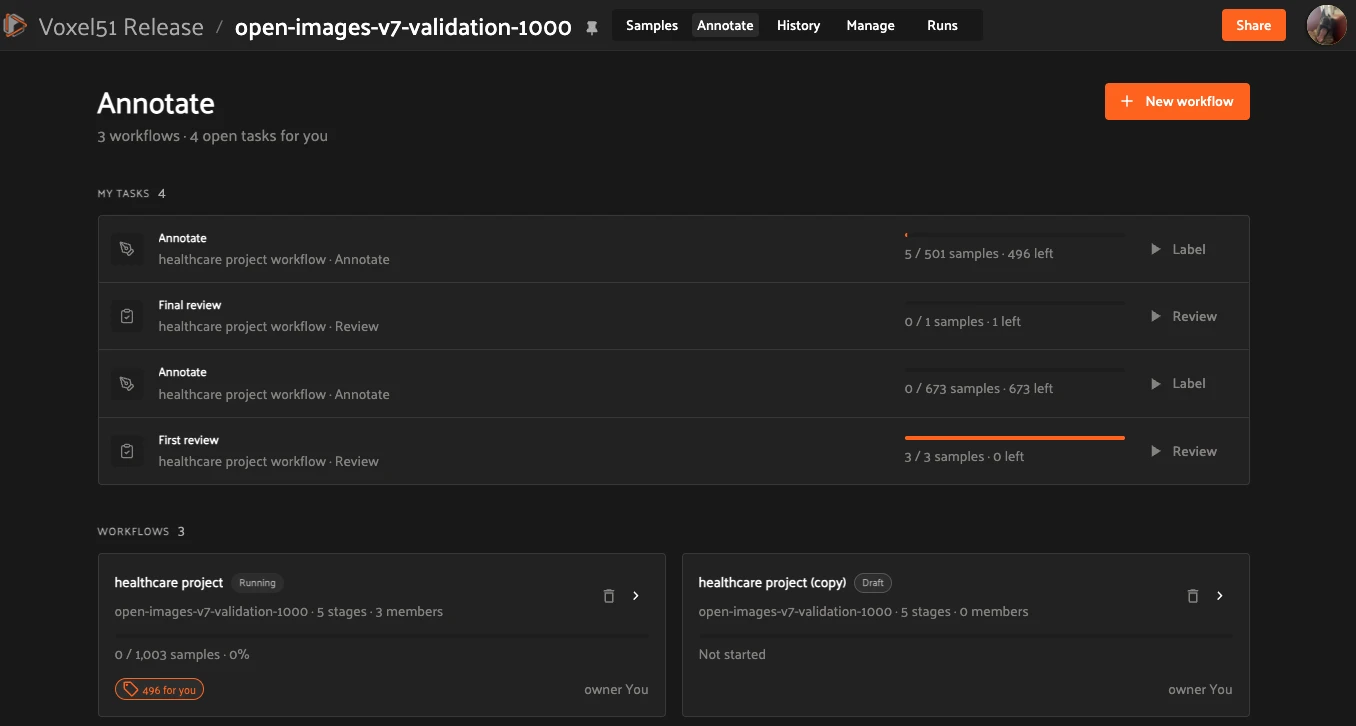
Each workflow has a **status** that reflects where it is in its lifecycle:
**Draft** (still being designed), **Started** (launched, with tasks being
created), **Running** (actively routing samples through its stages), or
**Complete** (all samples have been fully processed).
Workflows are built from **stages**, each with stage-specific configuration
options, that can spawn tasks and delegated operations. The core stage types
are:
- **Input samples** — a fixed first stage that defines which samples the
workflow runs on.
- **Annotate** — assignees label the samples that reach this stage and
submit the samples as they finish.
- **Review** — assignees approve or reject labeled samples. A review stage
has two outgoing branches, **Accepted** and **Rejected**, that you wire
to downstream stages.
A running workflow creates **tasks** — units of work assigned to members.
Each member sees their share under **My Tasks**. Progress is tracked per
unique sample: a stage’s total reflects the number of unique samples
currently available to work on — this number updates as upstream stages
push new samples in.
---
## How to: Create a Workflow

Click **+ New workflow** in the Annotate tab to open the workflow editor.
### Building the Pipeline on the Canvas
The editor is a visual node graph. Each stage is a node; drag from one
stage’s output handle to the next stage’s input handle to create a
connection.
For a **Review** stage, wire the **Accepted** output forward (for example,
to a final review or to the end of the pipeline) and the **Rejected**
output back to an **Annotate** stage so the sample is fixed and
resubmitted.
The canvas toolbar provides:
- **Tidy** — auto-layout the graph.
- **Clear** — reset the pipeline.
- **Delete** — remove the selected stage.
- **Start workflow** — launch the workflow once it is configured.
### Using a Template
Instead of building from scratch, click **Templates** to start from a
prebuilt pipeline. Templates are a fast way to stand up common
annotate-and-review patterns; customize the stages after importing.
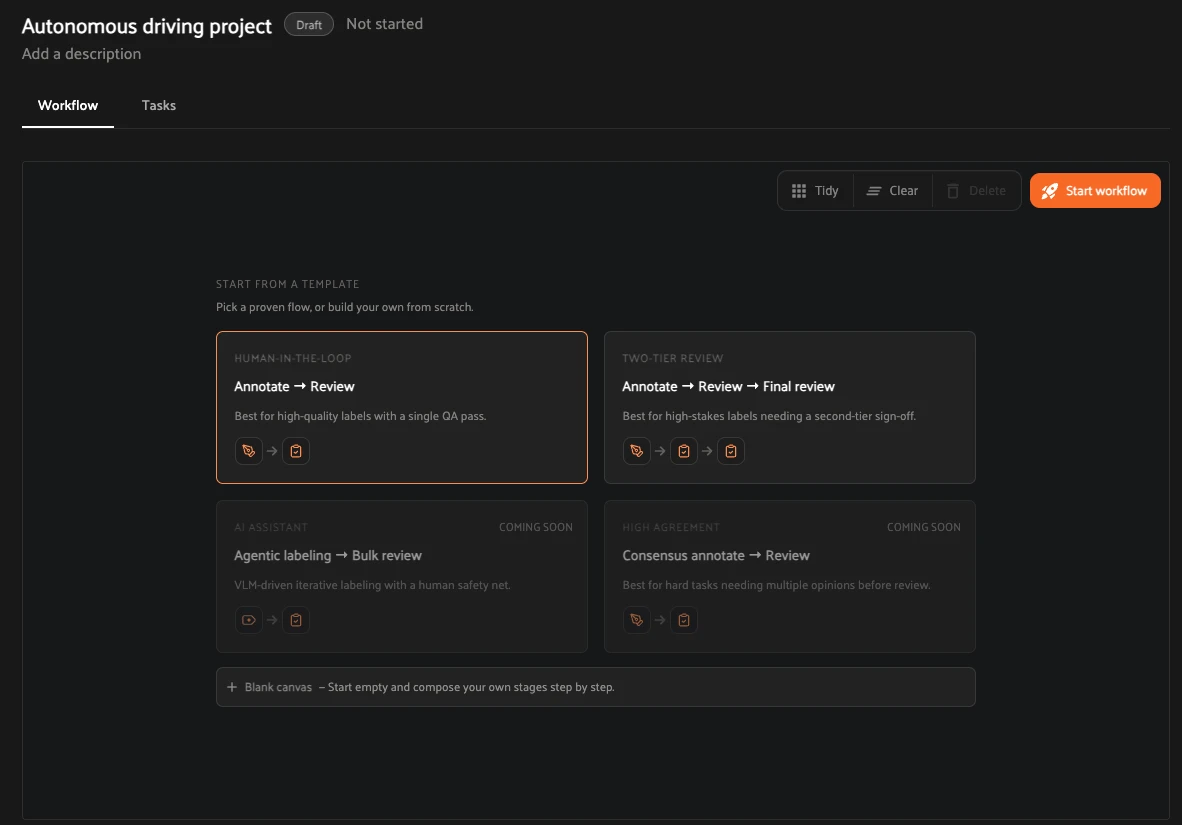
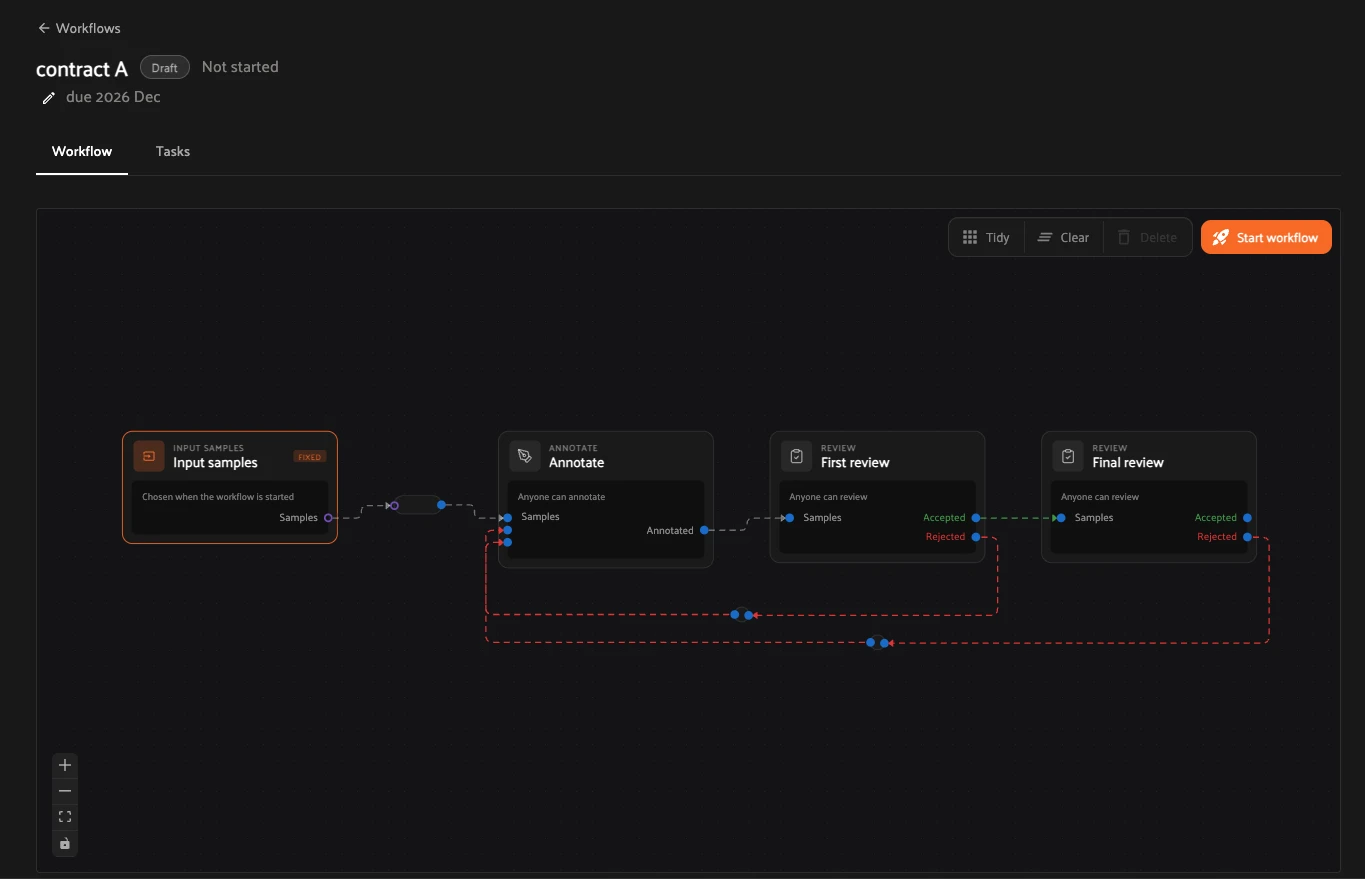
For example, the **Human-in-the-loop** template creates a single
Annotate → Review pipeline:
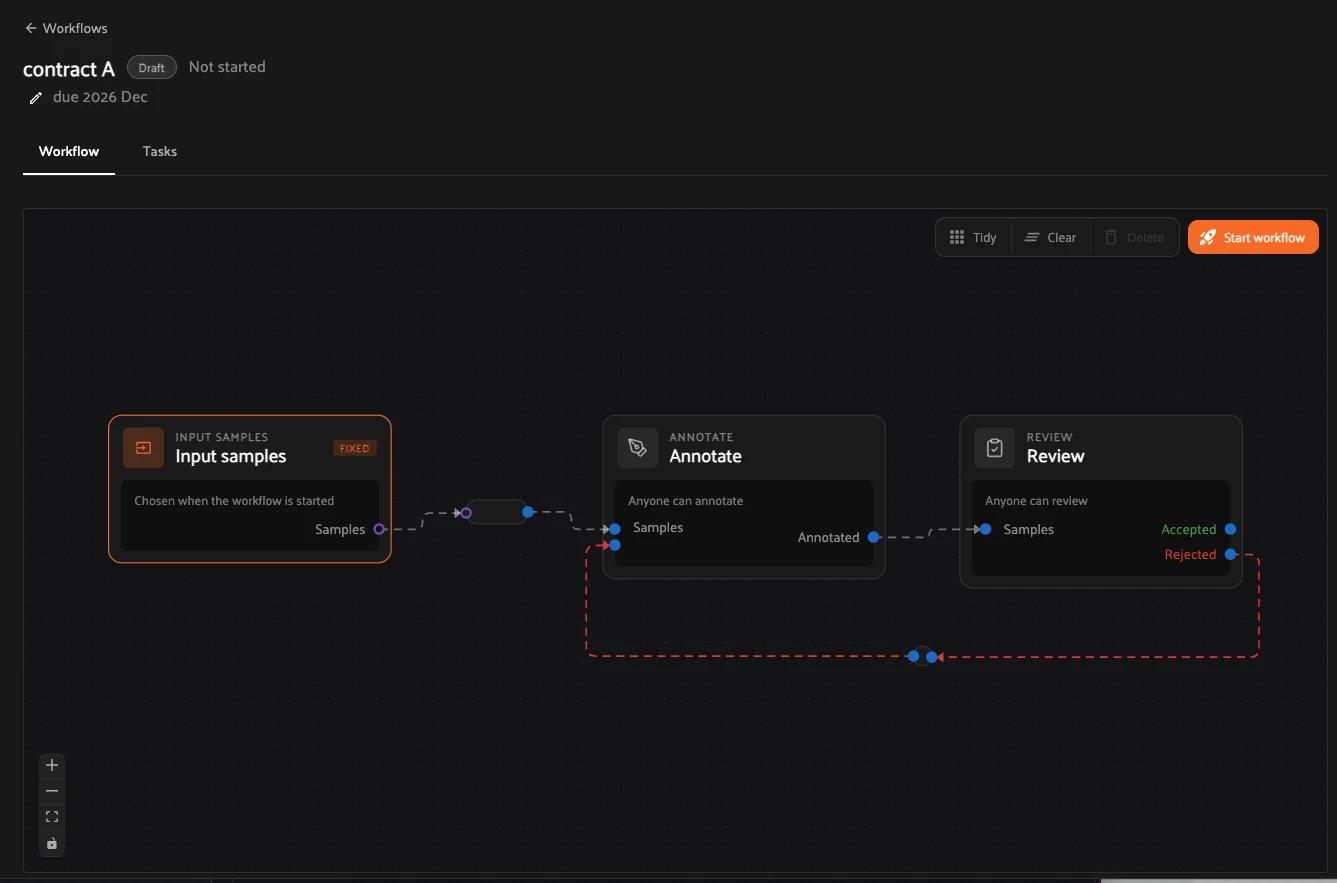
The **Two-tier review** template adds a second review stage for
high-stakes labeling:
### Configuring Stages
Click a stage on the canvas to configure it.
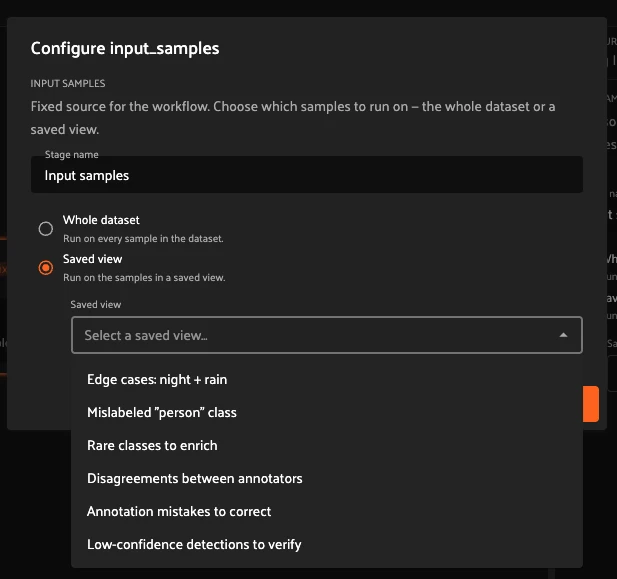
For example, the **Input samples** stage lets you choose which samples
enter the pipeline, such as a [saved view](../user_guide/app.md#app-saving-views):

An **Annotate** or **Review** stage lets you set who is assigned to the
work. The following example shows how to edit the assignee for a Review
stage:
### Starting a Workflow
When the pipeline is ready, click **Start workflow**. The workflow moves
from **Draft** to **Running**, tasks are created for each member, and a
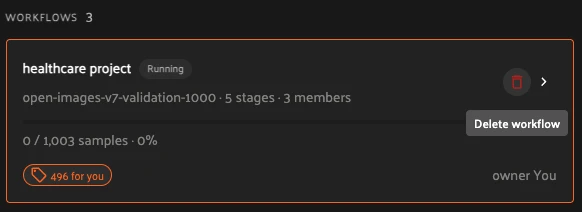
*“N for you”* indicator appears on the workflow card in the Annotate tab.
### Cloning and Deleting

**Clone** a workflow to reuse its pipeline as the starting point for a new
one.
**Delete** a workflow you no longer need from the workflow card or the
detail view.
### Viewing Tasks
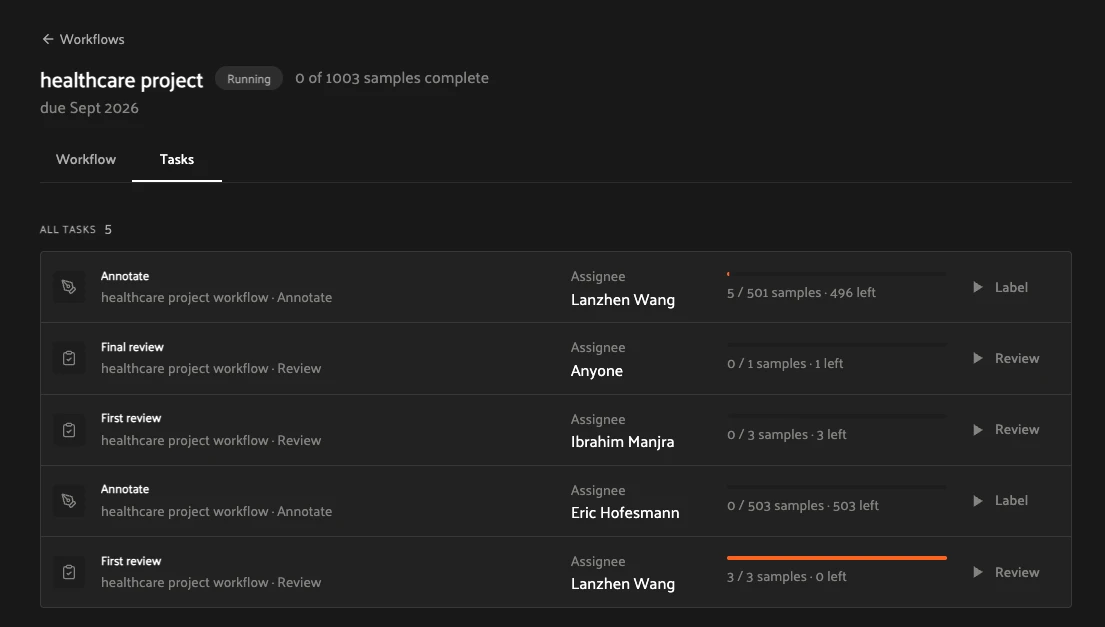
Each workflow has a **Tasks** tab listing every task the workflow has
generated, so you can see work across the whole pipeline in one place.
---
## How to: Work on Tasks
Open the **Annotate** tab and pick a task from **My Tasks**. Annotate
tasks open in labeling mode; review tasks open in review mode.
### Task Mode
When you open a sample as part of a task, the sample modal adds two
surfaces alongside the usual viewer:
**Task banner.** Displays task progress at a glance, along with a
**Resume labeling** button to jump back into the task and a link to
**View workflow** for the full pipeline context.


**Task progress.** Shows how many samples have been completed out of the
total assigned to the task (for example, *“5 / 501 samples”*).

### Annotate
In an annotate task you label one sample at a time. Click **Submit & next**
to save your work and advance, or **Skip** to move on without labeling
(the sample stays pending until someone completes it). The progress
indicator (for example, *“5 / 501 samples · 496 left”*) tracks how many
samples remain.
### Review
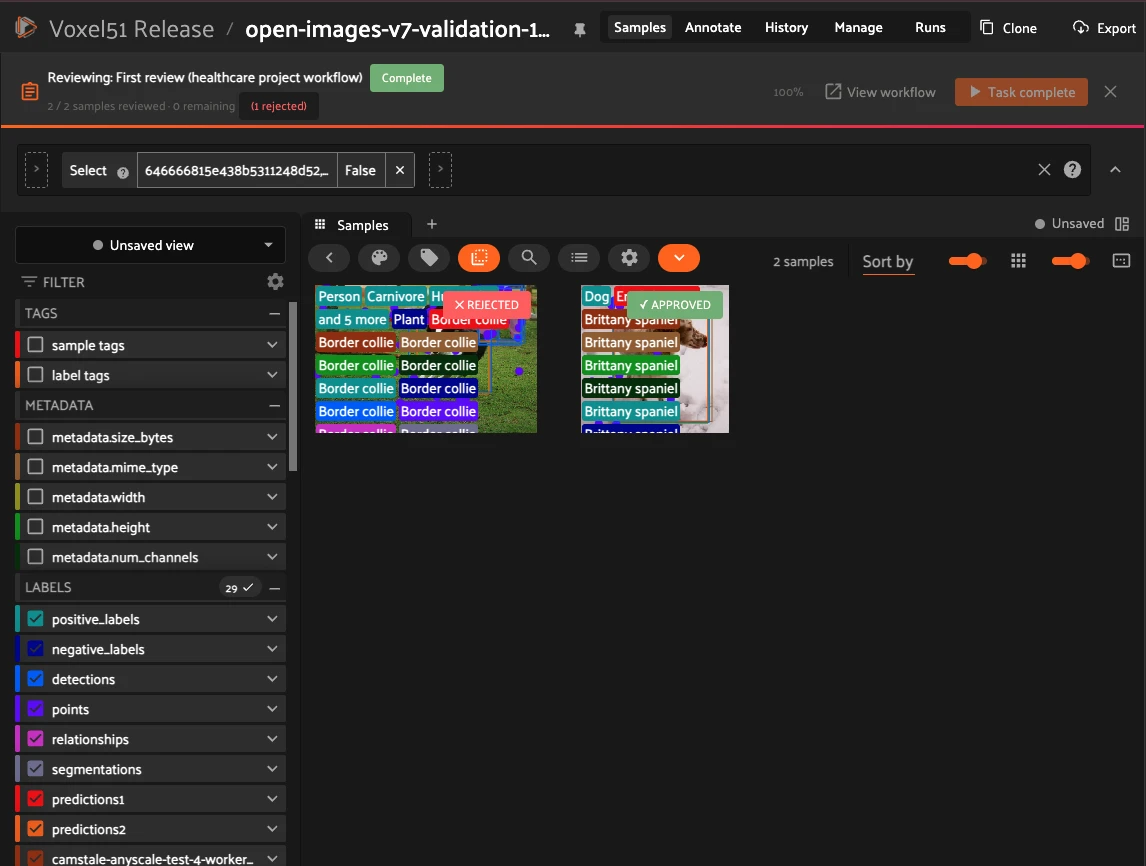
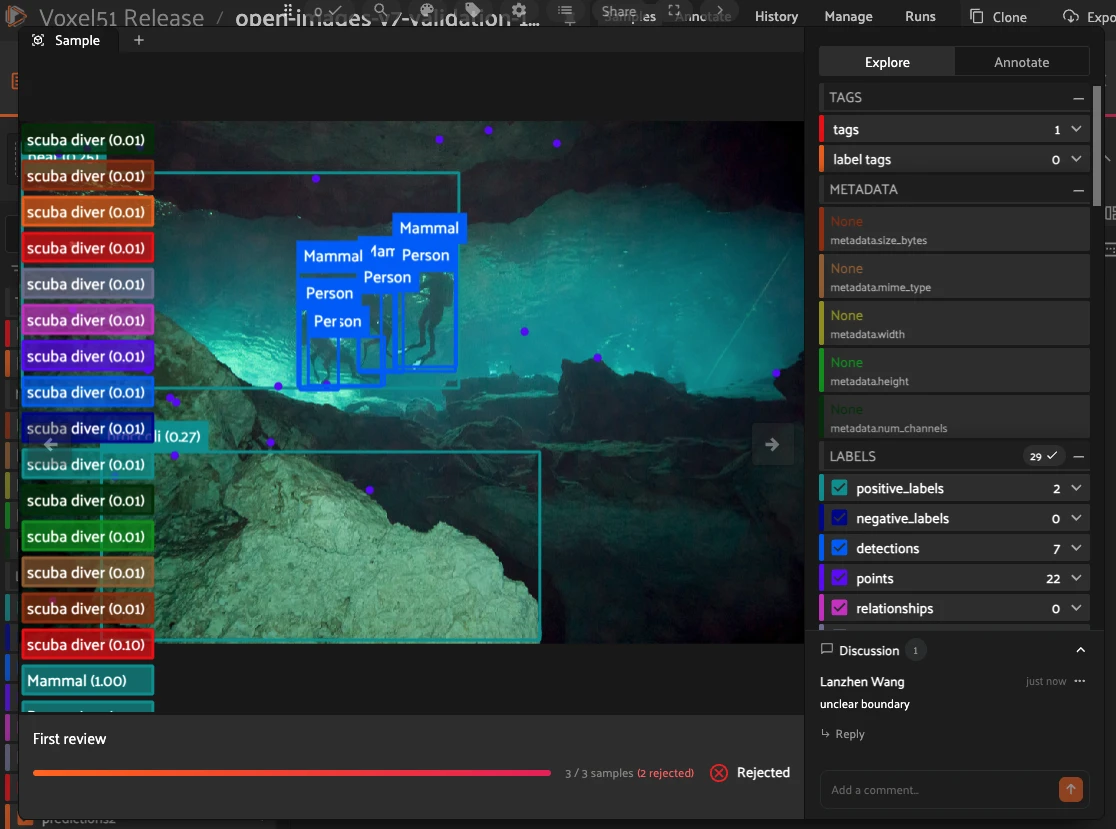
In a review task you approve or reject labeled samples. Each sample is
marked with an **APPROVED** or **REJECTED** badge. Approving or rejecting
samples routes them to the next stage as defined in the workflow pipeline;
for example, rejecting a sample might route it back to the annotate stage
it came from. The task progress (for example,
*“2 / 2 samples reviewed · 0 remaining (1 rejected)”*) reflects outcomes,
and you complete the task with **Task complete** once all samples have
been reviewed.
Use the discussion tray to leave [comments](app.md#enterprise-comments) on
individual samples to flag issues to your teammates.
#### Leaving Comments
While reviewing, you can leave [comments](app.md#enterprise-comments) on
individual samples to flag issues, request changes, or discuss specific
labels with the annotator. Comments stay attached to the sample so the
conversation follows the work as it moves through the pipeline.
---
## How to: Understand Metrics
Each workflow has a **Metrics** tab that answers the question *“how is this
work going?”* — how much has been produced, by whom, at what quality, and
at what pace. The numbers are built from the same submissions and review
decisions your team makes while
[working on tasks](#enterprise-workflows-task-mode).

#### NOTE
Metrics are powered by activity tracking, which must be enabled on
your deployment. If the board stays empty while work is clearly
happening, contact your admin.
### Choosing a Scope
The selector in the top-left corner controls how much work the board
aggregates:
- **This workflow** — only the workflow you are viewing.
- **This dataset** — every workflow on this dataset that you have access
to.
- **All datasets** — every workflow across all datasets that you have
access to.
The stage filter next to it adapts to the scope. Within **This workflow**
you can drill into any individual stage of the pipeline — for example,
*Annotate*, *First review*, and *Final review* in a two-tier pipeline. In
the two aggregated scopes, stages combine by type instead: **All stages**,
**Annotate**, or **Review**.

### Reading the Board
The chart plots the selected **Metric** (for example, *Labels / day*) over
the selected **Period**, with the total and per-day average summarized in
the corner. Below it, four cards summarize the scope:
- **Labels submitted** — labels included in submitted samples, net of
deletions.
- **Samples submitted** — unique samples submitted.
- **Avg time / label** — active working time divided by labels submitted;
shows a dash when the scope contains no labels (or no tracked time) yet.
- **Active people** — how many people did work in the current scope and
period.
The board syncs periodically — the *“Synced …”* timestamp in the toolbar
shows how fresh the numbers are, and the refresh button pulls the latest.
### The Per-Person Table
Below the cards, one row per person per assigned stage breaks the same
numbers down. Rows measure **throughput**: an annotator’s submissions and
a reviewer’s decisions both count as work, so someone who annotates in
one stage and reviews in another appears once per role.
Alongside the volume columns (**Samples**, **Labels touched**, **Added**,
**Deleted**, **Modified**) and pace columns (**Total time**,
**Avg time / sample**, **Trend**), a row carries two quality columns —
**First-pass approval** and **Rejection rate** — reflecting how the work
that person shipped from that stage fared in later review: an annotator’s
submissions, or, in pipelines where one review follows another, a
reviewer’s approvals (see *Who Reviews What in Longer Pipelines* below).
Use the **Columns** menu to choose which columns are shown. A dash means
the value is not available yet — for example, an annotator none of whose
submissions has been reviewed.

### Quality: First-Pass Approval and Rejection Rate
**First-pass approval rate** — of the submissions that have been reviewed
at least once, the fraction whose *first* review decision was an approval.
It answers *“how often is this work right the first time?”* — later
re-reviews never change it.
**Rejection rate** — of *all* review decisions made on the work, the
fraction that were rejections. It is cumulative: every decision counts,
including re-reviews of reworked samples, so it falls as fixed work gets
approved.
Both rates ignore pending work: submissions that nobody has reviewed yet
sit outside the denominator entirely rather than dragging the rate down.
A worked example: an annotator submits 3 samples, and a reviewer approves
2 and rejects 1:
- First-pass approval: 2 of 3 first decisions were approvals — **67%**.
- Rejection rate: 1 of 3 decisions was a rejection — **33%**.
The rejected sample is then reworked, resubmitted, and approved:
- First-pass approval **stays 67%** — that sample’s first decision was
still a rejection, and first decisions are a permanent record.
- Rejection rate **falls to 25%** — 1 rejection out of 4 total decisions.
### Who Reviews What in Longer Pipelines
In a pipeline with several annotate and review stages, each review stage
judges the work that reaches it — and a reviewer’s own approvals can be
judged by a later review in turn. Consider a six-stage pipeline:
```text
Annotate 1 → Annotate 2 → Review 1 → Annotate 3 → Review 2 → Review 3
```
- **Review 1** is the first review after Annotate 1 *and* Annotate 2, so
its decisions judge the combined work of both stages — each label counts
toward the person who authored it.
- **Review 2** judges the new work from Annotate 3.
- **Review 3** follows another review directly, so it re-judges what
passed Review 2: its decisions reflect on Annotate 3’s labels *and* on
Review 2’s approvals.
When Review 3 rejects a sample that Review 2 approved, the rejection
counts against Review 2’s row as well — which is why a *review* stage can
itself show a rejection rate. This is how a two-tier review pipeline
surfaces reviewer quality, not just annotator quality.
### How Time Is Measured
All time metrics — **Total time**, **Avg time / label**, and
**Avg time / sample** — are built from *active working time*, measured in
the browser while a person has a sample open as part of a task:
- **Presence is inferred from input.** Pointer, keyboard, wheel, and
touch activity mark you as present. Short pauses between inputs count
in full — reading and inspecting a sample is work — but once a pause
reaches a minute with no input, the clock rewinds to the last moment
of activity and stops. Stepping away never inflates the numbers.
- **Hidden tabs never count.** Switching to another tab or window stops
the clock immediately; returning to the tab restarts it.
- **Time follows the sample and the role.** Working time is credited to
the specific sample being worked on and to the stage where the work
happens, so annotate time and review time are tracked separately —
the same person shows separate times in an Annotate row and a Review
row.
- **A dash means no measurable time.** Time metrics show a dash rather
than a zero when there is no tracked active time in the selected scope.
### What Counts (and What Doesn’t)
- Only **submitted** work counts. Labels edited but never submitted stay
off the board.
- Labels are counted net of deletions: a label added and then deleted
before submitting nets to zero.
- A sample approved with no labels counts as a submitted sample with zero
labels — the board reads *Samples 1 / Labels 0*, not nothing.
- **Skip** is not a submission.
- Rates never punish waiting: one reviewed-and-approved submission with
ten more still pending reads *100% first-pass approval*, not 9%.