# FiftyOne Enterprise Plugins
FiftyOne Enterprise provides native support for installing and running
[FiftyOne plugins](../plugins/overview.md#fiftyone-plugins), which offers powerful opportunities
to extend and customize the functionality of your Enterprise deployment to suit
your needs.
#### NOTE
What can you do with plugins? Check out
[delegated operations](#enterprise-delegated-operations) to see some
quick examples, then check out the
[Plugins Ecosystem](../plugins/index.md#plugins-ecosystem) for a growing collection of
plugins that you can add to your Enterprise deployment!
## Plugins page
Admins can use the plugins page to upload, manage, and configure permissions
for plugins that are made available to users of your Enterprise deployment.
#### NOTE
Want to build your own plugin? See the
[Developing plugins](../plugins/developing_plugins.md#developing-plugins) guide.
Admins can access the plugins page under Settings > Plugins. It displays a
list of all installed plugins and their operators, as well as the enablement
and permissions of each.

## Installing a plugin
Admins can install plugins via the Enterprise UI or Management SDK.
#### NOTE
A plugin is a directory (or ZIP of it) that contains a top-level
`fiftyone.yml` file.
### Enterprise UI
To install a plugin, click the “Install plugin” button on the plugins page.

Then upload or drag and drop the plugin contents as a ZIP file and click
install.

You should then see a success message and the newly installed plugin listed on
the plugins page.

### SDK
Admins can also use the
[`upload_plugin()`](management_sdk.md#fiftyone.management.plugin.upload_plugin) method from
the Management SDK:
```python
import fiftyone.management as fom
# You can pass the directory or an already zipped version of it
fom.upload_plugin("/path/to/plugin_dir")
```
## Upgrading a plugin
Admins can upgrade plugins at any time through the Enterprise UI or Management SDK.
### Enterprise UI
To upgrade a plugin, click the plugin’s dropdown and select “Upgrade plugin”.

Then upload or drag and drop the upgraded plugin as a ZIP file and click
upgrade.

#### NOTE
If the `name` attribute within the uploaded plugin’s `fiftyone.yml` file
doesn’t match the existing plugin, a new plugin will be created. Simply
delete the old one.
You should then see a success message and the updated information about the
plugin on the plugins page.

### SDK
Admins can also use the
[`upload_plugin()`](management_sdk.md#fiftyone.management.plugin.upload_plugin) method from
the Management SDK with the `overwrite=True` option:
```python
import fiftyone.management as fom
# You can pass the directory or an already zipped version of it
fom.upload_plugin("/path/to/plugin_dir", overwrite=True)
```
## Uninstalling a plugin
Admins can uninstall plugins at any time through the Enterprise UI or Management
SDK.
#### NOTE
Did you know? You can
[enable/disable plugins](#enterprise-plugins-enable-disable) rather than
permanently uninstalling them.
### Enterprise UI
To uninstall a plugin, click the plugin’s dropdown and select
“Uninstall plugin”.

### SDK
Admins can also use the
[`delete_plugin()`](management_sdk.md#fiftyone.management.plugin.delete_plugin) method from
the Management SDK:
```python
import fiftyone.management as fom
fom.delete_plugin(plugin_name)
```
## Enabling/disabling plugins
### Enterprise UI
When plugins are first installed into Enterprise, they are enabled by default, along
with any operators they contain.
Admins can enable/disable a plugin and all of its operators by toggling the
enabled/disabled switch.

Admins can also disable/enable specific operators within an (enabled) plugin
by clicking on the plugin’s operators link.

and then toggling the enabled/disabled switch for each operator as necessary.

### SDK
Admins can also use the
[`set_plugin_enabled()`](management_sdk.md#fiftyone.management.plugin.set_plugin_enabled)
and
[`set_plugin_operator_enabled()`](management_sdk.md#fiftyone.management.plugin.set_plugin_operator_enabled)
methods from the management SDK:
```python
import fiftyone.management as fom
# Disable a plugin
fom.set_plugin_enabled(plugin_name, False)
# Disable a particular operator
fom.set_plugin_operator_enabled(plugin_name, operator_name, False)
```
## Plugin permissions
Admins can optionally configure access to plugins and individual operators
within them via any combination of the permissions described below:
| Permission | Description |
|----------------------------|-------------------------------------------------------------------------------------------------------|
| Minimum Role | The minimum role a user must have to execute the operation. |
| Minimum Dataset Permission | The minimum dataset permission a user must have to perform the operation
on a particular dataset. |
### Enterprise UI
To configure the permissions for an operator, first click on the plugin’s
operators link.

Then change the dropdown for the operator to reflect the desired permission
level.

### SDK
Admins can also use the
[`set_plugin_operator_permissions()`](management_sdk.md#fiftyone.management.plugin.set_plugin_operator_permissions)
method from the Management SDK:
```python
import fiftyone.management as fom
# Set minimum role permission only
fom.set_plugin_operator_enabled(
plugin_name,
operator_name,
minimum_role=fom.MEMBER,
)
# Set minimum dataset permission only
fom.set_plugin_operator_enabled(
plugin_name,
operator_name,
minimum_dataset_permission=fom.EDIT,
)
# Set both minimum role and minimum dataset permissions
fom.set_plugin_operator_enabled(
plugin_name,
operator_name,
minimum_role=fom.EDIT,
minimum_dataset_permission=fom.EDIT,
)
```
### Default permissions
When new plugins are installed, any operators they contain are initialized with
the default permissions for your deployment.
By default, the initial permissions are:
| Permission | Default |
|----------------------------|-----------|
| Minimum Role | Member |
| Minimum Dataset Permission | Edit |
#### Enterprise UI
Default operator permissions can be configured by navigating to the page at
Settings > Security and looking under the Plugins header. Click the dropdown
for the permission you want to change and select the new value.

#### SDK
Admins can also use the
[`set_organization_settings()`](management_sdk.md#fiftyone.management.organization.set_organization_settings)
method from the Management SDK:
```python
import fiftyone.management as fom
fom.set_organization_settings(
default_operator_minimum_role=fom.MEMBER,
default_operator_minimum_dataset_permission=fom.EDIT,
)
```
## Delegated operations
[Delegated operations](../plugins/using_plugins.md#delegated-operations) are a powerful feature of
FiftyOne’s plugin framework that allows users to schedule tasks from within the
App that are executed in the background on a connected compute cluster.
With FiftyOne Enterprise, your team can
[upload and permission](#enterprise-plugins-page) custom operations that
your users can execute from the Enterprise App, all of which run against a
central orchestrator [configured by](#enterprise-delegated-orchestrator)
your admins.
Why is this awesome? Your AI stack needs a flexible data-centric component that
enables you to organize and compute on your data. With delegated operations,
FiftyOne Enterprise becomes both a dataset management/visualization tool and a
workflow automation tool that defines how your data-centric workflows like
ingestion, curation, and evaluation are performed. In short, think of FiftyOne
Enterprise as the single source of truth on which you co-develop your data and
models together.
What can delegated operations do for you? Get started by installing any of
these plugins available in the
[FiftyOne Plugins](https://github.com/voxel51/fiftyone-plugins) repository:
| [@voxel51/annotation](https://github.com/voxel51/fiftyone-plugins/blob/main/plugins/annotation/README.md) | ✏️ Utilities for integrating FiftyOne with annotation tools |
|-------------------------------------------------------------------------------------------------------------|---------------------------------------------------------------------------------------------------------------------------|
| [@voxel51/brain](https://github.com/voxel51/fiftyone-plugins/blob/main/plugins/brain/README.md) | 🧠 Utilities for working with the FiftyOne Brain |
| [@voxel51/evaluation](https://github.com/voxel51/fiftyone-plugins/blob/main/plugins/evaluation/README.md) | ✅ Utilities for evaluating models with FiftyOne |
| [@voxel51/io](https://github.com/voxel51/fiftyone-plugins/blob/main/plugins/io/README.md) | 📁 A collection of import/export utilities |
| [@voxel51/indexes](https://github.com/voxel51/fiftyone-plugins/blob/main/plugins/indexes/README.md) | 📈 Utilities working with FiftyOne database indexes |
| [@voxel51/utils](https://github.com/voxel51/fiftyone-plugins/blob/main/plugins/utils/README.md) | ⚒️ Call your favorite SDK utilities from the App |
| [@voxel51/voxelgpt](https://github.com/voxel51/voxelgpt) | 🤖 An AI assistant that can query visual datasets, search the FiftyOne docs, and answer general computer vision questions |
| [@voxel51/zoo](https://github.com/voxel51/fiftyone-plugins/blob/main/plugins/zoo/README.md) | 🌎 Download datasets and run inference with models from the FiftyOne Zoo, all without leaving the App |
For example, wish you could import data from within the App? With the
[@voxel51/io](https://github.com/voxel51/fiftyone-plugins/blob/main/plugins/io/README.md),
plugin you can!

Want to send data for annotation from within the App? Sure thing, just install the
[@voxel51/annotation](https://github.com/voxel51/fiftyone-plugins/blob/main/plugins/annotation/README.md)
plugin:

Have model predictions on your dataset that you want to evaluate? The
[@voxel51/evaluation](https://github.com/voxel51/fiftyone-plugins/blob/main/plugins/evaluation/README.md)
plugin makes it easy:

Need to compute embedding for your dataset so you can visualize them in the
[Embeddings panel](../user_guide/app.md#app-embeddings-panel)? Kick off the task with the
[@voxel51/brain](https://github.com/voxel51/fiftyone-plugins/blob/main/plugins/brain/README.md)
plugin and proceed with other work while the execution happens in the background:

When you choose delegated execution in the App, these tasks are automatically
scheduled for execution on your
[connected orchestrator](#enterprise-delegated-orchestrator) and you can
continue with other work. Meanwhile, all datasets have a
[Runs tab](#enterprise-managing-delegated-operations) in the App where you can
browse a history of all delegated operations that have been run on the dataset
and their status.
## Distributed execution
#### Versionadded
Added in version 2.11.0.
FiftyOne Enterprise supports distributed execution of delegated operations
across many workers in parallel.
When you schedule a
[distributable operation](../plugins/developing_plugins.md#writing-distributed-operators) from the App,
you can choose how many batches to split the operation into. The dataset or
target view will be split up into that number of tasks, and each task will be
executed independently on a separate worker, allowing you to scale out the
execution of large operations across many machines.
If you choose a number of tasks (T) less than the deployment’s maximum, the
operation can complete up to T times faster, if resources are available
and tasks are balanced!

#### NOTE
Follow [these simple instructions](../plugins/developing_plugins.md#writing-distributed-operators)
to update your operators to support distributed execution.
You may want to split an operation into more tasks than can be run
concurrently based on your deployment’s maximum. For example, you may do this
to limit the runtime of each individual task so that the scheduling engine can
prioritize other tasks as necessary throughout execution.
In the example below, we have chosen to split a distributable operation into
100 batches, but the deployment maximum is 9 concurrent tasks, so at most 9
batches will be processed in parallel at any given time.

Once scheduled, you can monitor the status of a distributed operation,
including fine-grained details about each individual worker, from the
[Runs page](#enterprise-runs-page).
#### NOTE
Contact your Voxel51 support team to increase your deployment’s maximum
delegated operation capacity.
## Configuring your orchestrator(s)
FiftyOne Enterprise offers a builtin orchestrator that is configured as part of
your team’s deployment with a default level of compute capacity.
As you scale your usage of FiftyOne, you’ll likely want to scale your
deployment’s compute capacity and take advantage of advanced features such as
configuring an on-demand compute integration with your external compute
platform such as Databricks or Anyscale.
#### NOTE
Contact your Voxel51 support team to scale your deployment’s compute
capacity, for more information about on-demand compute integrations,
or if you’d like to use another external orchestrator.
### On-demand compute
#### Versionadded
Added in version 2.11.0.
#### NOTE
On-demand compute is currently in **beta** and its API or functionality may
change in future releases.
FiftyOne Enterprise supports executing delegated operations on-demand in
your connected external compute platform. With on-demand compute, resources are
only provisioned and used when they’re actually needed, minimizing idle times.
On-demand compute is currently supported on FiftyOne’s Kubernetes Orchestrator,
[Databricks](https://www.databricks.com/), and
[Anyscale](https://www.anyscale.com/).
Administrators can refer to the
[deployment guide](https://github.com/voxel51/fiftyone-teams-app-deploy/blob/main/docs/configuring-on-demand-orchestrator.md)
to learn how to configure on-demand compute for their FiftyOne Enterprise
deployment.
### External orchestrators
It is also possible to connect your FiftyOne Enterprise deployment to other
externally-managed workflow orchestration tools, such as
[Airflow](https://airflow.apache.org), [Flyte](https://flyte.org), and
[Spark](https://spark.apache.org/). Please contact your Voxel51 support team
for further details.
## Services
Some builtin operators run as long-lived *services*: always-on model servers
that stay ready between uses instead of spinning up a new job per run. Services
are hosted by a **service orchestrator** and power GPU-backed, interactive
features such as [agentic labeling](agentic_labeling.md#agentic-labeling) and
[AI-assisted annotation](../user_guide/annotation.md#in-app-ai-annotation) (segmentation and video
tracking), where a per-run cold start would otherwise make the experience too
slow.
Administrators manage services from the Services page under Settings >
Services, where you can start, stop, and monitor each service and view its
status.
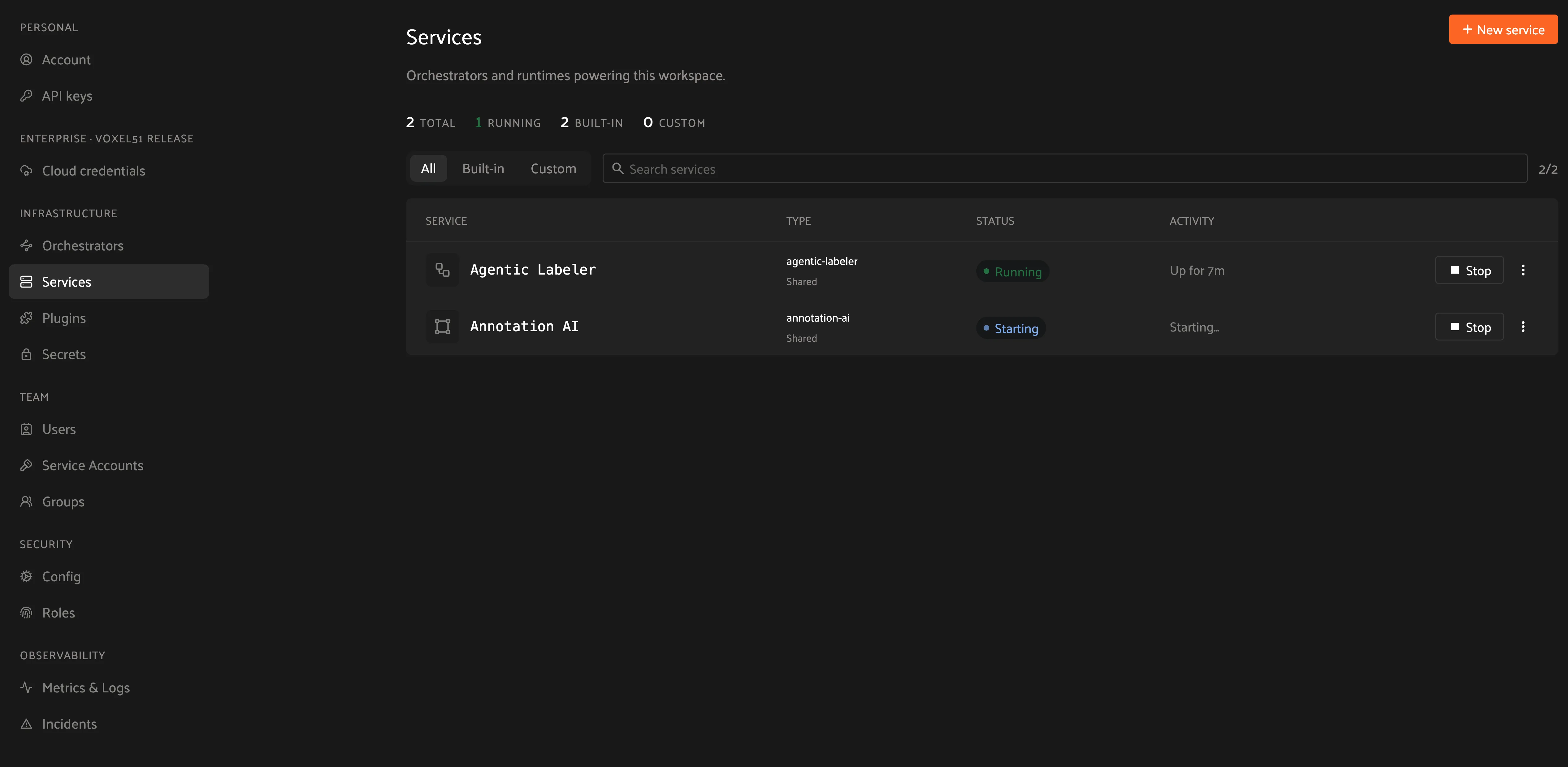
Services run on your own GPU infrastructure, provisioned through the service
orchestrator. Administrators can refer to the
[deployment guide](https://github.com/voxel51/fiftyone-teams-app-deploy/blob/main/docs/configuring-service-orchestrator.md)
to learn how to configure the service orchestrator for their FiftyOne
Enterprise deployment.
## Managing delegated operations
Every dataset in FiftyOne Enterprise has a Runs page that allows users with access
to monitor and explore delegated operations scheduled against that dataset.
All scheduled operations are maintained in a queue and will be automatically
executed as resources are available on the targeted orchestrator.
#### NOTE
The Runs page only tracks operations that are scheduled for delegated
execution, not operations that are executed immediately in the App.
### Runs page
All users with at least **Can View** access to a dataset can visit the Runs
page by clicking on the “Runs” tab.
On the Runs page, you will see a table with a list of delegated operations.
Admins can choose whether to view operations for all datasets or only the
current dataset, while non-admins can only view operations associated with the
current dataset.
The table provides options to sort, search, and filter runs shown to refine the
list as you like:

#### Deployment-level Runs page
The Runs tab described above lives on a dataset. Users can also reach a
**deployment-level** Runs page from Settings > Runs that opens the same table
without first loading a dataset, making it a convenient entry point for
monitoring delegated operations and long-running
[service](#enterprise-services) operations across the whole deployment.
#### Statuses
Delegated operations can have one of 5 potential statuses:
- **Scheduled**: the run has been scheduled for execution and is awaiting
execution quota. All delegated operations begin life in this state
- **Queued**: the run has been allocated execution quota and it will start
running as soon as orchestrator resources become available
- **Running**: the run is currently being executed
- **Completed**: the run has completed successfully
- **Failed**: the run failed to complete
#### NOTE
Distributed operations have a computed status based on the statuses of
their individual tasks. For example, a distributed operation is considered
“Completed” only when all of its tasks have completed successfully.

You can hover over the status badge of a run in Scheduled or Queued state to
see additional information about its execution, including its position in the
Scheduled queue:

#### Sorting
By default, the runs table is sorted by recency, with the most recently
scheduled run at the top. You can use the dropdown menu in the upper right
of the table to sort by other criteria, including last updated, oldest, or
operator name:

#### Filtering
You can also filter the runs table to see a subset of runs.
Users with sufficient privileges can toggle between “My Runs” and “All Runs” to
see runs you have scheduled versus runs that others in your organization have
scheduled on the current dataset:

All users can further refine the list of runs using the Status dropdown to
select one or more statuses you would like to filter by:

Admins can also toggle to show “All Datasets” or “This Dataset” to control
whether to show all runs for your organization versus only runs for the dataset
you are currently viewing:

#### Searching
You can also use the search functionality to filter the list of runs by
keyword. As you type your query in the search box, the list of runs will be
updated to show only the runs matching your query:

#### NOTE
Search is case-sensitive and you can currently only search by operator
name, not label. For example, the search “bright” does not match against
the label “compute_brightness” in the image above but instead the operator
URI “@voxel51/panels/compute_brightness”.
#### Re-running
From the Runs page, you can trigger a re-run of any run by clicking the kebab
menu and selecting “Re-run”:

#### Pinning
Pinned runs are displayed to the right of the runs table. By default, five
pinned runs will be displayed, and if there are more than five pinned runs, you
will see a button to expand the list.
To pin a run, hover over its row in the runs table and click the pin icon that
appears beside the operator label:
#### NOTE
Pinned runs are stored at the dataset-level and will be visible to all
users with access to that dataset.

#### Renaming
When delegating an operation multiple times on the same dataset, you may wish
to give the runs custom labels so that you can easily identify each run later.
To edit the label of an operator run, move your mouse cursor over the label of
interest and click the pencil button as indicated by “1” below. This will
present an input field indicated by “2” where you can update the label to the
text of your choice. Once you are ready to apply changes, click the save button
indicated by “3”:

#### Terminate
To terminate a run, click the three dots indicated by “1”. Then, in the
menu, click “Terminate” as indicated by “2”. The run status will be
updated and will now display as failed:

#### Versionchanged
Changed in version 2.12.0: The “Terminate” action now actually stops running delegated operations.
#### NOTE
If you are running a version older than 2.12.0, the button will say
“Mark as Failed” instead of “Terminate”, and it **will not** stop the
operation on your orchestrator-it will only mark the run as failed
while the operation continues executing.
#### Monitoring progress
Delegated operations can optionally
[report their progress](../plugins/developing_plugins.md#operator-reporting-progress) during execution.
If progress is available for a run, it will be displayed in the Runs table as
indicated by “2”.
By default, the general status of a run and the progress of running operations
is automatically refreshed. You can disable the auto-refresh of running
operations by toggling the auto-refresh setting indicated by “1”.

### Run page
The Run page for a specific run allows you to see information about a specific
delegated operation, including its inputs, outputs, logs, and errors.
You can visit the Run page for a run by clicking on the run in the runs table,
the Pinned runs section, or the Recent runs widgets.
#### Children
#### Versionadded
Added in version 2.11.0.
If a distributable delegated operation was scheduled with multiple tasks,
then it’s considered to be a “parent”. The Run page will include a Children
tab that allows you to see the status of each individual child task in a
tabular format similar to the main Runs page:

You are given options to sort, search, and filter the list of tasks as you
would on the main Runs page. You can also click on any task in the table to
visit its own Run page.
#### NOTE
You can mark a child task as failed, but you cannot re-run or delete a
child task individually.
#### Input
The Input tab on the Run page lets you see the input parameters that were
provided when the delegated operation was scheduled:

By default, a rendered version of input parameters is displayed, similar to
what is displayed when invoking an operator via a prompt modal. However, you
can switch to raw format by clicking the “Show raw” toggle button:

#### Output
The Output tab on the Run page lets you see the rendered output of a delegated
operation that has completed, if there is any:

#### Errors
The Errors tab on the Run page will appear if the run failed, and it will
display the error message and stack trace that occurred:

#### Logs
The Logs tab on the Run page allows you to view logs for a delegated operation.

#### NOTE
Logs are only available for delegated operations that were executed on the
builtin FiftyOne Orchestrator. If you are using an external orchestrator,
log availability depends on your specific integration and configuration.
**Viewing logs**
Logs are stored in MongoDB and are available in the Logs tab both while a run
is in progress and after it completes.

Logs are displayed in a tabular format. You can click the icons to toggle the visibility
of columns, show timestamps in your local timezone, filter logs by severity.
You can also search for specific keywords or limit the logs to a custom time range.

**Log retention and archival**
By default, delegated operation logs are retained in MongoDB for 30 days. After
the retention period expires, logs are either uploaded to a cloud bucket or
deleted.
The following environment variables can be set on your API pod to configure
log retention behavior:
- `FIFTYONE_DO_LOG_RETENTION_DAYS`: the number of days to retain logs in
MongoDB before archiving or deleting them. Default is `30`.
- `FIFTYONE_DO_LOG_BUCKET_PATH`: a cloud bucket prefix where logs are
uploaded after the retention period expires, e.g.
`gs://my-bucket/do-logs` or `s3://my-bucket/do-logs`. If unset, logs
are deleted without being uploaded. Default is `None`.
Once archived, you can access the logs for a particular run by clicking the
“Download logs” option from the Run page:

#### NOTE
If you are using a third-party orchestrator, a `run_link` can be
added to each run to link back to the external run details page.
#### Metrics
The Metrics tab on the Run page allows you to view any metrics that were
collected during the execution of the delegated operation. These include
system metrics such as CPU and memory usage, network io, and sampled profiling data.

If the run was executed on a gpu-enabled cluster, you can also see gpu-specific metrics
such as gpu utilization and gpu memory usage.

While an operation is running, admins also have access to a Database panel that allows
them to monitor MongoDB system metrics and query performance in real time.

#### View
The View tab on the Run page lets you see the specific view (which could be the
full dataset) on which the operation was performed:
