# FiftyOne Agent
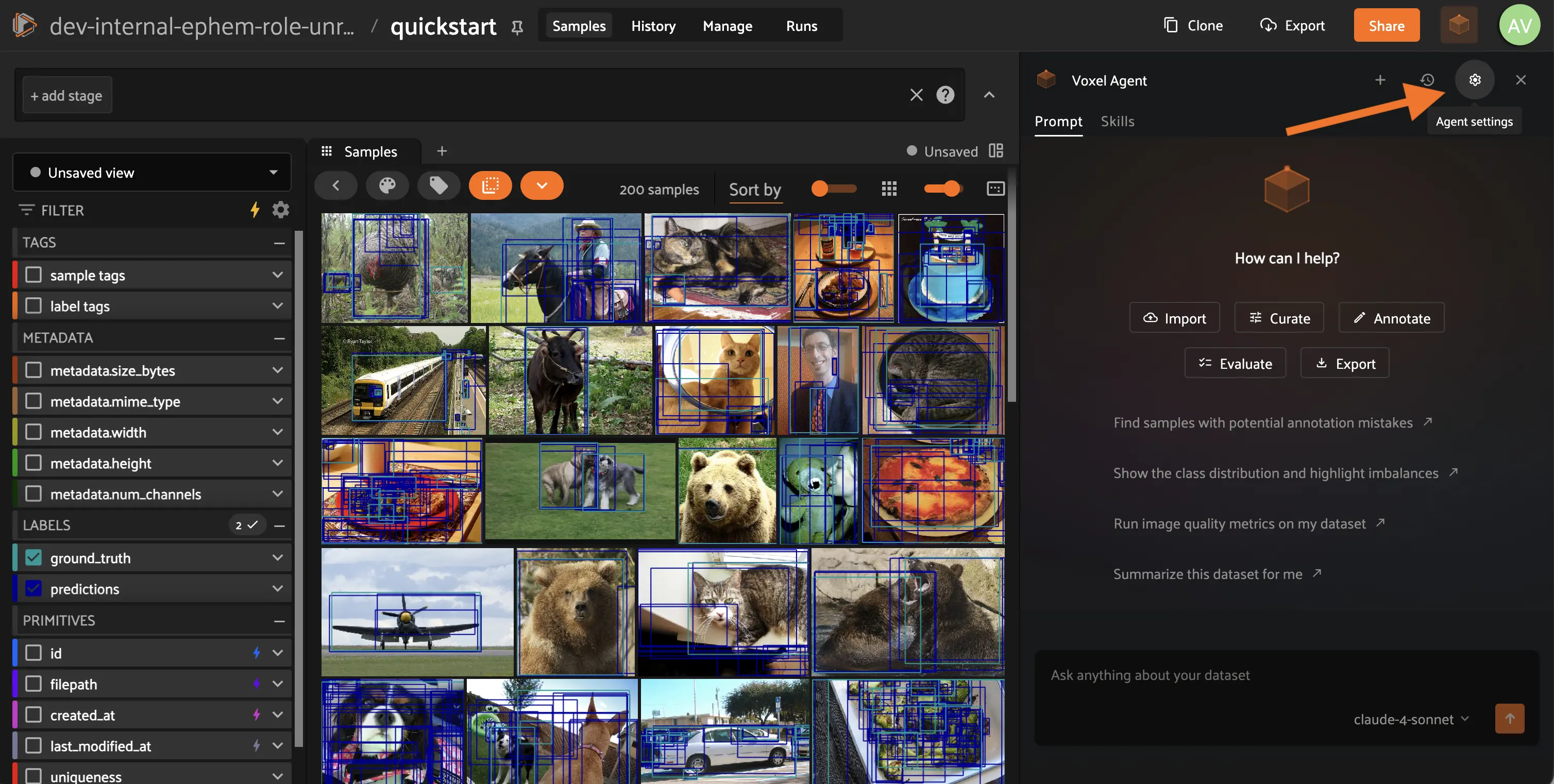
The FiftyOne Agent is an AI-powered assistant built into the
[FiftyOne Enterprise App](app.md#enterprise-app). It lets you work with your
datasets using natural language. You can import data, run model inference,
find duplicates, evaluate predictions, and more, all from a conversational
interface.

## Setup
1. Contact your Customer Success representative to enable the FiftyOne Agent
for your deployment.
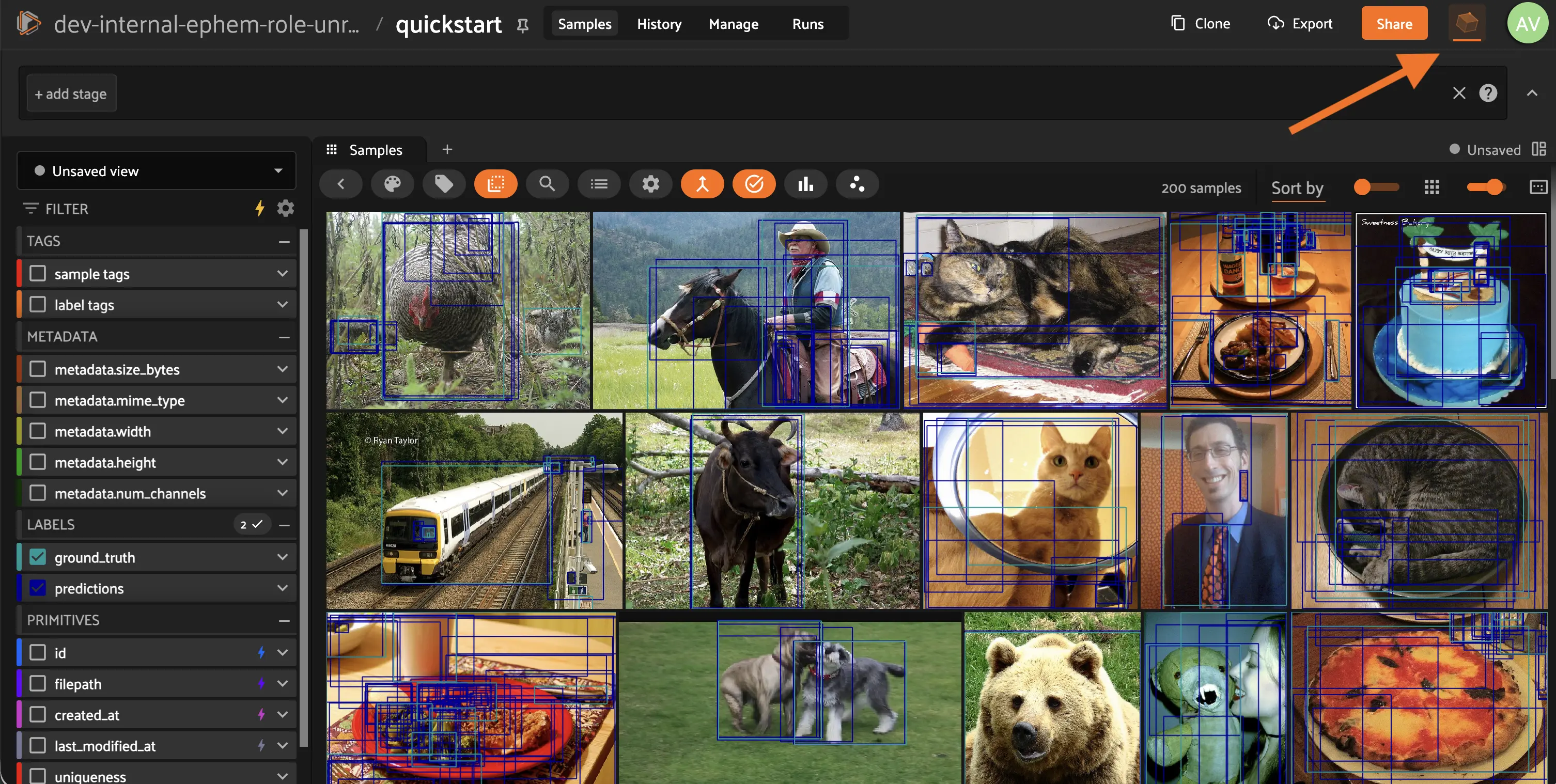

2. Open any dataset in the FiftyOne Enterprise App. You will see a new Agent
button in the upper-right corner of the App.
#### NOTE
The FiftyOne Agent now ships as a built-in feature of the FiftyOne
Enterprise App rather than a separately installed plugin. If you
installed an earlier standalone version of the Agent plugin, you can
remove it once your deployment is upgraded. The built-in version
replaces it entirely.
## Configuring model providers
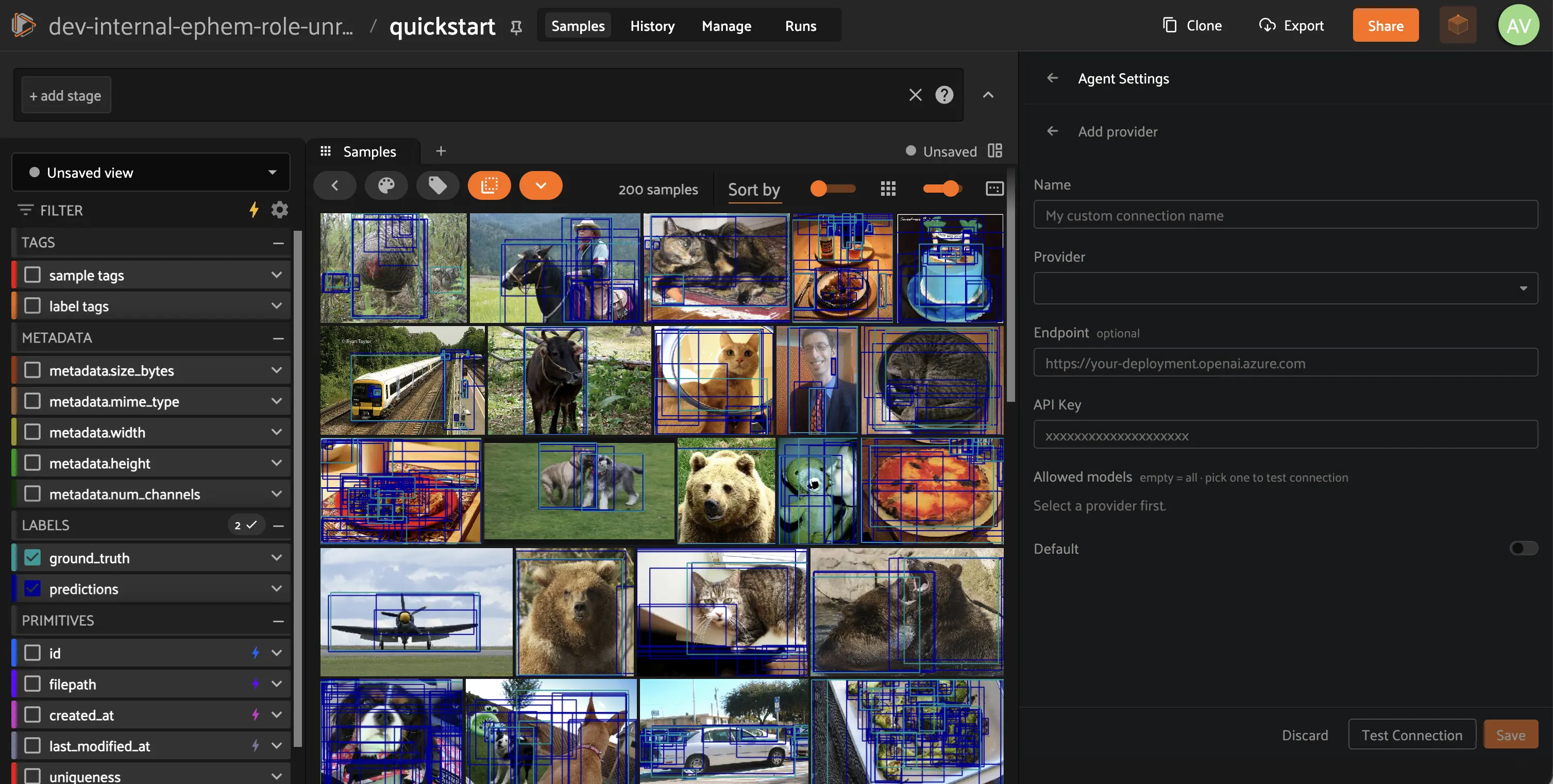
The first time you open the Agent, you will be prompted to configure a model
provider. The Agent supports over 100 providers, including Anthropic, OpenAI,
Google, and more.
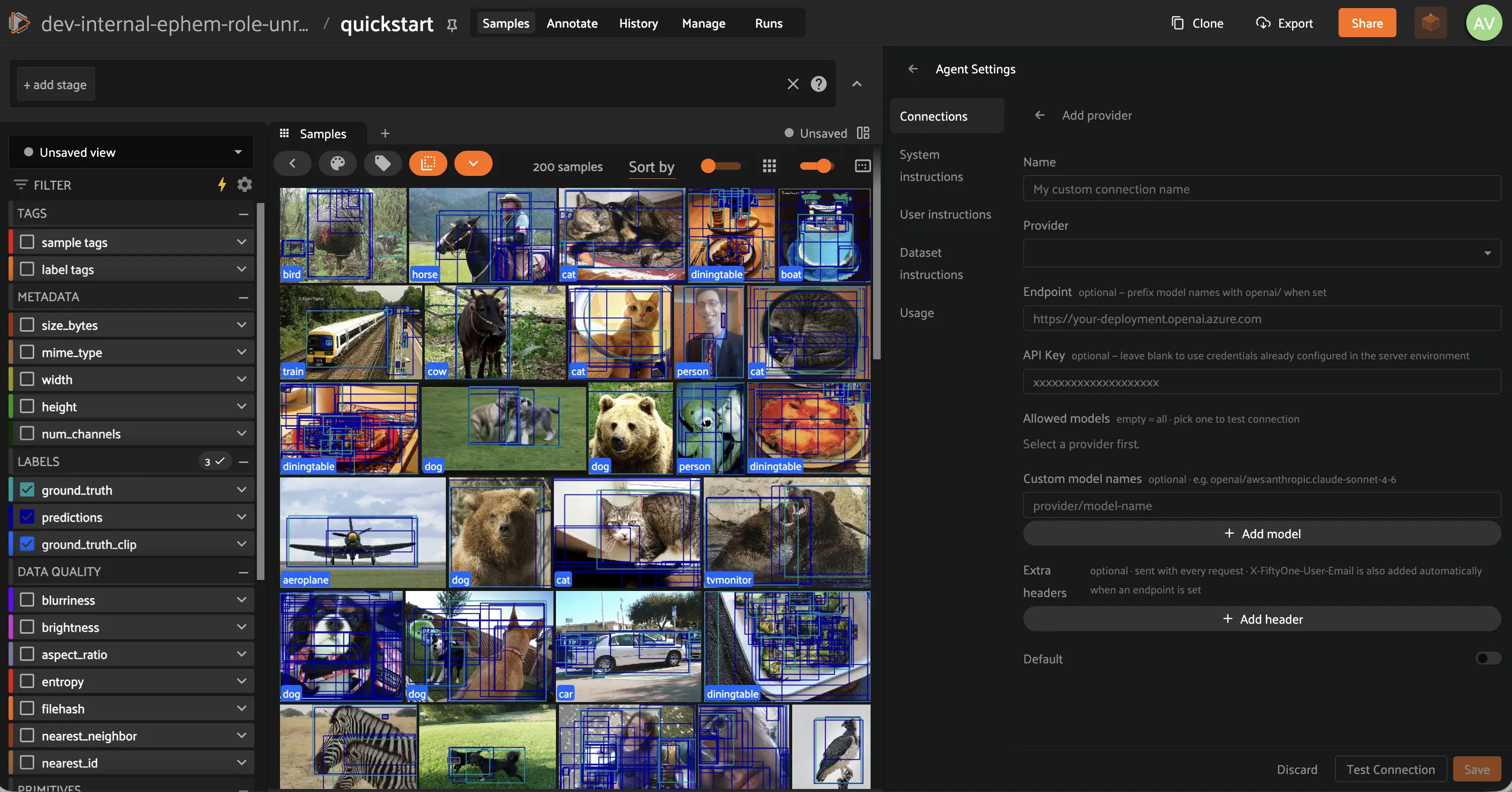
To add a provider, fill in the following fields:
- **Name**: a label for this provider configuration
- **Provider**: select from the list of supported providers
- **Endpoint** (optional): use this to route requests to a custom URL, such
as an internal enterprise gateway or a self-hosted model server
- **API key**: your provider’s API key
- **Models**: select one or more models to make available
- **Custom model names** (optional): enter model identifiers that are not in
the standard picker, such as non-standard IDs used by an enterprise gateway.
Prefix with the provider slug (e.g. `openai/my-model-id`) to ensure
correct routing when the model name alone is ambiguous
- **Extra headers** (optional): static key-value HTTP headers sent with every
request (e.g. `User-Agent`, project tokens required by your gateway)
You can click **Test connection** to verify your credentials before saving.
To choose which model new users start with, use the **Default model** picker
at the top of the Connections list.
#### NOTE
API keys are automatically stored securely using FiftyOne
Enterprise’s [Secrets](secrets.md#enterprise-secrets) infrastructure. No
manual secret configuration is required.
## Permissions
Any user who can view a dataset can chat with the Agent and ask it to take
action on that dataset. A few capabilities require additional permissions:
- **Managing connections** (adding, editing, or removing a model provider,
or changing the default model) requires the Admin role.
- **Generating and testing plugins** with the Agent requires the Admin role.
- **Generating and executing SDK code** with the Agent requires a role with
API key access enabled. See [Roles and permissions](roles_and_permissions.md#enterprise-roles) for which roles support this by default and how to
change it.
## Custom endpoints and enterprise gateways
If your organization routes LLM traffic through an internal gateway or proxy,
you can point the Agent at it using the **Endpoint** and **Extra headers**
fields on any provider configuration.
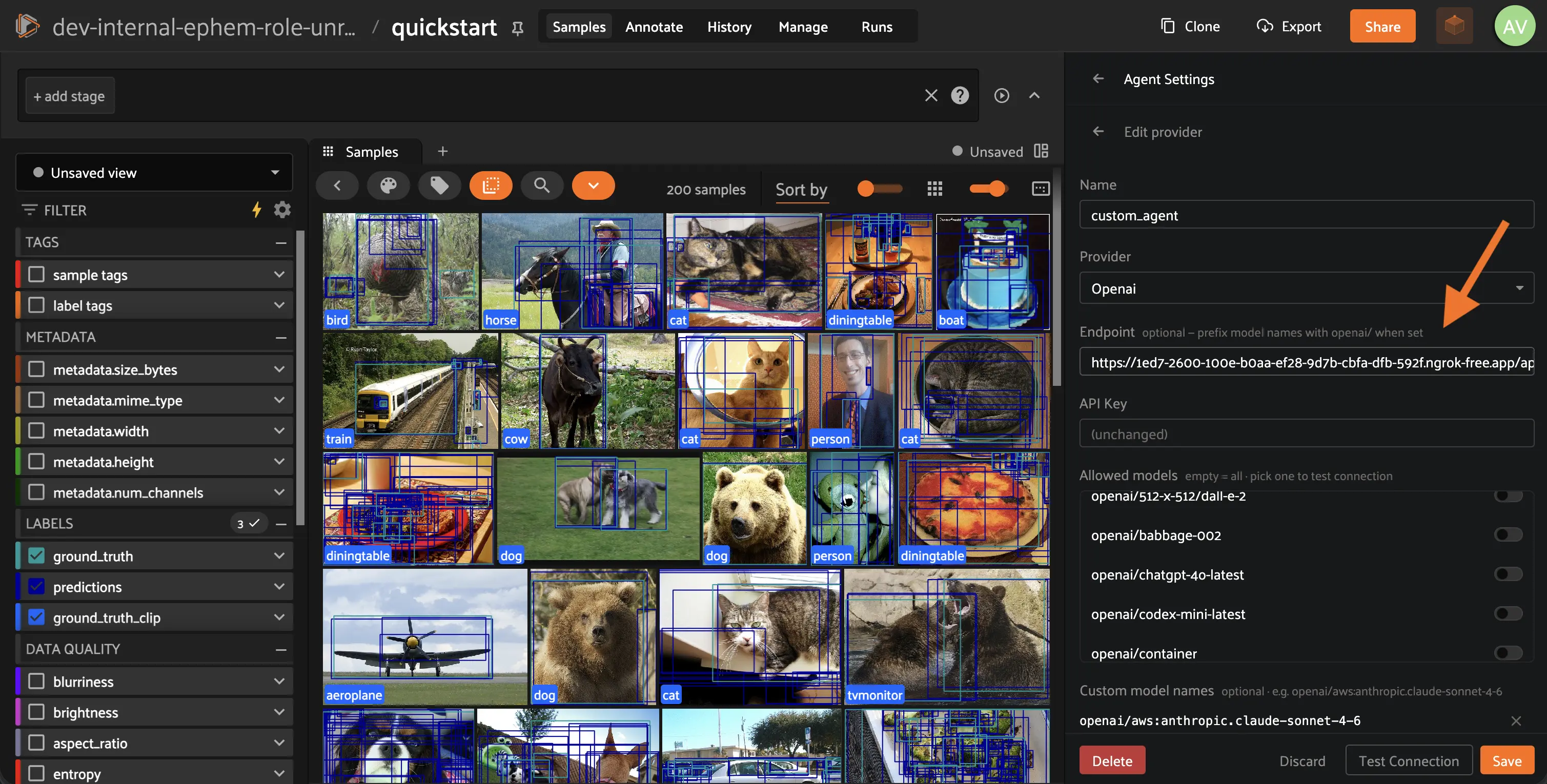
**Provider, match the API format, not the model brand**
The **Provider** field controls the request format the Agent uses, not which
model it calls. Set it to match what your gateway expects:
- If your gateway exposes an OpenAI-compatible API (`/chat/completions`),
select `openai`, even if the underlying model is Claude or Gemini
- If your gateway exposes the Anthropic Messages API (`/v1/messages`)
natively, select `anthropic`
**Endpoint, base URL only**
Enter only the base URL of your gateway — do not include the API path. The
Agent appends the correct path automatically based on the provider you
selected. For example:
```text
✓ https://gateway.internal/api/openai/v1
✗ https://gateway.internal/api/openai/v1/chat/completions
```
**Model names, always prefix with the provider slug**
Use the model identifier your gateway provides, prefixed with the provider
slug. The prefix prevents the model ID from being misrouted to a cloud
provider instead of your gateway, and is stripped before the name is sent:
```text
openai/your-model-id
anthropic/your-model-id
```
This is especially important when your gateway returns model IDs that start
with a vendor name (e.g. `anthropic.claude-sonnet`). Without the prefix,
those IDs may be misrouted to a cloud provider instead of your gateway.
Use **Test connection** to verify the full configuration works before saving.
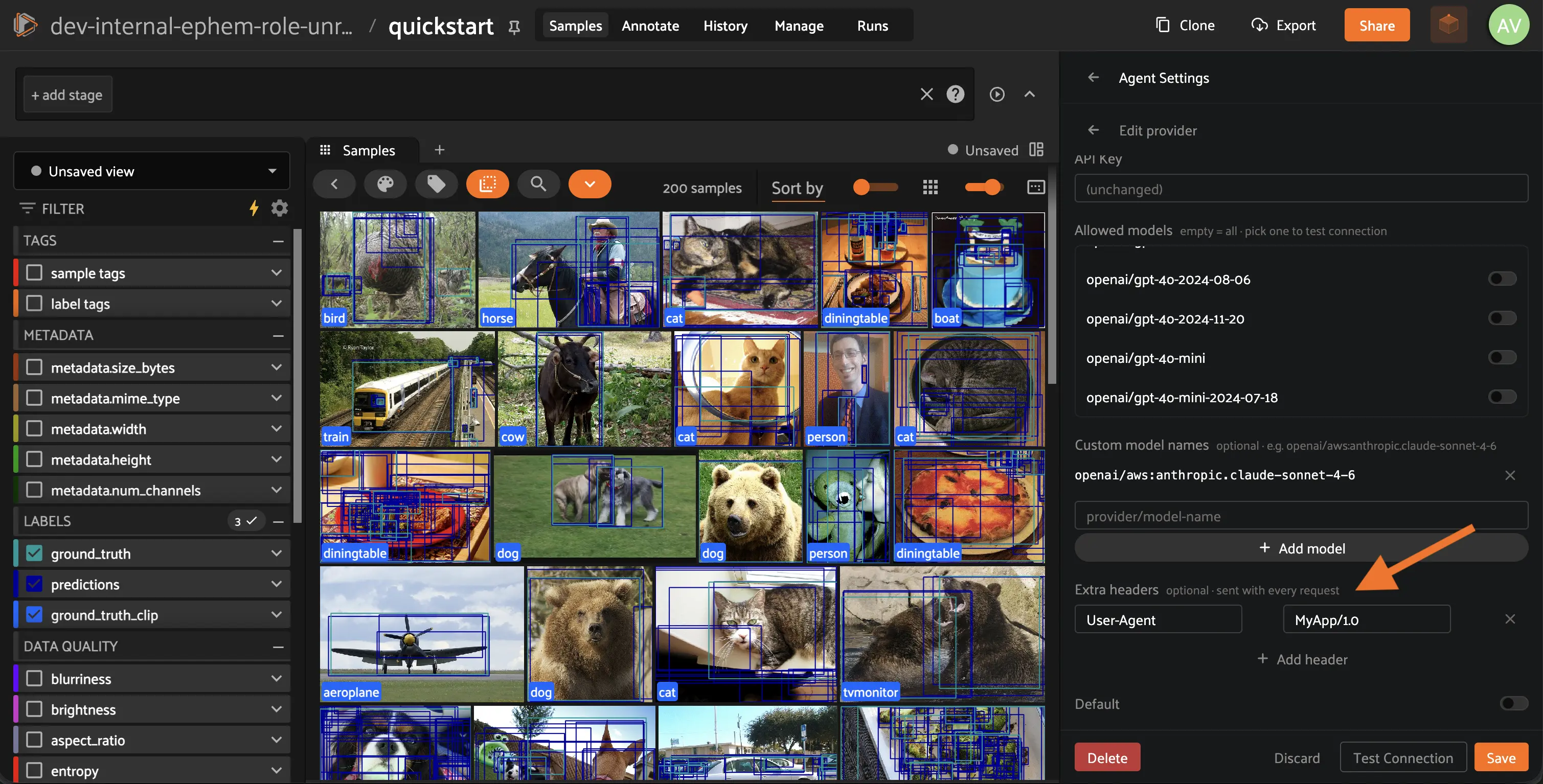
Use **Extra headers** for any additional authentication or routing headers your
gateway requires, such as project tokens or custom `User-Agent` values.
**Per-user attribution**
When a custom endpoint is configured, the Agent automatically adds an
`X-FiftyOne-User-Email` header to every request containing the email address
of the currently logged-in user. Gateways can use this header to attribute
requests to individual users rather than a shared system account, which is
useful for enforcing per-user quotas or audit logging.
#### NOTE
Admins are responsible for ensuring that the configured endpoint’s data
handling and retention align with their organization’s privacy policy.
## Custom instructions
You can give the Agent standing instructions that are automatically included
in every conversation, at three scopes:
- **Organization**: written by an admin, applied to every conversation for
every user in the deployment
- **User**: personal instructions that apply only to your own conversations
- **Dataset**: shared instructions that apply to every conversation involving
a specific dataset, for everyone with access to it
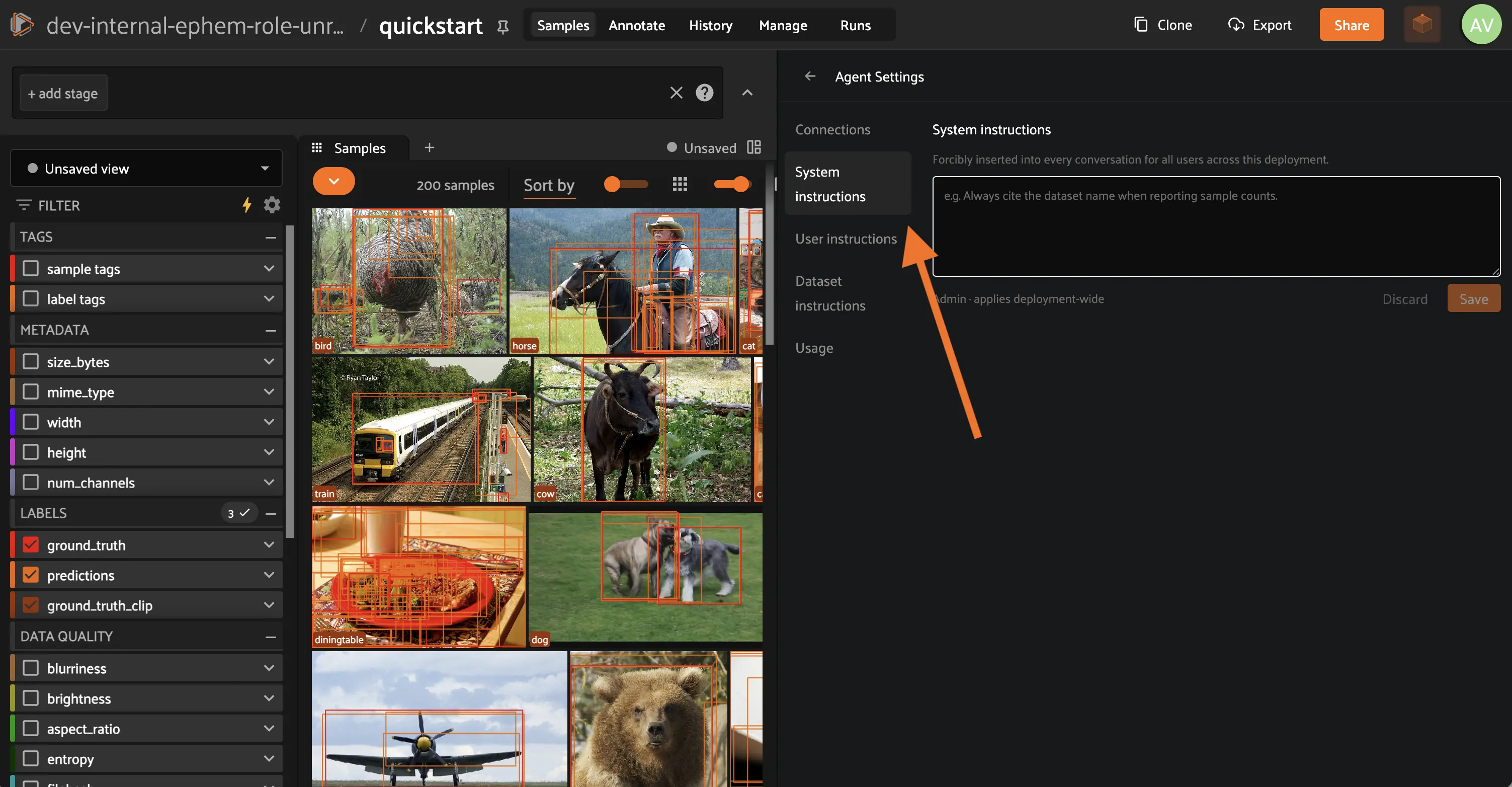
Configure instructions from the Agent’s settings panel.
## Grounding answers in the documentation
The Agent can ground its answers in the live FiftyOne documentation. Before
answering a question about the SDK, an operator, or an API, it searches a
knowledge base that stays continuously in sync with the docs, so answers
reflect the current release and cite the sources they came from.
This is powered by a [Kapa](https://www.kapa.ai) knowledge base hosted by
Voxel51. To enable it, set the `KAPA_API_KEY` secret in your deployment.
Your customer success contact can provide the key.
```shell
export KAPA_API_KEY=...
```
The lookup is optional, and the Agent works without it. We strongly recommend
enabling it: without the key, FiftyOne questions are answered from the model’s
general knowledge, which is not tied to your version and drifts as the product
evolves.
#### NOTE
No dataset content is sent to the knowledge base. Only the search query
the Agent formulates is transmitted.
## Using the agent
Once a provider is configured, you can start a conversation with the Agent.
Type any task in plain language and the Agent will execute it against your
dataset.
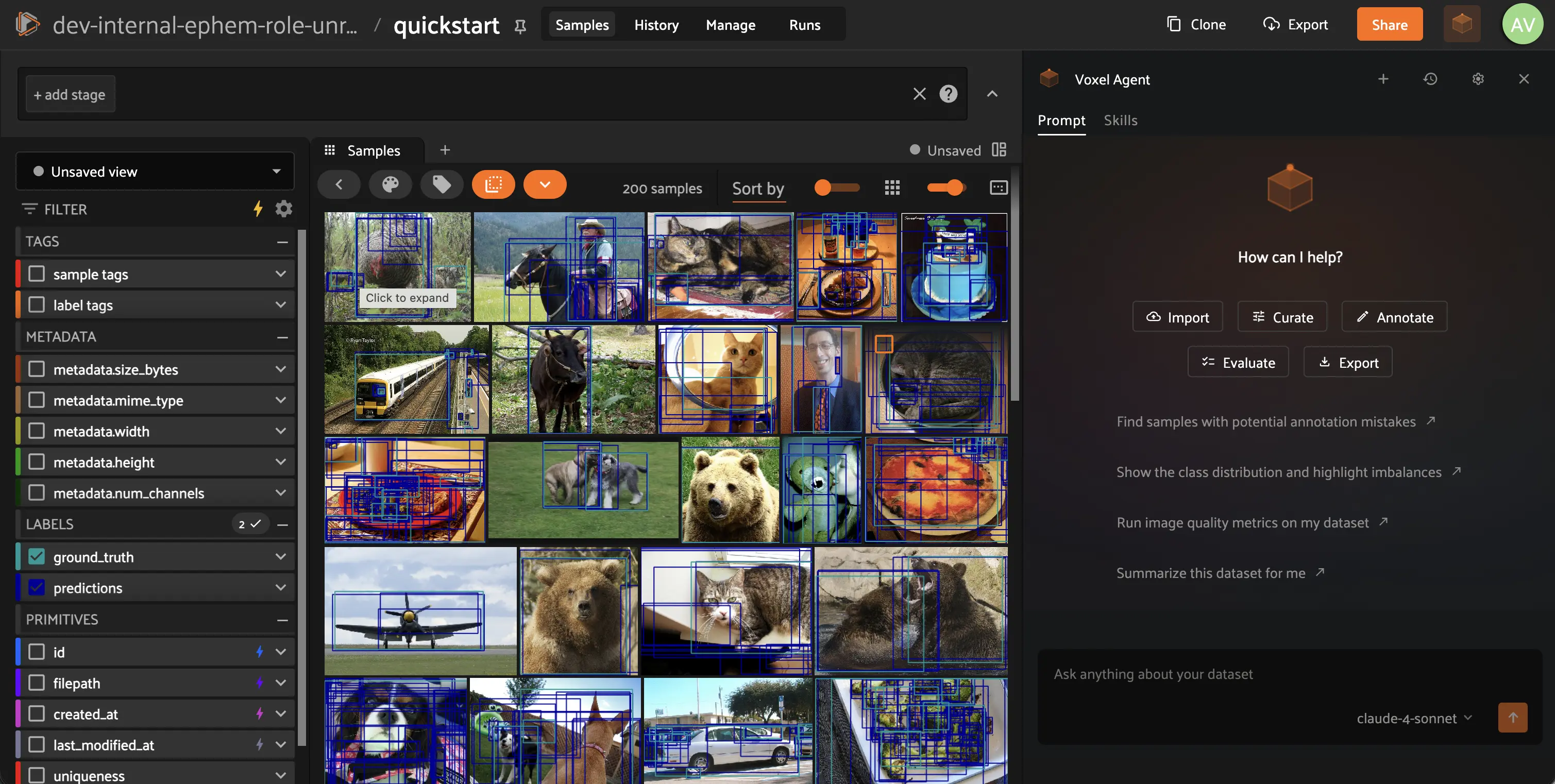
Some examples of what you can ask:
- *“Find and remove duplicate images from this dataset”*
- *“Run object detection and show me low-confidence predictions”*
- *“Export this dataset to COCO format”*
To start a new conversation, click the **+** button.
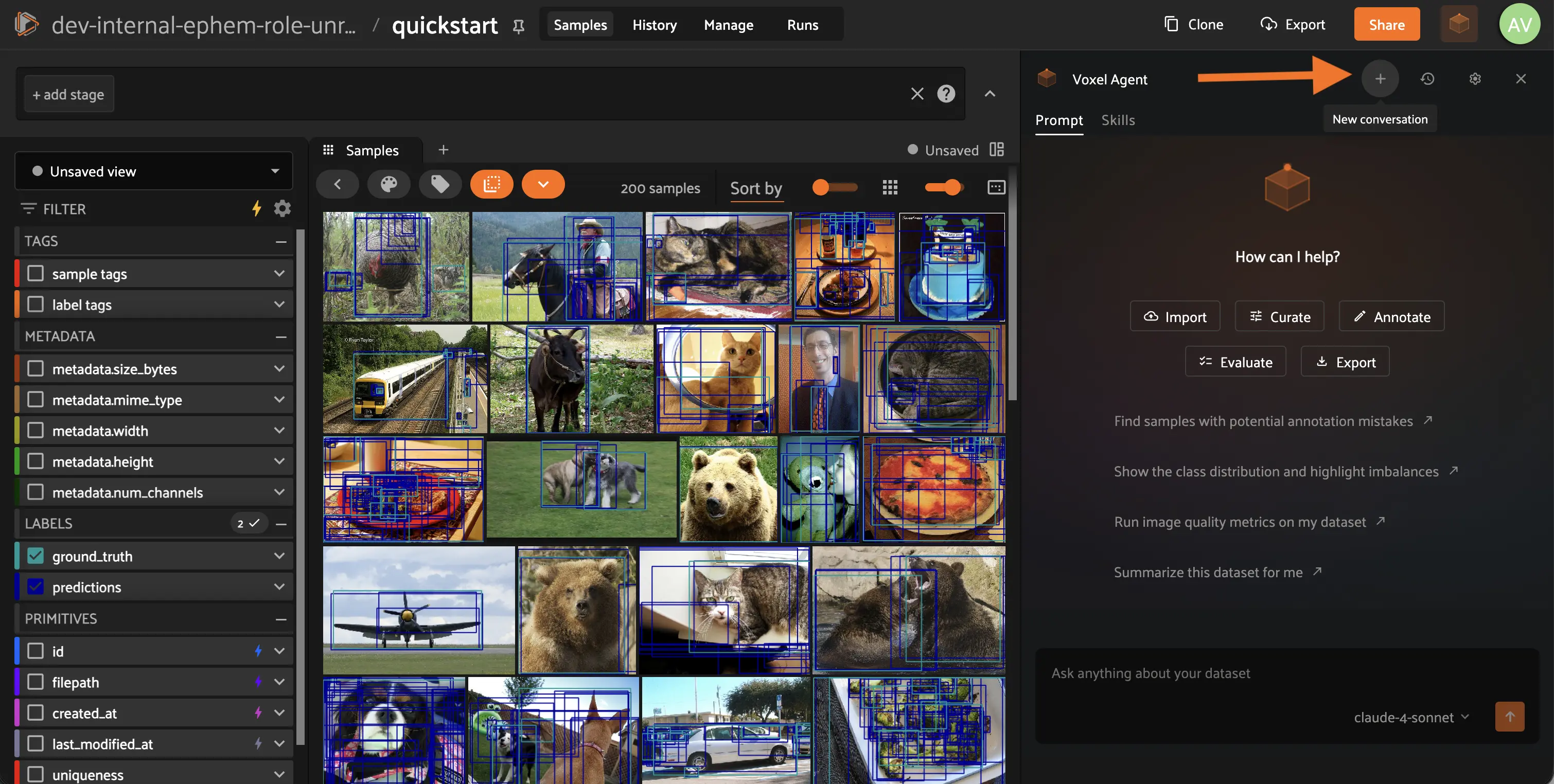
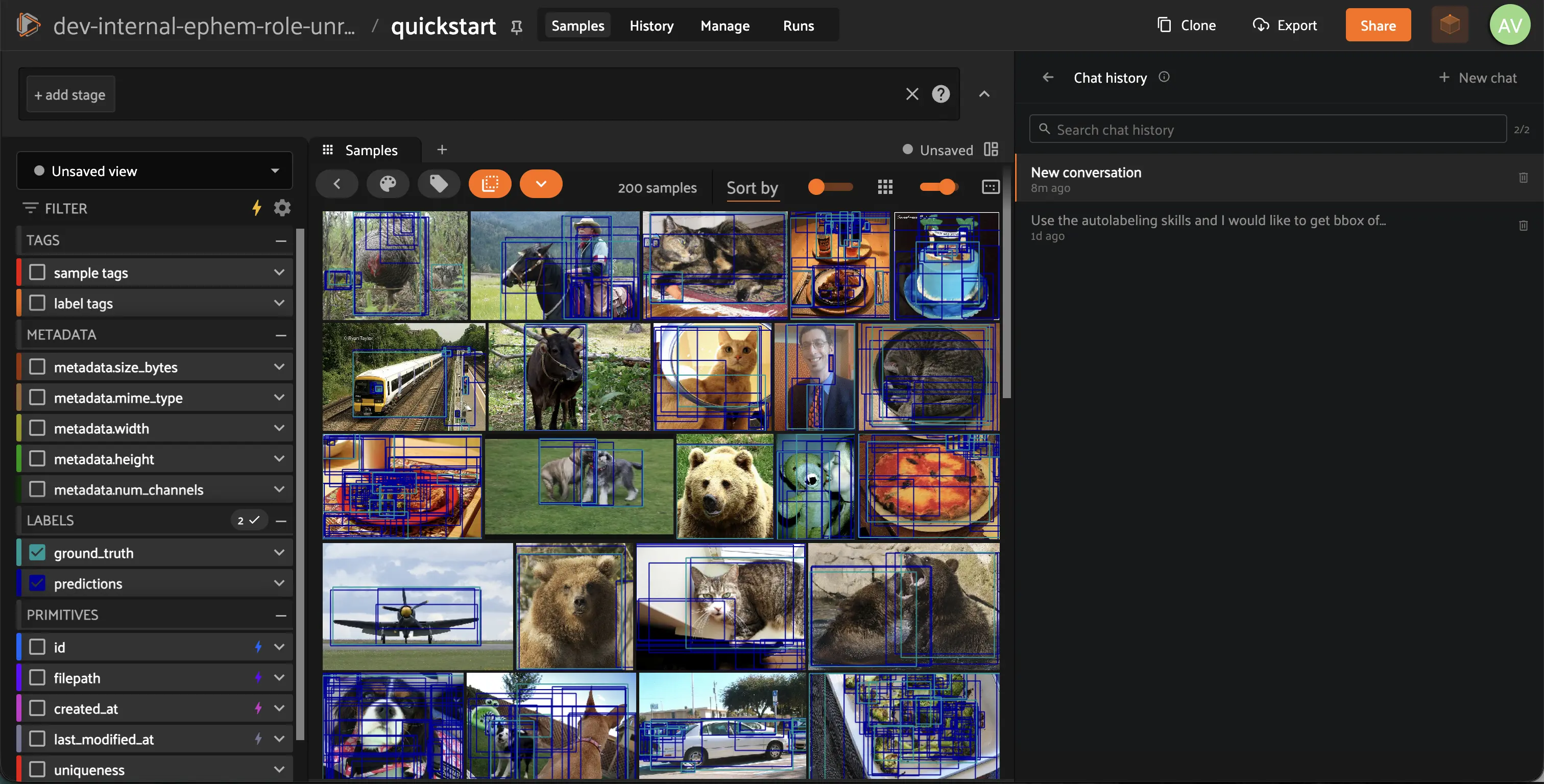
To return to a previous conversation, click **History**.
## Asking about the current App state
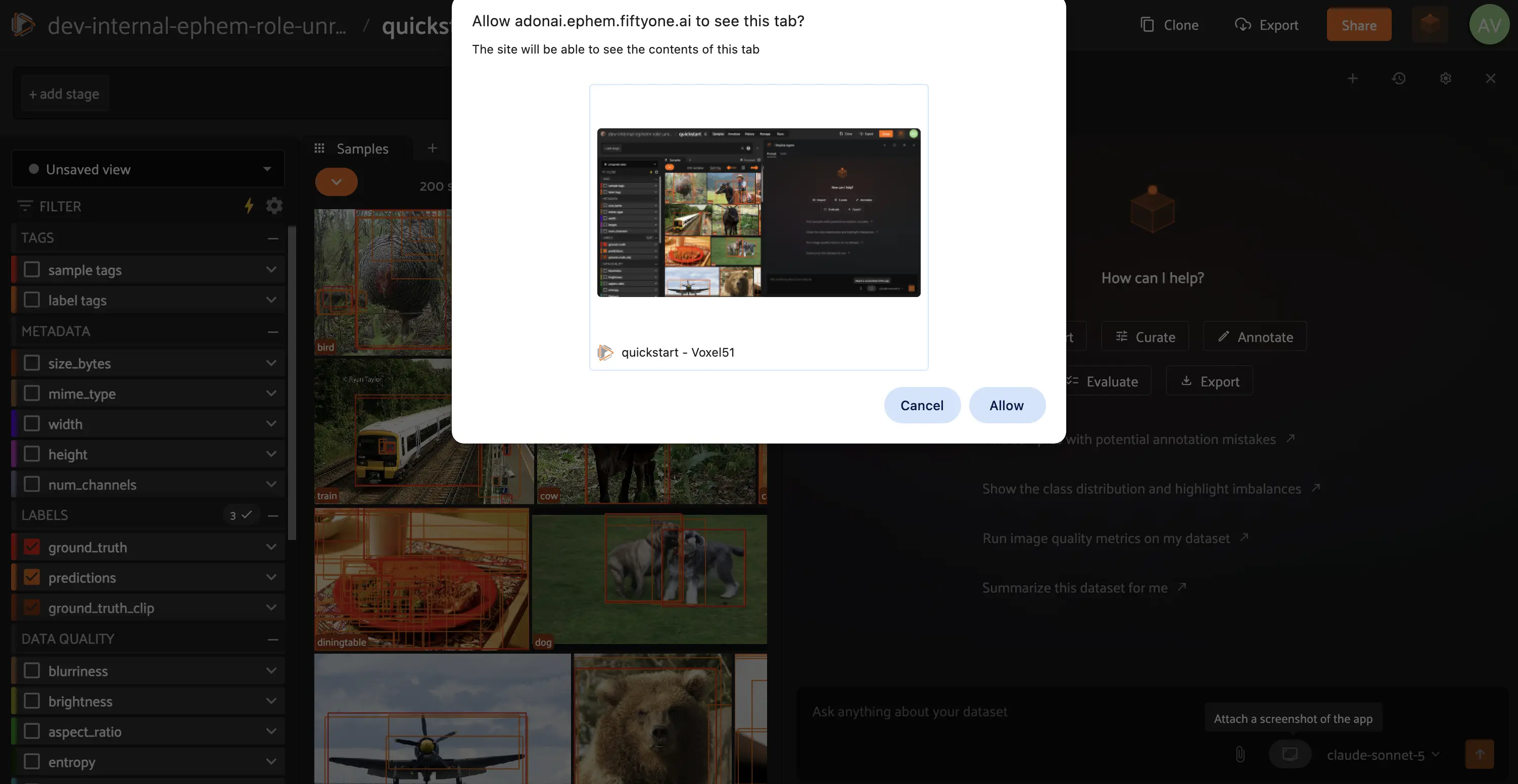
Click the screenshot icon next to the attach icon in the message box to
capture what’s currently on screen and attach it to your next message.
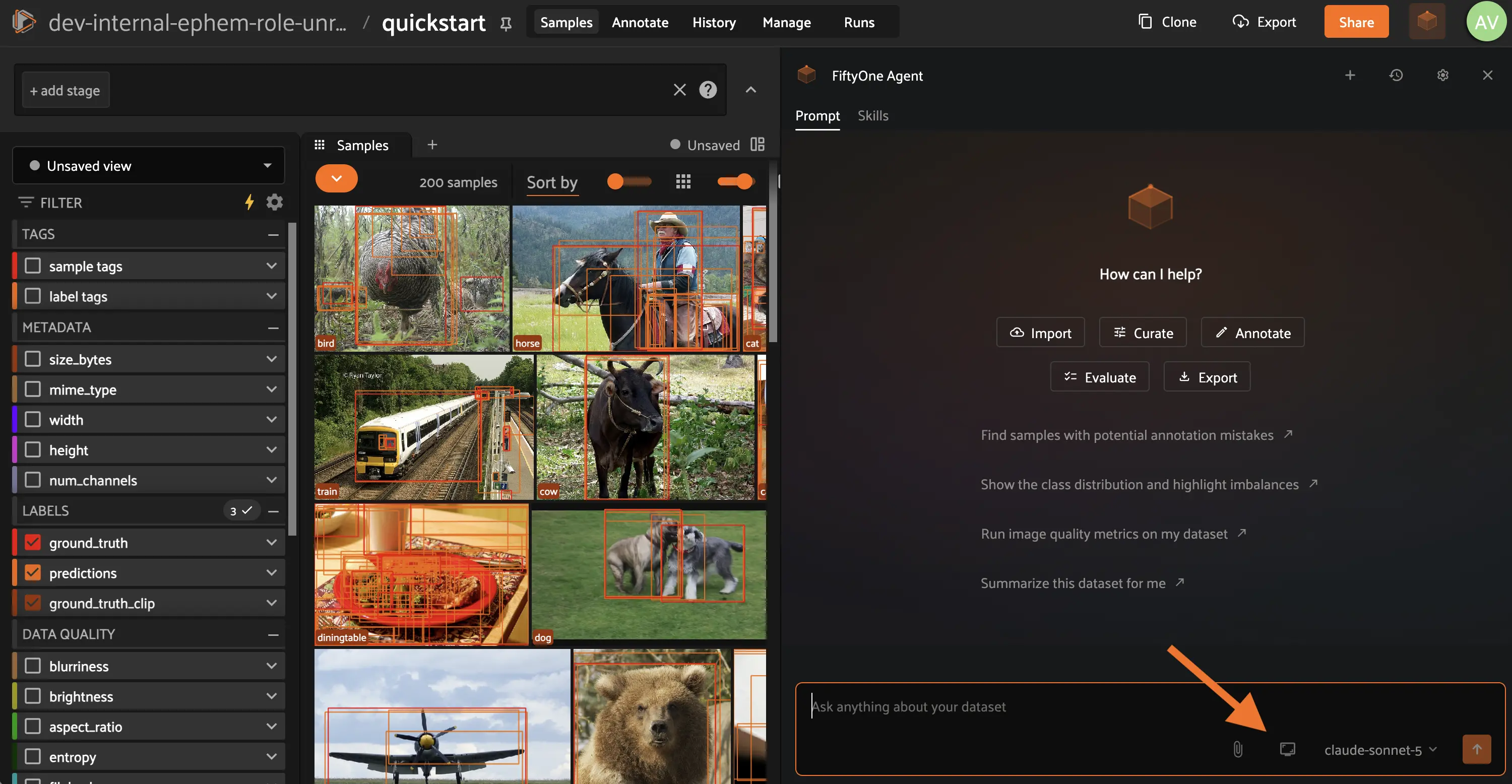
This lets you ask the Agent about exactly what you’re looking at, such as a
specific sample, a plot, or a 3D scene, without describing it in words. Your
browser will prompt you to choose what to share before the screenshot is
attached.
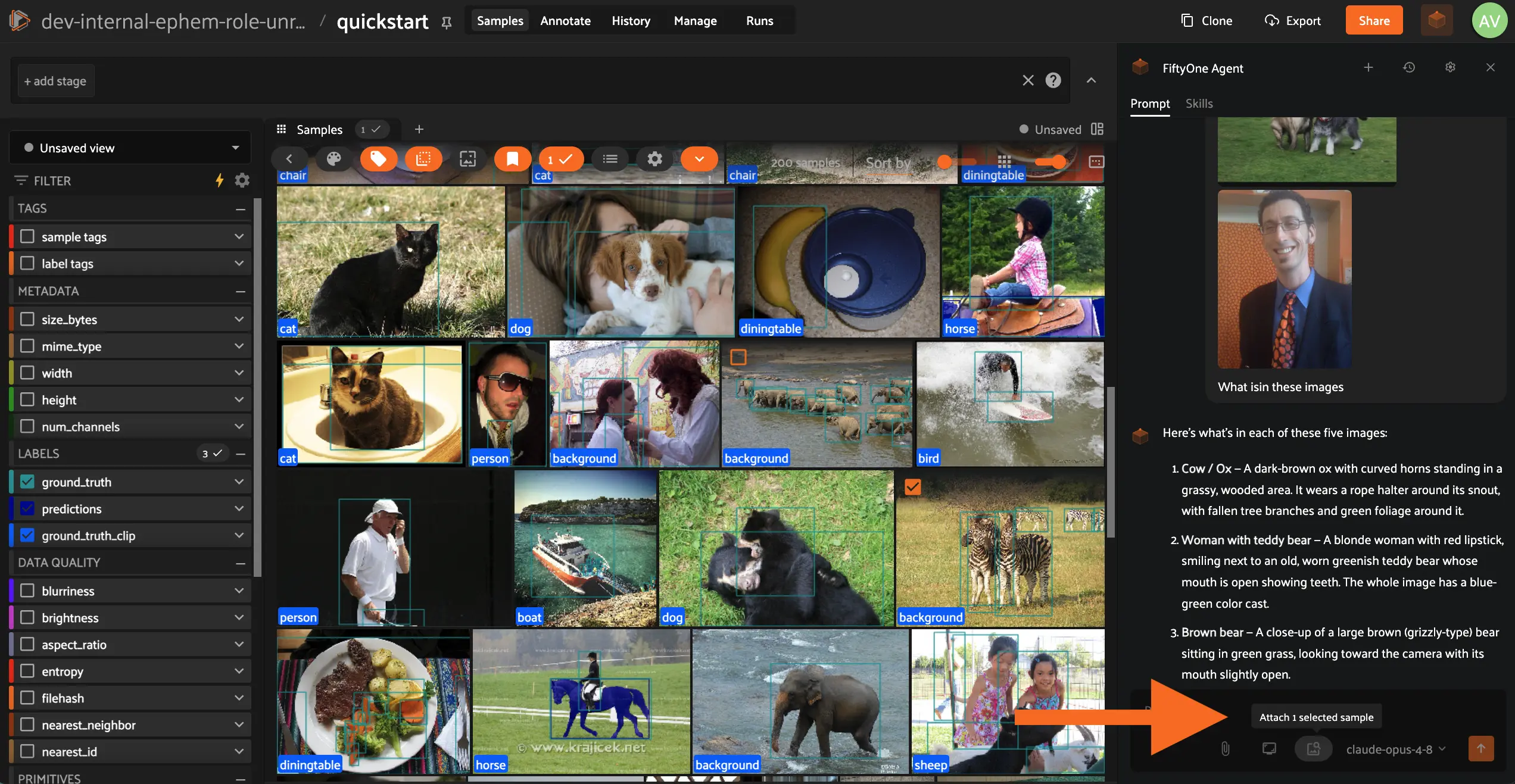
If you select one or more samples in the grid first, an additional icon lets
you attach their images directly, so you can ask the Agent about specific
samples without describing or searching for them in words. Up to 20 samples
can be attached at once; if more are selected, only the first 20 are
attached.
## Returning to a previous view
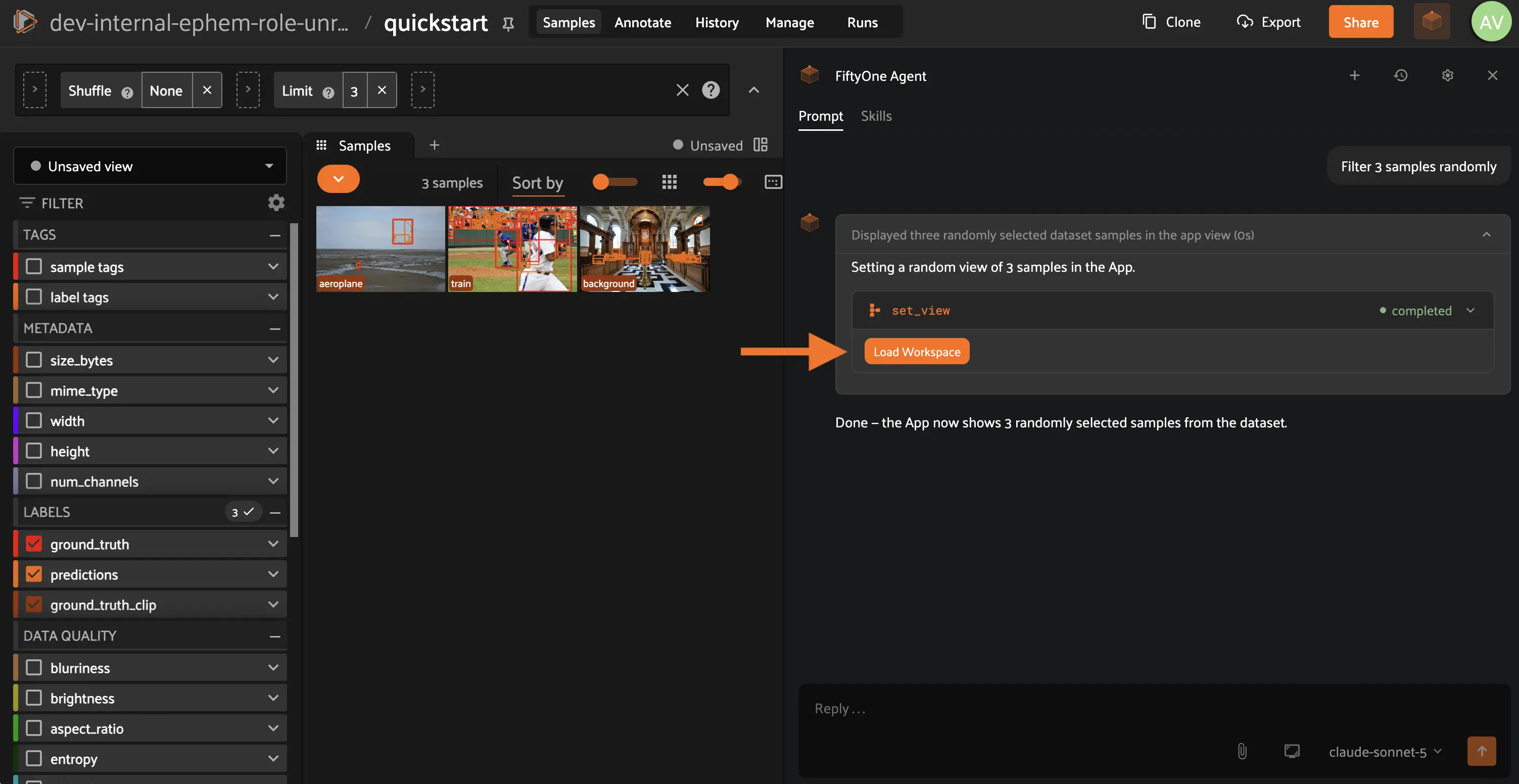
Whenever the Agent changes what you’re looking at, such as applying a
filter, loading a view, or running an operator, that step gets a
**Load Workspace** button. Click it any time, even after navigating away, to
instantly restore the App to that exact state.
## Tracking delegated operations
When the Agent runs a long-running task as a [delegated operation](plugins.md#enterprise-delegated-operations), it appears in a tray showing how many are
queued, running, completed, and failed, so you can keep chatting while it
runs in the background.
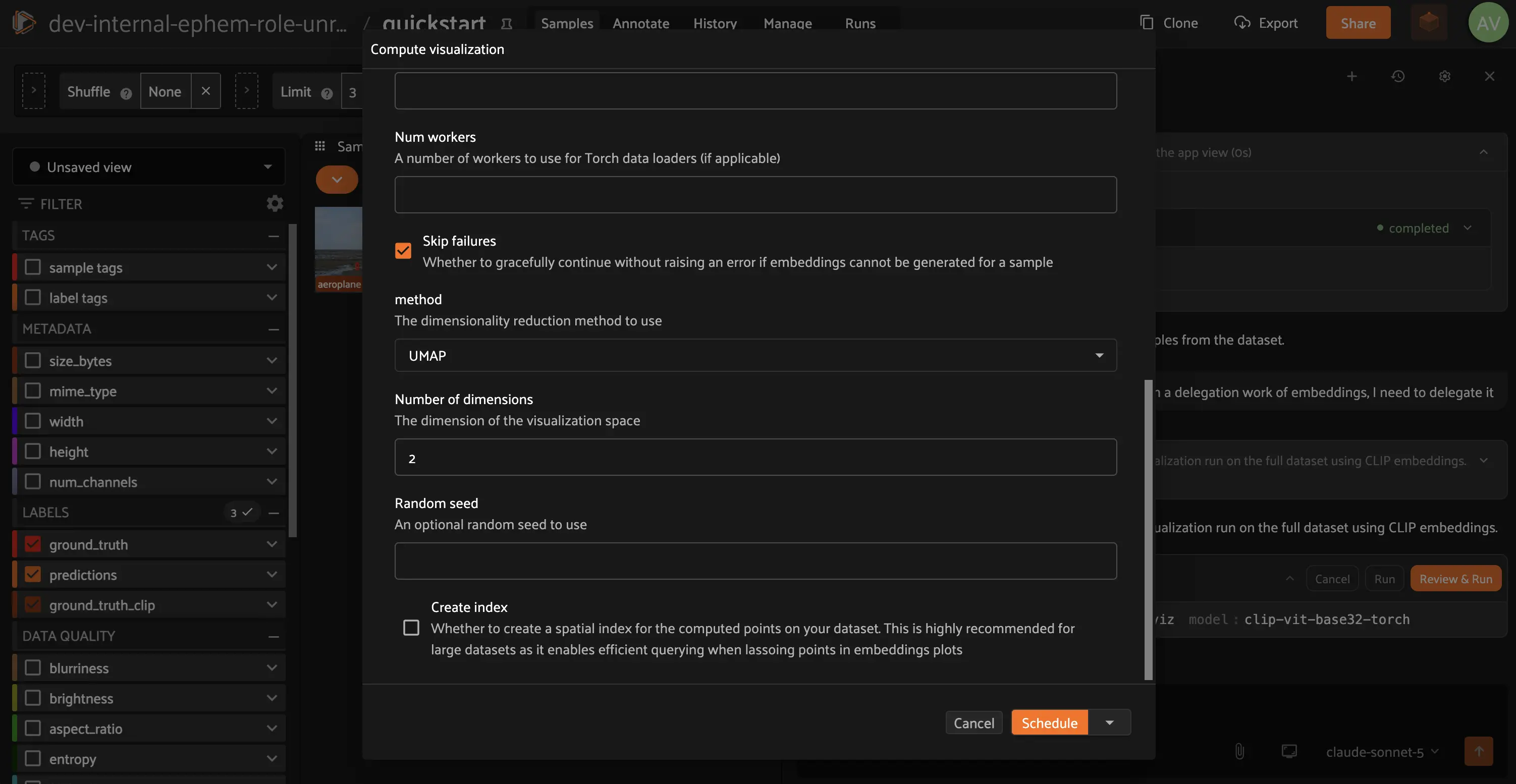
Click a job in the tray to see its own progress and details.
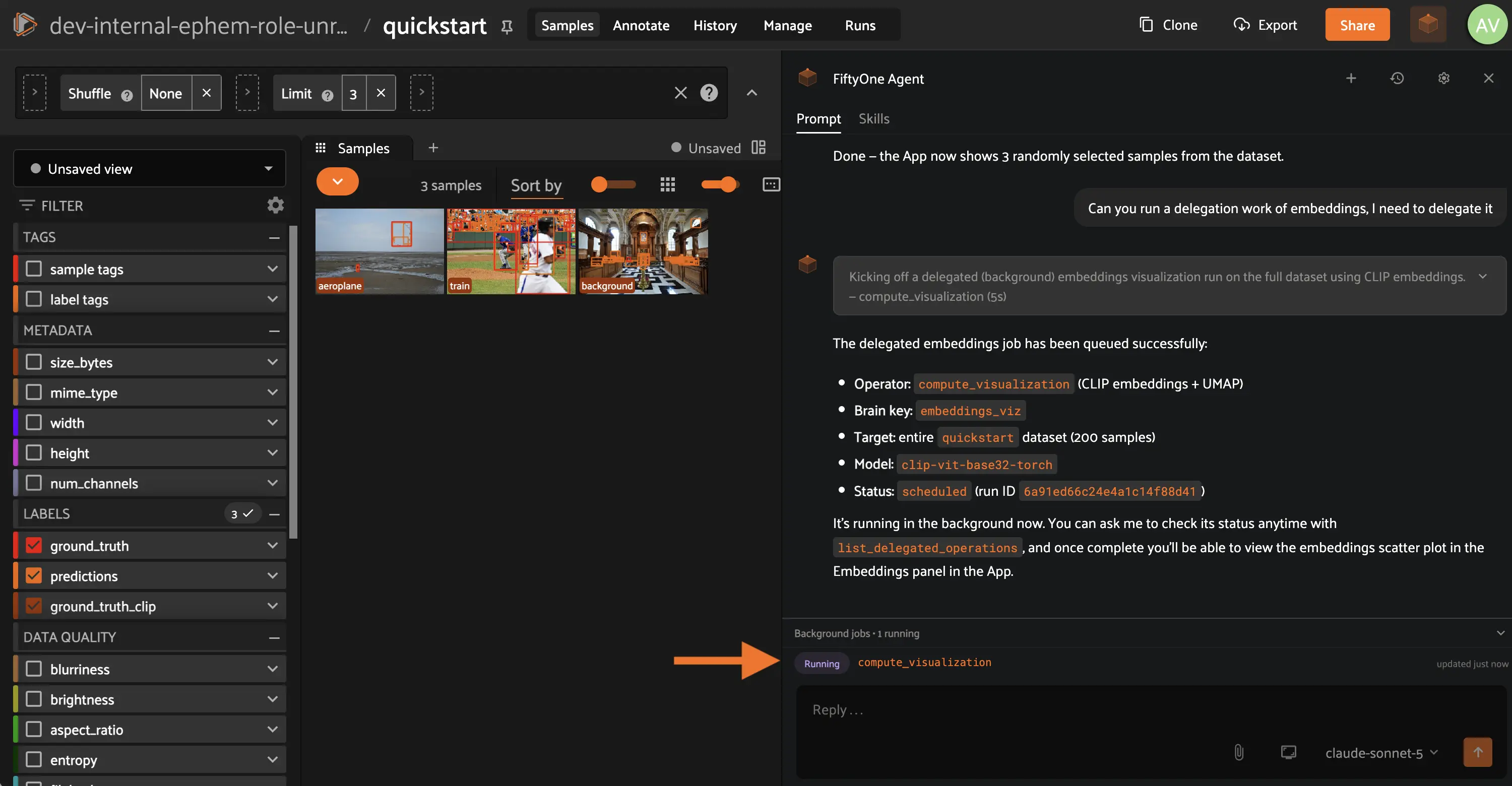
## Usage
The Agent’s settings panel includes a Usage tab showing your own token and
request counts for the current period. Admins additionally see usage totals
for the entire organization.
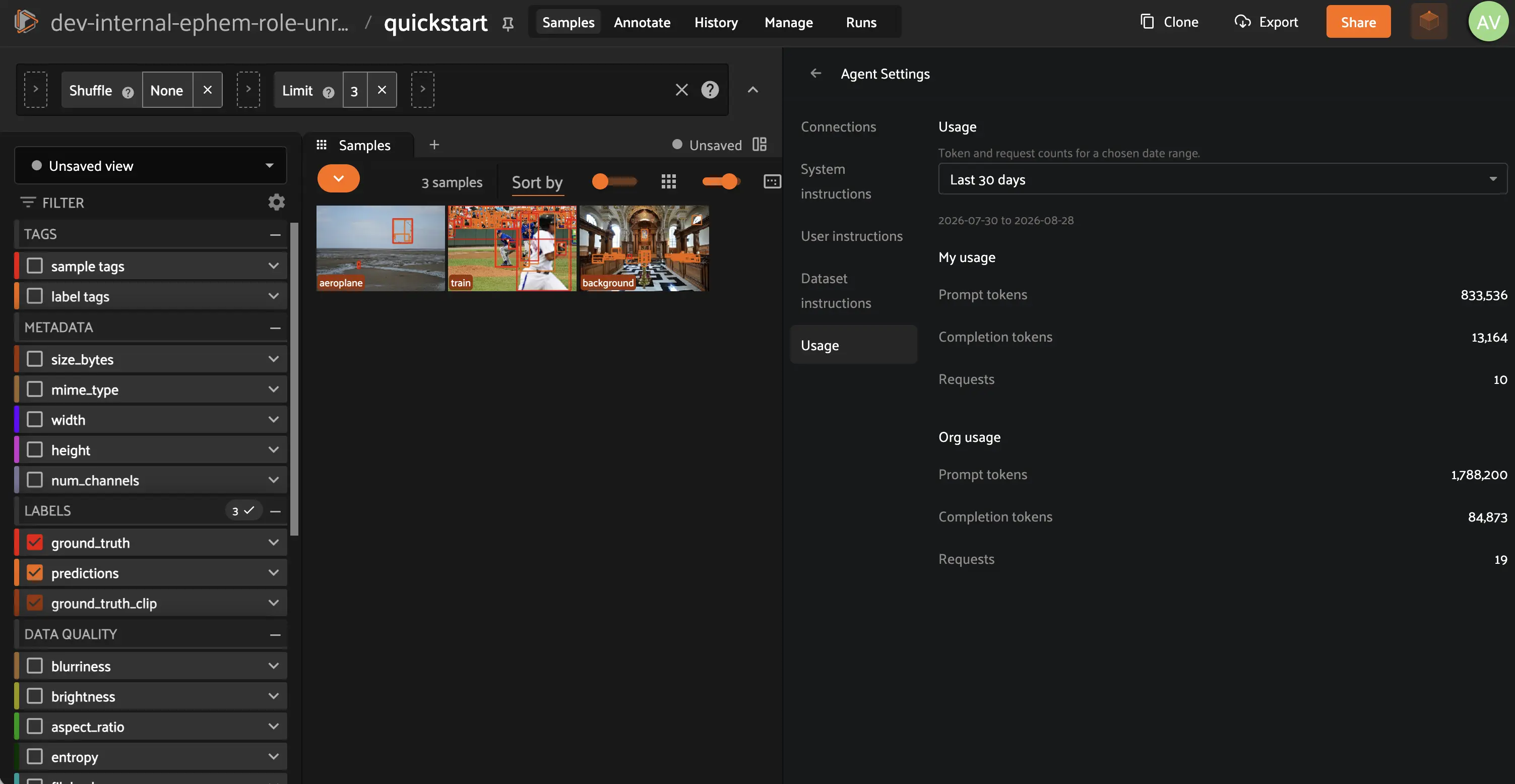
## Skills
The Agent ships with a set of built-in skills that cover the most common
computer vision workflows. Skills are structured instructions that tell the
agent exactly how to perform a task, step by step.
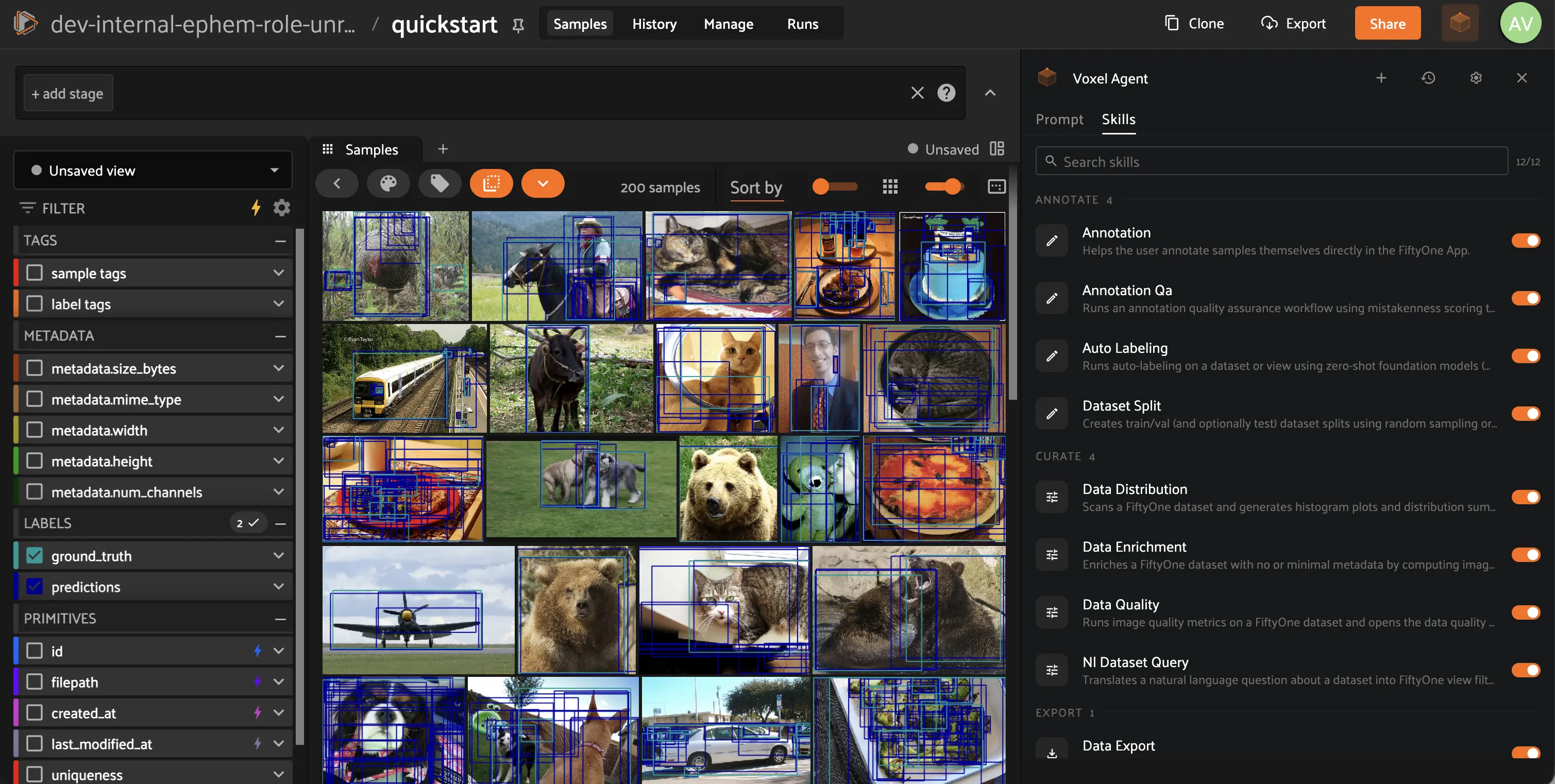
Open any skill to read its full definition: the description that tells the
Agent when to use it, and the step-by-step instructions it follows. Built-in
skills are read-only, so you can always see exactly what the Agent was told
to do.
Use the toggle on each skill to control which ones the Agent may use. Turning
a skill off removes it from the Agent’s options without deleting anything.
## Creating and editing skills
Admins can extend the Agent with their own skills, directly from the settings
panel. No plugin packaging or deployment step is required.

Click **Create skill** to write a new one. Every skill needs three things:
- **Name**: lowercase and dash-separated, e.g. `triage-blurry-images`
- **Description**: when the Agent should reach for this skill. This is the
only thing the Agent sees when choosing between skills, so write it as
*when to use this*, not *what this is*
- **Instructions**: the workflow itself, in Markdown, covering what to check
first, which operators to call, and the steps to follow
To adapt a built-in skill, open it and click **Duplicate**. This gives you an
editable copy, leaving the original untouched. The copy needs its own name and
its own description: two skills that describe themselves the same way make the
Agent’s choice between them arbitrary.
Once your copy is saved, switch the built-in skill **off** using its toggle.
The Agent then uses your version instead, and you keep the original in place
to turn back on or duplicate again later.
To remove a custom skill for good, open it and click **Delete**. You will be
asked to confirm, and the skill is gone for everyone in the deployment.
Built-in skills cannot be deleted, only switched off.

#### NOTE
Custom skills are stored as a plugin in your deployment, so they can be
downloaded and shared like any other plugin. See
[Writing a skill](../agents/developing_skills.md#developing-skills-authoring) if you would rather
author them as files.
## Asking the Agent to write a skill
You can also ask the Agent to write or improve a skill for you, for example
*“turn the steps we just worked through into a skill”* or *“add a validation
step to my triage skill”*.
The Agent never writes a skill on its own. It proposes the change in a review
card showing exactly what would be added and removed, line by line, against
the current version. Nothing is saved until you click **Approve**, and
rejecting leaves the skill exactly as it was.
Built-in skills stay protected here too: if you ask the Agent to change one,
it will propose a copy instead of modifying the original.